Delay
Pause a workflow path for a defined time before continuing.

Overview
The Delay block pauses the path that enters it for a set duration before continuing to the next block. Use it to space out messages, follow up after onboarding, or stop workflows after a fixed period.
Example: show a product tour today, then send extra tips one week later.
How it works
- The block pauses only the path that passes through it. Other paths in the workflow continue normally.
- Delays are evaluated once per minute. The real delay may be up to 59 seconds longer than configured. If you need precise timing during an interaction, use the Wait step in the Tour block.
- A delay can be set to 0. In that case, users pass through instantly.
- If a user leaves the workflow while waiting, the delay is cancelled and they will not continue.
Billing impact (MTUs)
The Delay block requires tracking users over time and counts as an active block.
A user counts as an MTU:
- When they enter the Delay block
A user is not counted again:
- While waiting in the block
- When exiting the block
Exit nodes
| Node | Description |
|---|---|
completed | Triggered when the delay finishes and the user continues to the connected blocks. |
Examples
Stop a workflow after a week
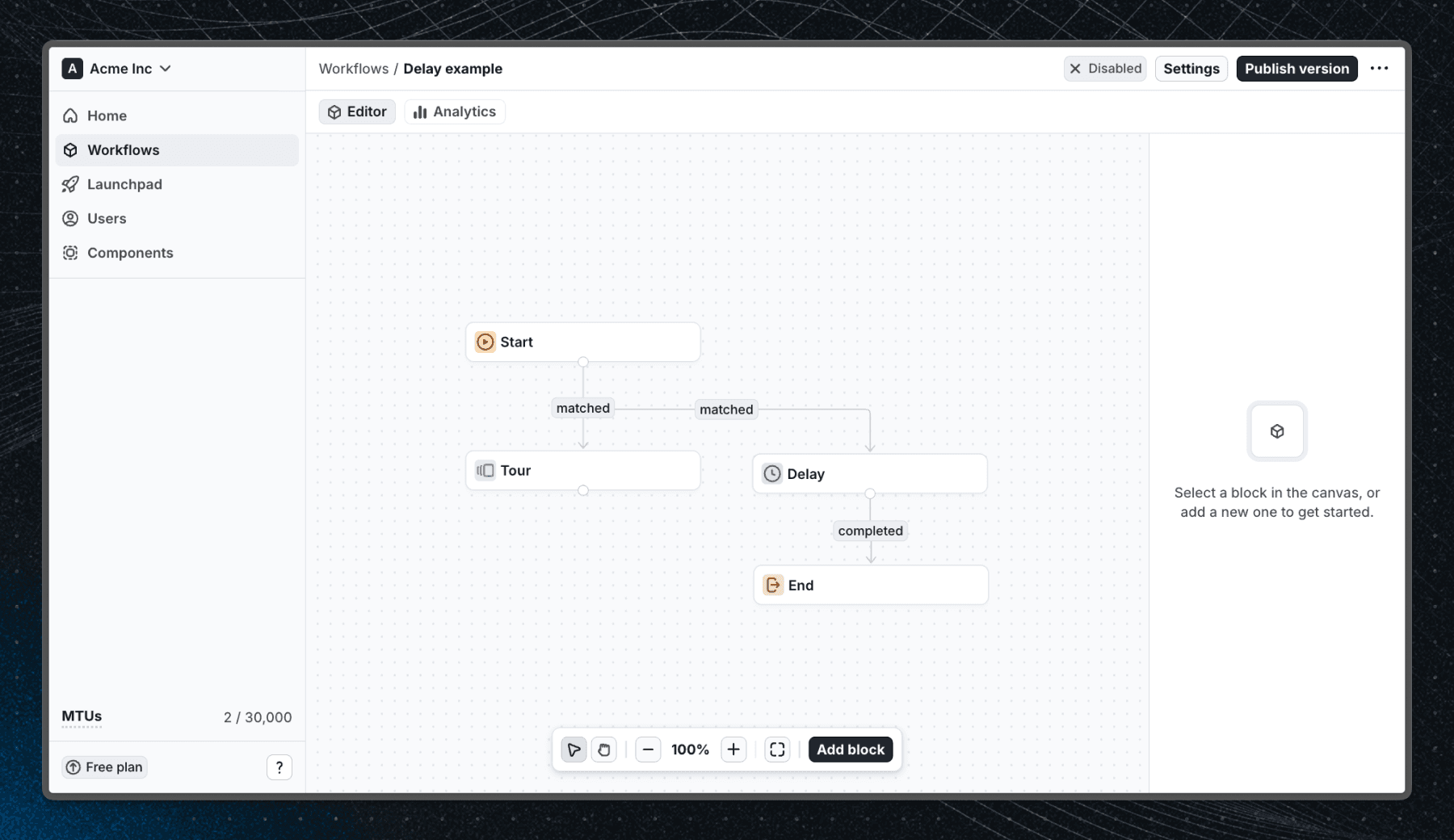
In this example, the user starts a welcome product tour. To prevent them from returning to the tour after a week of inactivity without context, connect a Delay block to the Start block with a 7-day delay, then connect the Delay block to an End block. The workflow will automatically stop 7 days after the user enters it, ensuring outdated or irrelevant content is not shown.
Space out tips over time
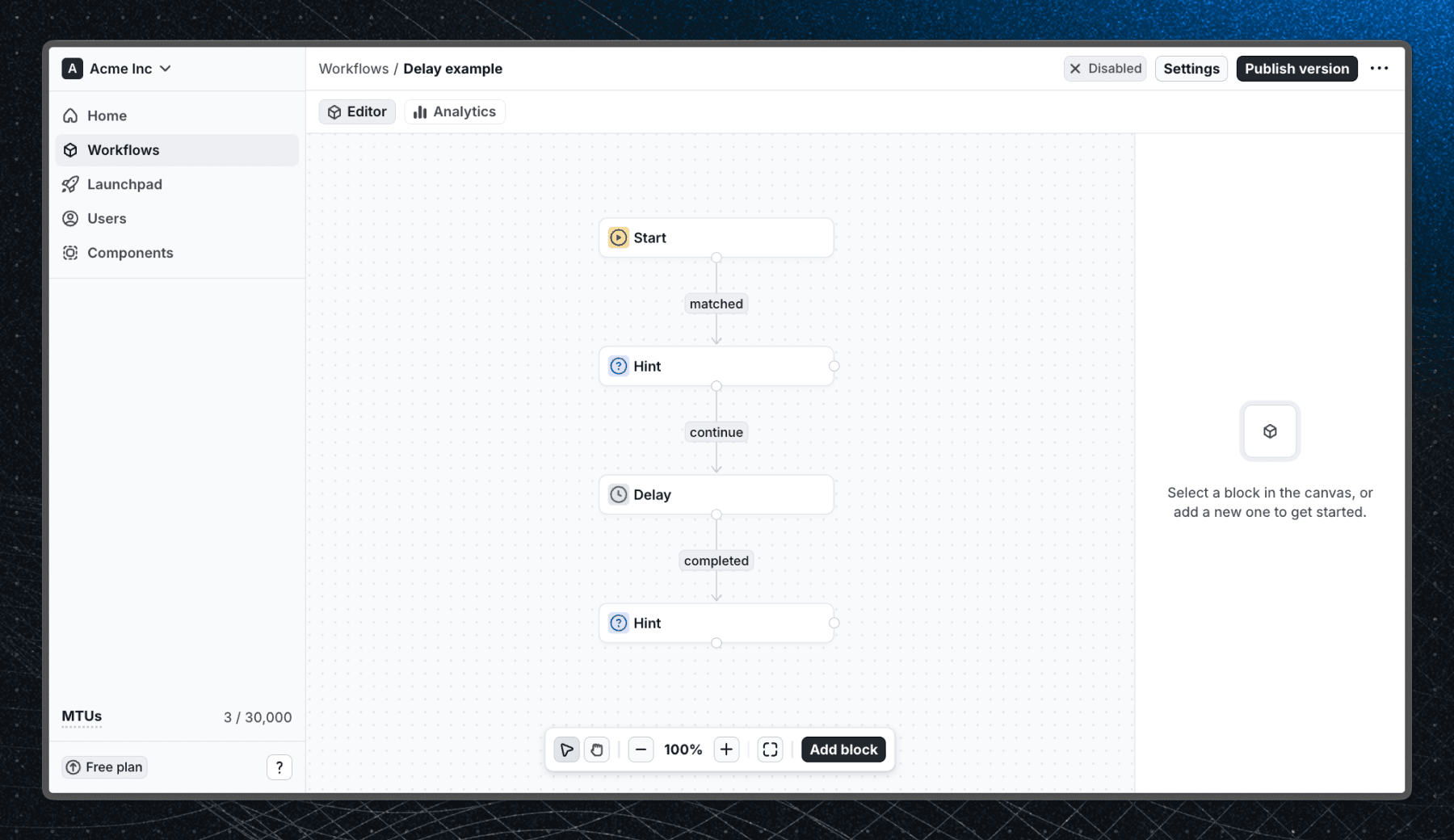
In this example, a user enters a workflow and sees a tip. After they see the tip, they are delayed for 3 days before they see the next tip. This allows you to space out content over time, instead of overwhelming users with too much information at once.
Last updated on