How to target only new users
Learn how to use user property filters in Flows to show workflows only to newly signed-up users.
Product onboarding often needs to target specific user segments. For example, showing welcome tours only to brand-new users. In this guide, you’ll learn how to use user property filters in Flows to show a workflow only to users who recently signed up. This is useful for onboarding checklists, product tours, or any workflow that should only appear for first-time users.
Add a signup date to user properties
To help Flows distinguish between new and existing users, you need to pass the signup date as a user property when initializing the SDK. This property is typically stored in your database (for example, as the user’s createdAt timestamp).
import { FlowsProvider } from "@flows/react";

const App = () => {
  return (
    <FlowsProvider
      organizationId="your-organization-id"
      environment="your-environment"
      userId="your-user-id"
      userProperties={{
        createdAt: "2025-10-14T00:00:00.000Z", // Replace with the user's actual signup date from database
      }}
    >
      {/* Your app code here */}
    </FlowsProvider>
  );
};
Filter users in your workflow
Once the createdAt property is being sent to Flows, open the workflow you want to target new users with. In the workflow editor, select the Start block where you can configure User targeting. Under the User properties section, add a condition that checks if createdAt is greater than a specific date (typically the date when you plan to launch the workflow). This ensures that only users who signed up after that date will enter the workflow.
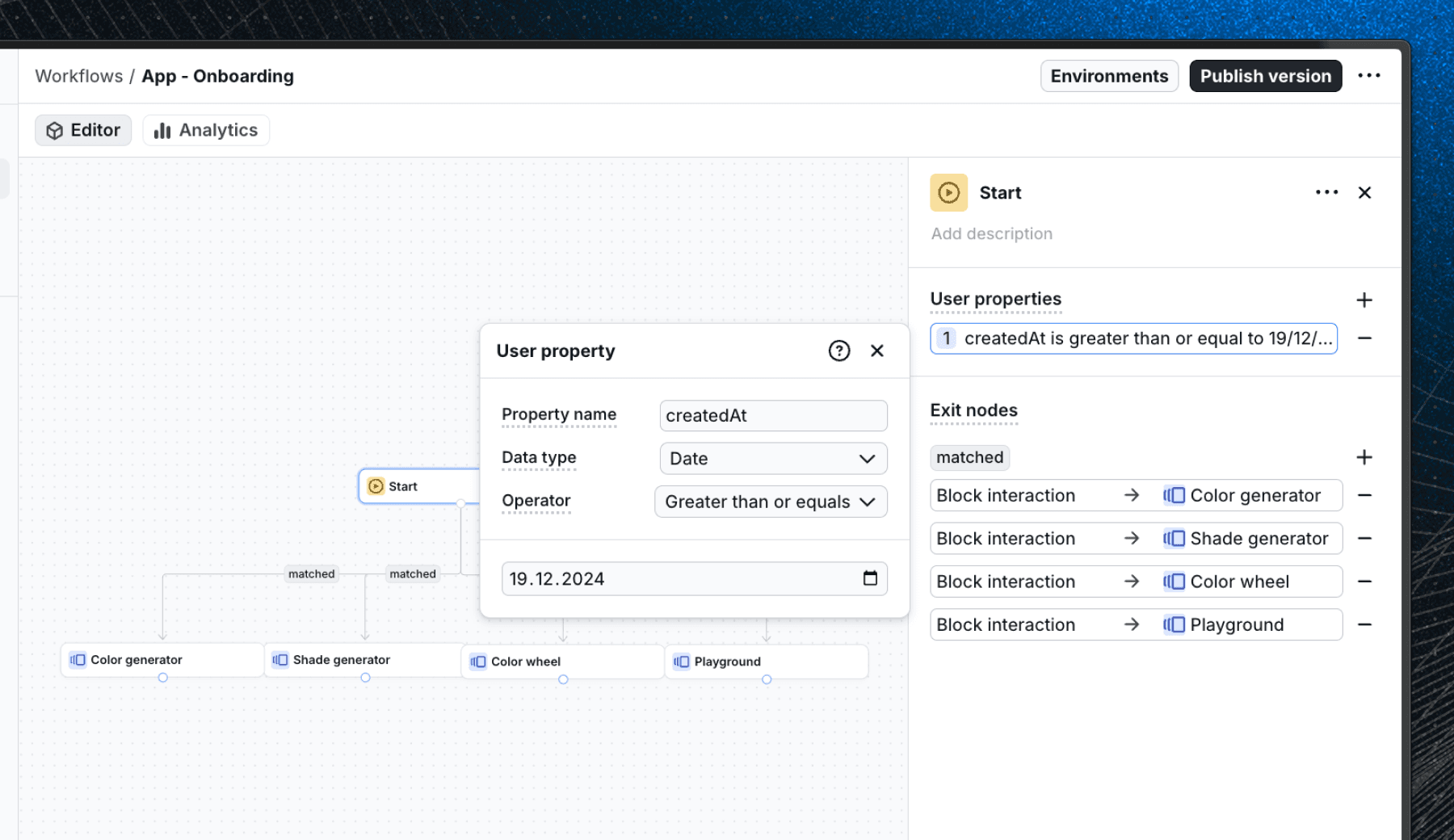
You can combine multiple filters to target even more specific groups. For example, users on a particular plan (plan = pro), users with a specific tag or role, or users who haven’t completed certain actions yet.
Test and publish
Once you’ve configured the filters, publish the workflow to your staging environment and confirm that it behaves as expected. When you are ready, publish the workflow to production, and it will automatically start targeting new users based on the signup date filter.
Don't forget to deploy the updated SDK code so that the createdAt property is being sent for all
users.
Wrapping up
You’ve now configured your workflow to show only to new users by using user property filters in Flows. This approach lets you deliver onboarding or welcome experiences that are relevant to each user segment without adding conditional logic in your application code.
User targeting is a powerful way to make workflows more contextual and effective. You can extend this setup to other scenarios. For example, showing upgrade prompts to users on a free plan or re-engagement flows to users who haven’t been active recently.
Last updated on