How to build a product tour in Angular
A complete guide to building a product tour in Angular. Learn how to create tooltips, modals, onboarding flows, track user progress, and ship tours faster using Flows.
Vojtech Vidra • December 13, 2025
In this guide, you’ll learn how to build a product tour (sometimes called a user onboarding flow or product adoption guide) in your Angular application. Whether you’re using Angular CLI (with or without @angular/ssr), NX, or a custom setup, this guide will take you step by step through building a product tour in your Angular app.
What are product tours?
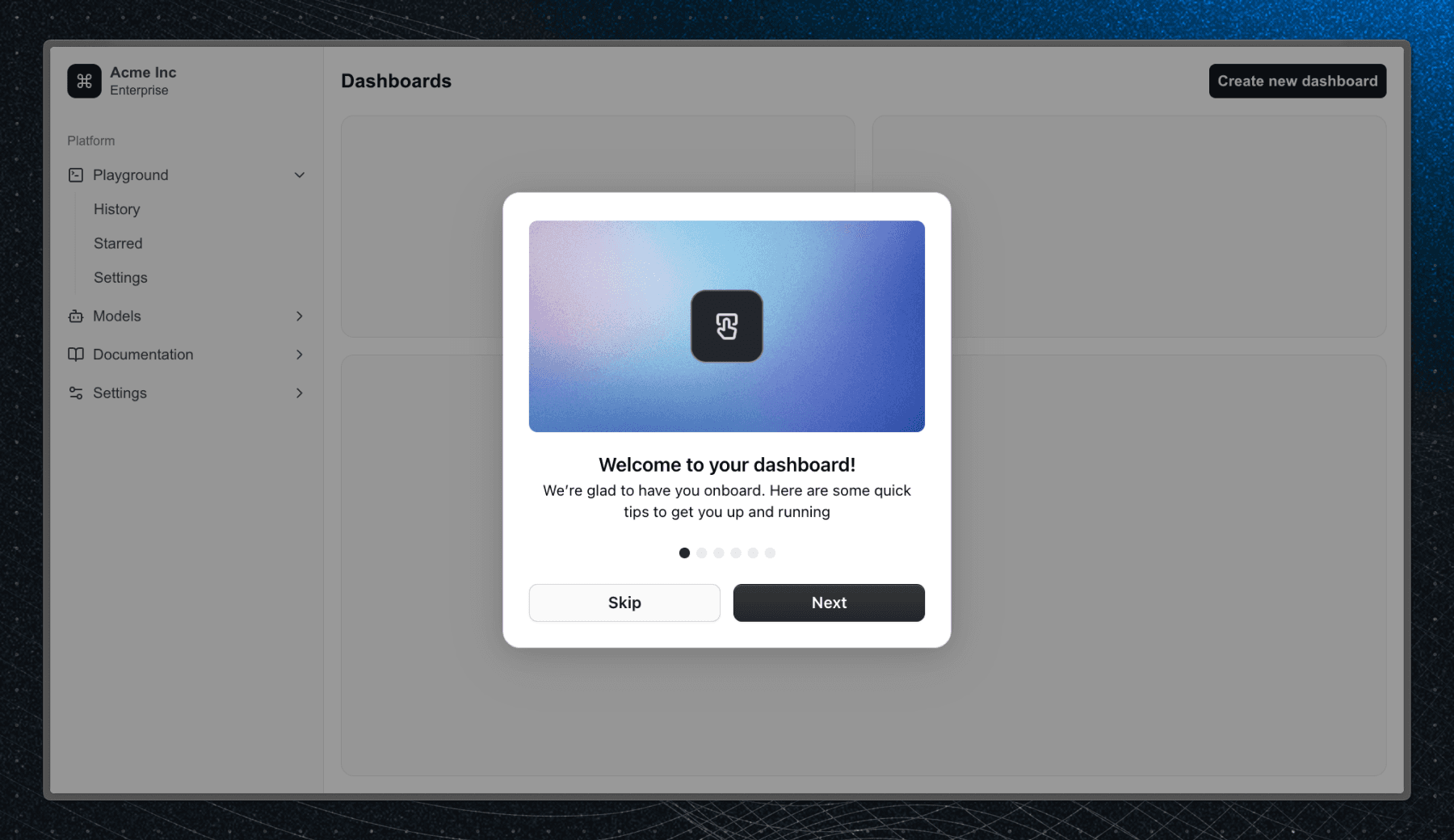
A product tour is a guided in-app experience that helps users get familiar with your product when they first sign up or when new features are released. Typical tour elements include:
- Tooltips highlighting key UI elements
- Modals for step-by-step guidance or announcements
- Hints or hotspots drawing attention to important areas
- Checklists showing onboarding progress
With tours, users can learn your app on their own, cutting down support requests.
Why product tours matter
Teams use product tours to:
- Accelerate new user onboarding
- Announce new features effectively
- Reduce support requests
Well designed tours can improve user activation, engagement, and feature adoption across your application.
Core requirements for building a tour
Even a simple tour is made up of several key components:
- UI elements: tooltips, modals, hotspots, checklists
- Content management: stored in code or a database
- User state tracking: to remember what the user has seen
Additional needs often include:
- Localization for multiple languages
- Analytics for measuring completion and drop-offs
- Segmentation to show tours to relevant users
- Custom UI components to match your design system
Creating all this from scratch can become complex quickly.
UI elements
In Angular, you have several options to create the UI for product tours. You can use dedicated packages like ngx-joyride, shepherd.js, intro.js, driver.js, or nxg-ui-tour, or use the components already in your design system (e.g. Dialog or Tooltip from @angular/material).
These libraries handle UI rendering, but they do not address content management, targeting, analytics, or state tracking, which are essential for production-ready tours.
Managing tour content
Tour content includes text, labels, images, and links. If your product changes frequently, your tour will need updates too. To manage the content, you have two choices:
- Store content in your codebase - simple, but requires developer time for every small change.
- Store content in a database or CMS - better (and quicker) for teams where product, design, or marketing also contribute.
Many teams prefer letting non-engineering roles manage this content to avoid unnecessary interruptions and deployments.
Tracking user progress
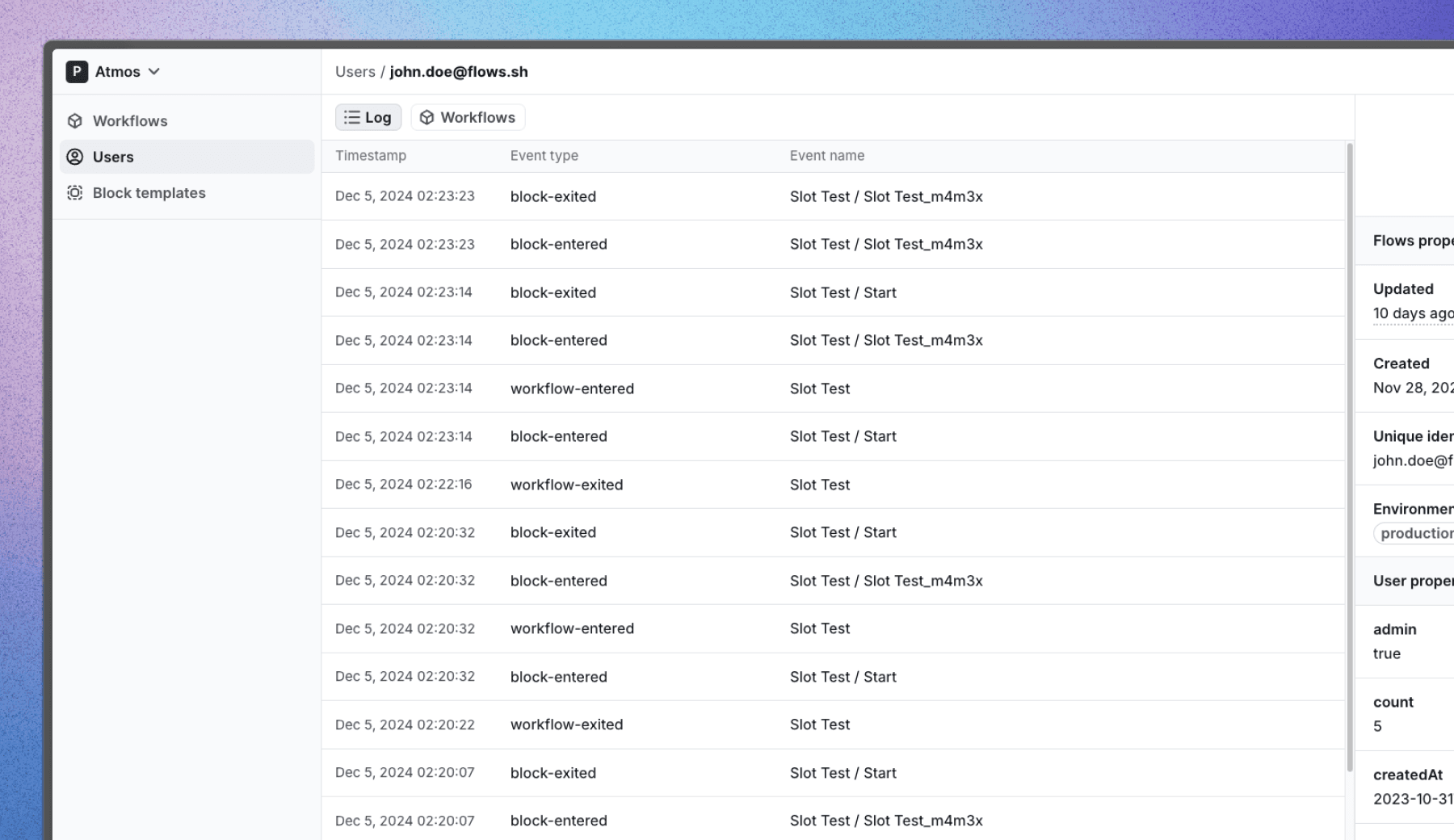
To prevent showing the same tour multiple times, store the user’s progress. Multi-step tours should allow users to resume where they left off.
You might be tempted to store user state in the browser’s local storage, but for any Angular app where users sign in (especially if they may use multiple devices) the state should be stored in your database instead.
To achieve all of this in-house, you will need to create API endpoints, a new database table (or column) to store the user state, and logic to decide when each tour should appear.
Without proper state management, users may see the same tour repeatedly, lose their progress, or never see the tour at all.
Extra considerations
Depending on your product’s complexity, you may also need:
Localization
If you support multiple languages, your onboarding needs to be multilingual, increasing the complexity of the content management you need to build.
Analytics
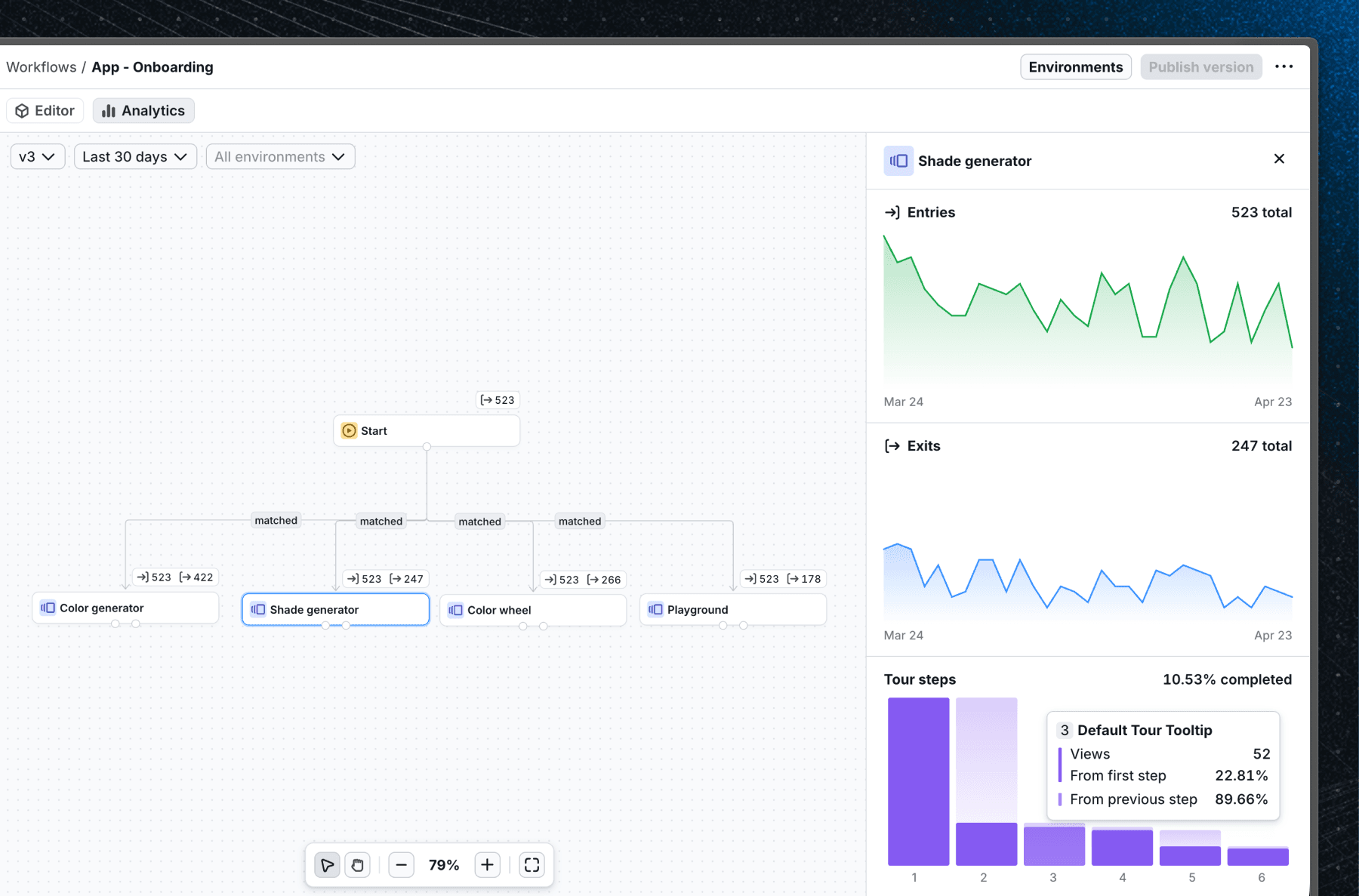
Your product team will likely want to track the performance of each tour. For example:
- How many users started a tour
- How many completed it
- Where users drop off
To achieve this, you will need to create an integration into your existing analytics stack or build something from scratch.
Segmentation
As you introduce more tours, targeting the right users becomes essential. For example, you might want to show tours only to users who:
- Just signed up
- Signed up before a specific date
- Are not paying customers
- Are active during a time-limited promotion (e.g. Black Friday)
And again, most of these filters will be defined by non-engineering teammates who manage the product experience, and they’ll want to control them without needing developer involvement or deployments.
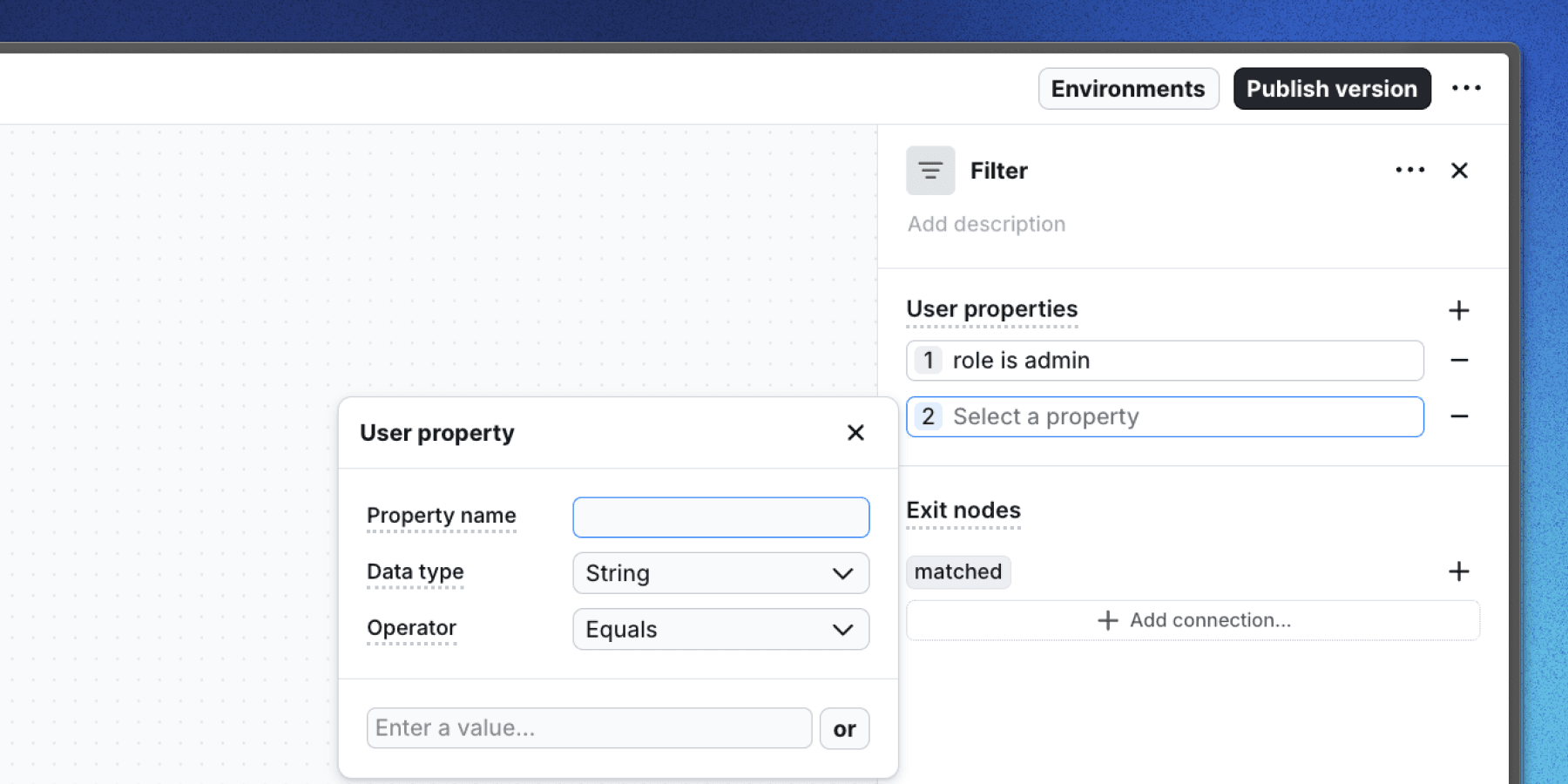
Ship Angular product tours faster with Flows
All of the things above (UI, state, targeting, and analytics) can be handled quickly using Flows.
Plus, for UI elements, you don't need to use our built-in components (even though we think they are really good). You can bring your own Angular components directly from your design system. This gives you complete control to implement tours that meet your UI and UX requirements.
We built a fully customizable product adoption platform so you don't need to. Here’s how to use it to build your tour.
Step 1: Installation
Sign up for Flows and create an organization. Then install the SDK:
Create a FlowsService to handle initialization, call it from your root component, and add <flows-floating-blocks> to your root template:
For the full list of supported options, see the Angular installation guide or the Angular template project. Once that is set up, return here to continue.
Step 2: Build the tour workflow
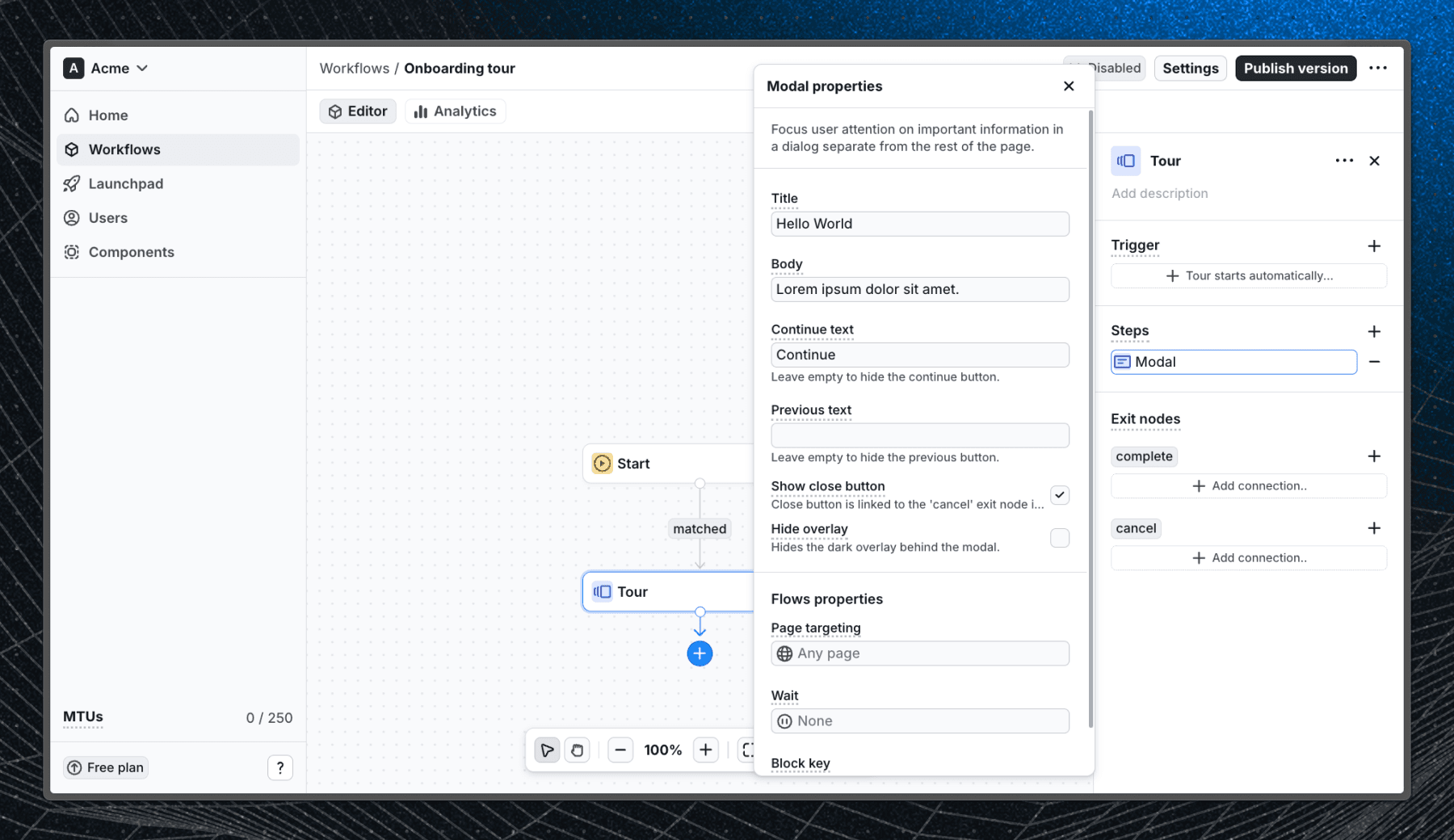
In the Flows dashboard, create a new workflow to define your tour’s logic and content:
- Add a Start block - this determines how and which users enter the tour (you can adjust targeting later).
- Add a Tour block - this is where the individual steps of your tour live.
- Inside the Tour block, add your steps, for example:
- Modal
- Tooltip
To edit each step, click them in the Steps section and fill out their properties. You can update the title, body text, buttons, and other options that control how the components look and behave. If you prefer a step-by-step video, check out the one below.
Step 3: Test your tour in staging
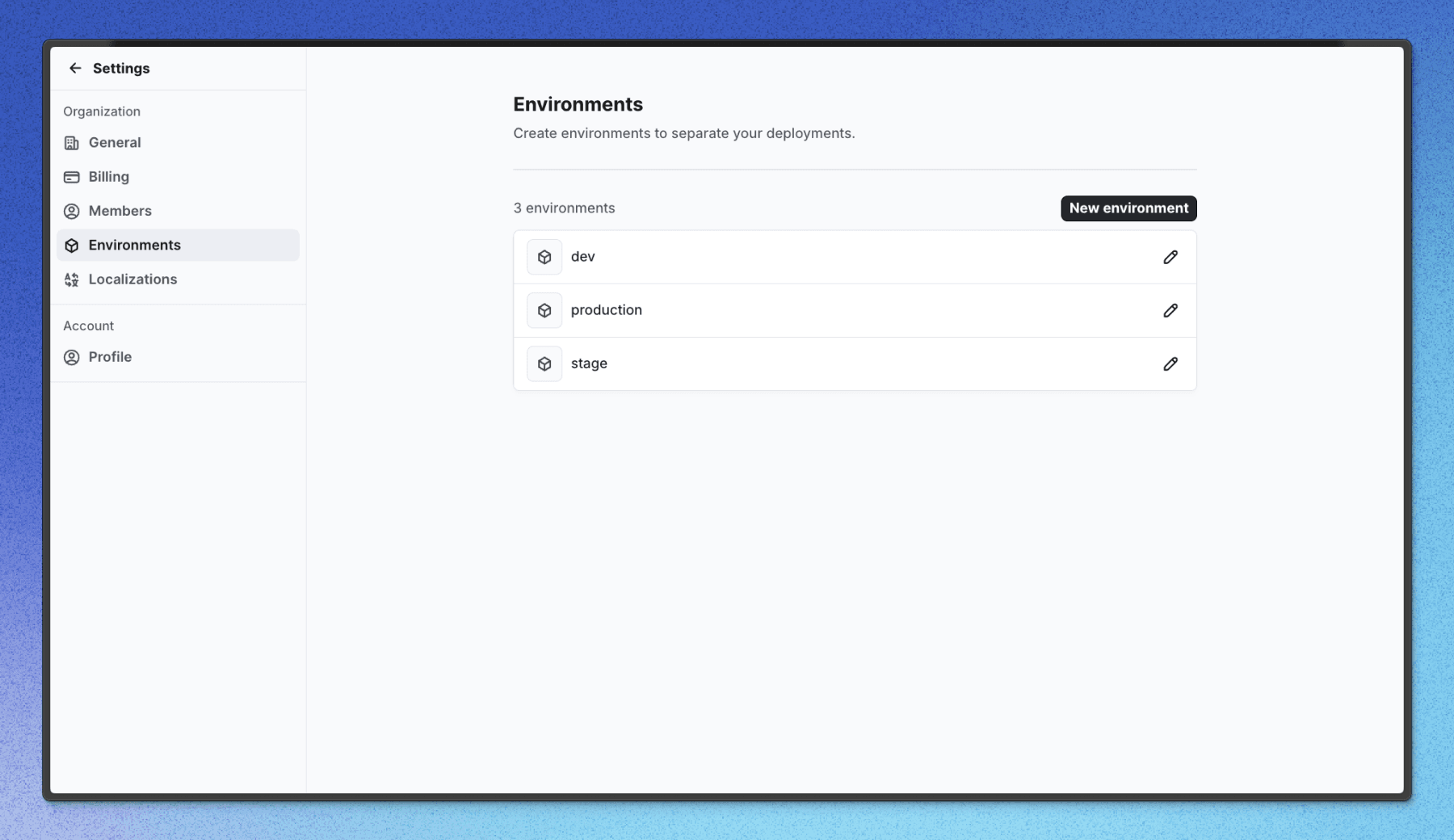
Once your steps are added, it’s time to test the tour. Set up a staging environment in Settings > Environments, then update the environment prop in init() to match the staging environment name.
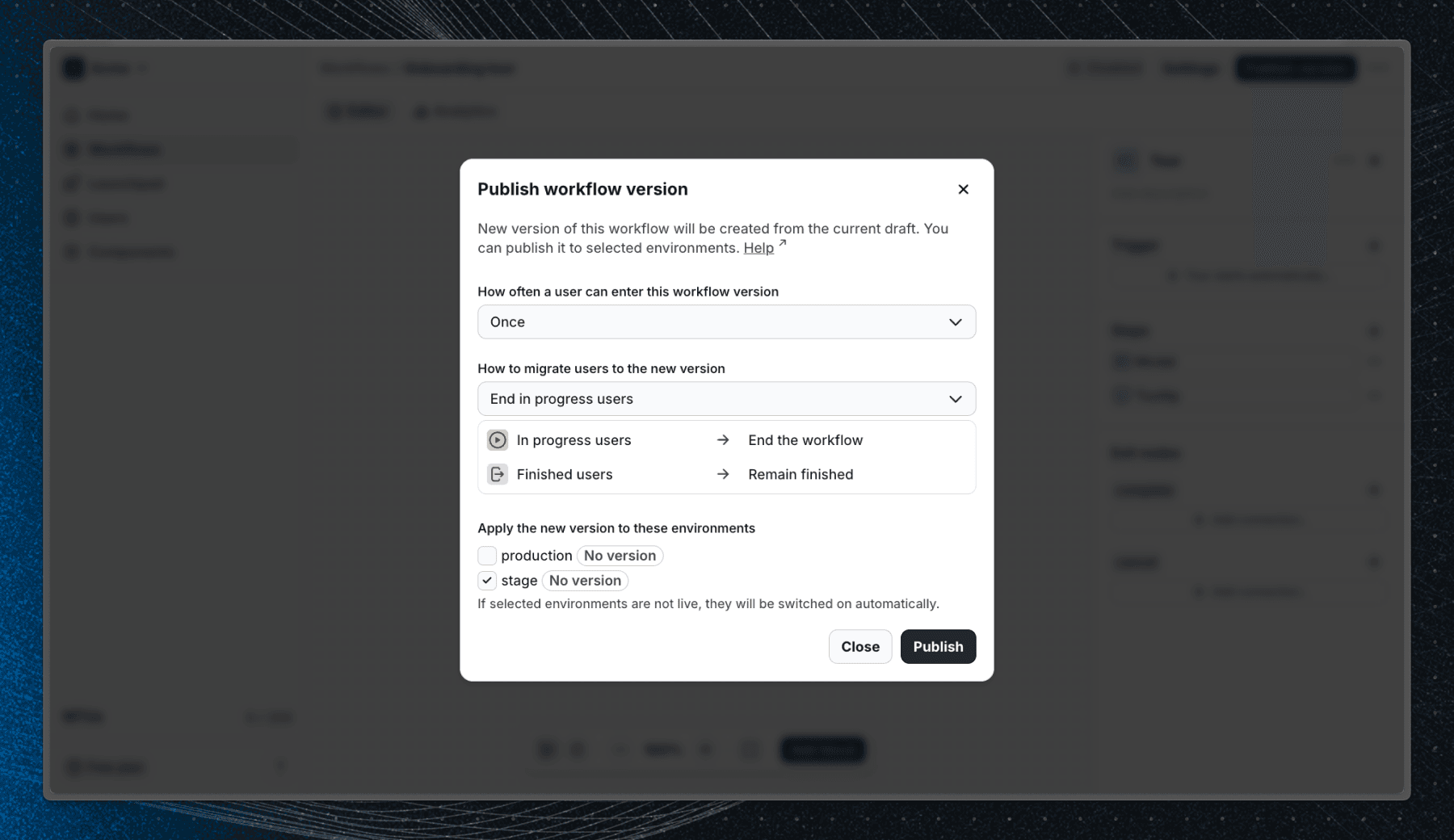
Publish the workflow to the staging environment in Flows, then run your Angular app to see the tour in action. You may need to reload if your app was already running. For debugging, use the browser console or the SDK’s debug mode.
Step 4: Go live with your tour
When you’re happy with the tour, deploy your Angular app with the init() integration and switch the environment prop back to production.
Afterwards, publish the workflow to production in Flows, and make sure to select the appropriate frequency (you can leave the migration option as is, this option is useful when republishing a workflow to let Flows know how to migrate the active users into the new version).
That’s it, you’ve successfully built a complete tour in Angular using Flows.
Instead of building UI, state, analytics, and content management from scratch, Flows handles it all. So you can focus on building your product, not maintaining onboarding infrastructure.
If you’re ready to ship better onboarding, faster, try Flows.
Looking for other frameworks?
If you're building product tours in a different framework, check out our other guides: