Overview
A set of essential UI components to kickstart your product adoption journey.
Overview
Basics V2 provides a set of ready-to-use and pixel-perfect components (Modal, Tooltip, and Hint) for building onboarding and education flows in your product. Each component integrates seamlessly with Flows, handling rendering, state, and lifecycle so you can focus on your app’s logic and UI.
Components
Tooltip
Guide users with helpful tooltips.
Modal
Display a modal to guide users through a process.
Hint
Provide subtle hints to users.
Card
Show information or drive action with inline cards.
Looking for more components? Contact us and let us know what you'd like to see in future releases!
Installation
You can install and integrate the Basics V2 library using either React or JavaScript, depending on your application stack.
React
Install the React package
npm install @flows/react-componentsImport and use components
Import the Basics V2 components and register them in the FlowsProvider.
import { FlowsProvider } from "@flows/react";
import * as components from "@flows/react-components";
import * as tourComponents from "@flows/react-components/tour";
import "@flows/react-components/index.css";

const App = () => {
  return (
    <FlowsProvider
      organizationId="your-organization-id" // Find this in Settings > General
      environment="production" // Default environment
      userId="your-user-id" // Identify the user
      tourComponents={{
        ...tourComponents,
      }}
      components={{
        ...components,
      }}
    >
      {/* Your app code here */}
    </FlowsProvider>
  );
};
Enable library in Flows
In the Flows dashboard, go to Components and click the Libraries button. In the dialog that appears, find the Basics V2 library and click Enable library.
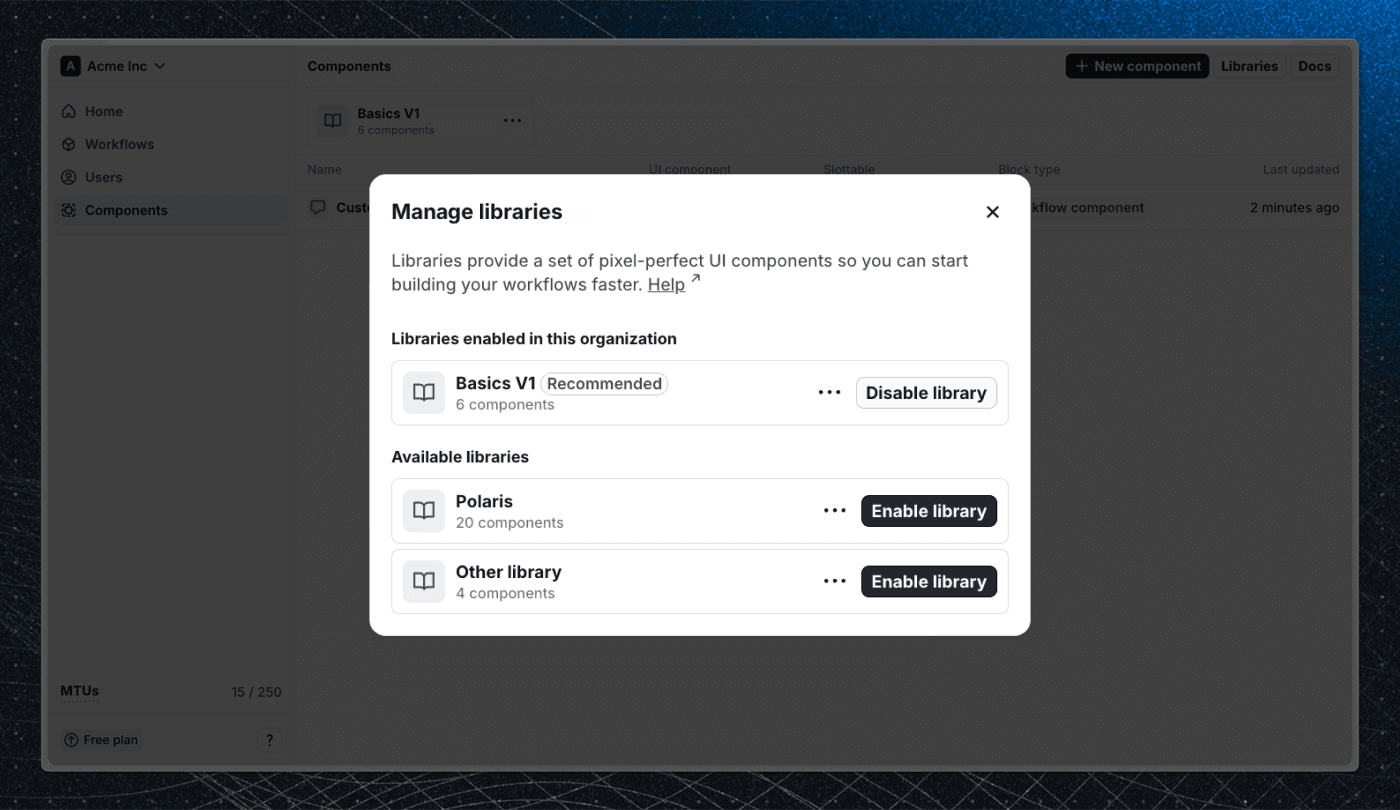
Once enabled, you’ll see the Basics V2 components available when adding new blocks to a workflow.
JavaScript
Install the JavaScript package
npm install @flows/js-componentsSetup components and rendering
For Flows to be able to render the components from the Basics V2 library, you need to setup the slot components and render function for the floating blocks. Rendering of slot blocks will be handled by the flows-slot element.
import { init } from "@flows/js";
import { setupJsComponents } from "@flows/js-components";
import * as components from "@flows/js-components/components";
import * as tourComponents from "@flows/js-components/tour-components";

// Import the styles or copy them to your project and <link> them in your HTML
import "@flows/js-components/index.css";

// See the JavaScript installation guide for more details about `init` function
init({ ... })

// Defines custom elements for `flows-floating-blocks`, `flows-slot` and all the passed UI components.
setupJsComponents({
  components: { ...components },
  tourComponents: { ...tourComponents },
});
Add <flows-floating-blocks> custom element at the end of the <body> tag.
<body>
  <!-- Your app content -->
  <flows-floating-blocks></flows-floating-blocks>
</body>
Enable the library in Flows
In the Flows dashboard, go to Components and click the Libraries button. In the dialog that appears, find the Basics V2 library and click Enable library.
Once enabled, you’ll see the Basics V2 components available when adding new blocks to a workflow.
Migration from Basics V1 to Basics V2
If you're currently using the Basics V1 library, upgrading to Basics V2 is simple. The new version introduces improved design, better functionality, and a familiar API. However, there are a few breaking changes requiring you to manually update in your workflows.
Both libraries can run side-by-side, allowing you to gradually migrate without disrupting your existing setup.
React migration
Update the react SDK
Make sure you're using the latest version of the main @flows/react SDK to ensure compatibility with Basics V2.
Install the package
To use both versions simultaneously, alias the V1 package in your package.json:
{
  "dependencies": {
    "@flows/react-components-v1": "npm:@flows/react-components@^1.0.0",
    "@flows/react-components": "^2.0.0"
  }
}
This setup prevents conflicts and lets you import both versions in parallel.
Update imports
You can now import both versions and register them with the FlowsProvider.
import { FlowsProvider } from "@flows/react";
import * as components from "@flows/react-components";
import * as tourComponents from "@flows/react-components/tour";
import "@flows/react-components/index.css";

import * as V1components from "@flows/react-components-v1";
import * as V1tourComponents from "@flows/react-components-v1/tour";
import "@flows/react-components-v1/index.css";

const App = () => {
  return (
    <FlowsProvider
      organizationId="your-organization-id" // Find this in Settings > General
      environment="production" // Default environment
      userId="your-user-id" // Identify the user
      tourComponents={{
        ...tourComponents,
        ...V1tourComponents,
      }}
      components={{
        ...components,
        ...V1components,
      }}
    >
      {/* Your app code here */}
    </FlowsProvider>
  );
};
Alias your V1 imports to avoid naming conflicts. Because V1 and V2 components have distinct names, you can safely use both in parallel until migration is complete.
Toggle libraries in Flows
In the Flows dashboard, go to Components and click the Libraries button. In the dialog that appears:
- Disable the Basics V1 library.
- Enable the Basics V2 library.
This makes the new V2 components available when adding new blocks, without affecting existing workflows. The V1 components just won't be available when adding new blocks.
Update your workflows
Unfortunately, due to the breaking changes between the two versions, there is no way for us to automatically migrate your existing workflows. You’ll need to manually replace V1 components with their V2 equivalents:
- Open a workflow using V1 components.
- Remove the V1 blocks and add the corresponding V2 blocks.
- Republish the workflow.
For short-lived or temporary workflows, you might simply leave them as-is and use V2 for all new workflows going forward.
JavaScript migration
The JavaScript package in Basics V2 is a complete rewrite, featuring a new rendering approach. Because of that, we recommend completely replacing the V1 package with the V2 package instead of trying to run both side-by-side. To migrate:
- Update the main
@flows/jsSDK to the latest version to ensure compatibility with Basics V2. - Follow the JavaScript installation guide above to set up the V2 package.
- Update your workflows to use the V2 components.
- Once verified, release the update to production.
Last updated on