Launchpad
Air traffic control for your workflows.
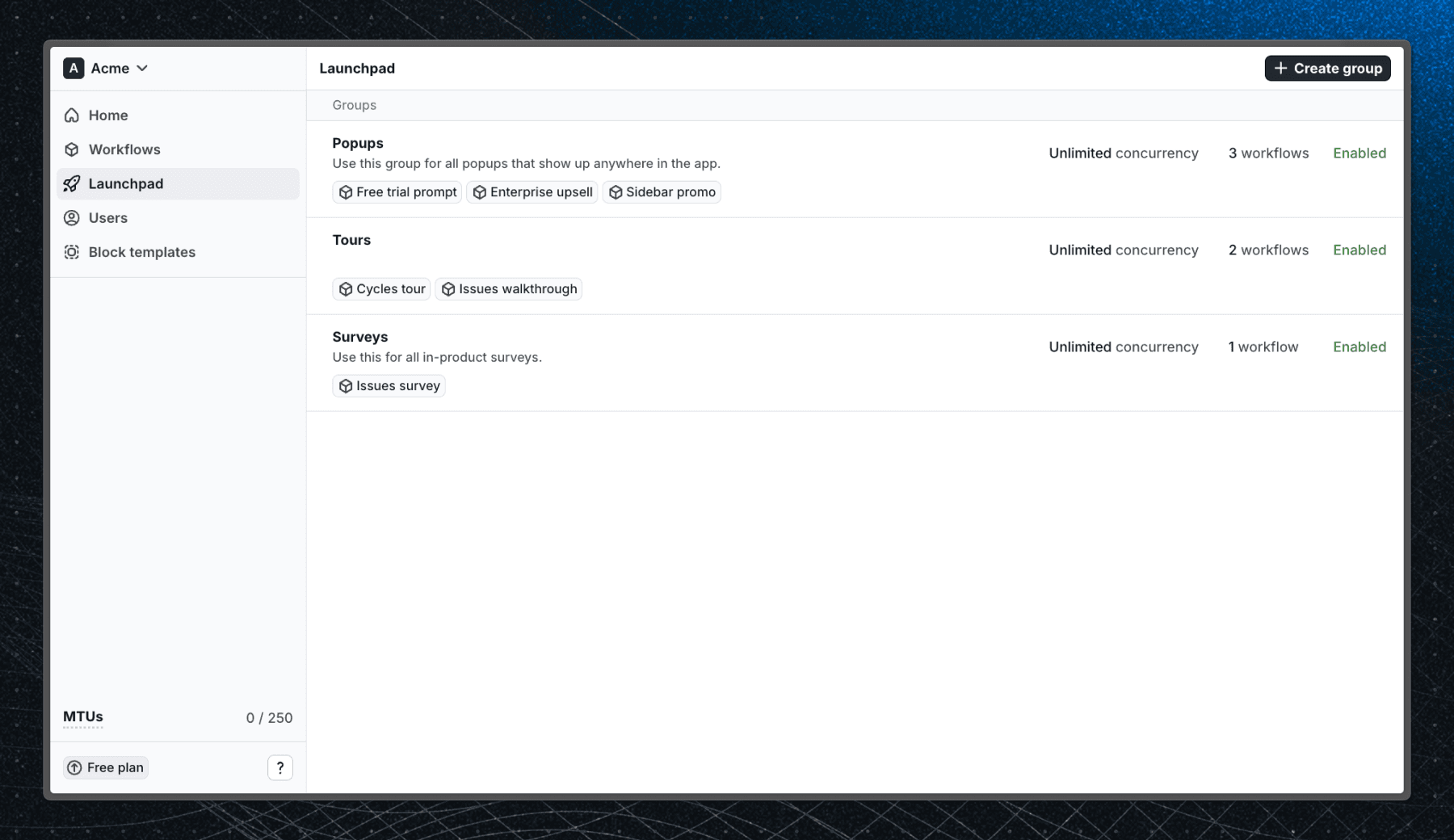
Launchpad is like an air traffic control for your workflows. Create groups to manage workflow priorities, set concurrency limits, and get better control over all your workflows.
Creating a Launchpad group
To create a Launchpad group, visit the Launchpad page in the Flows dashboard and click New group. Enter a name for the group and confirm. Once created, you can add workflows, ordered them by priority, and set concurrency limits. When the group is ready, click Save group.
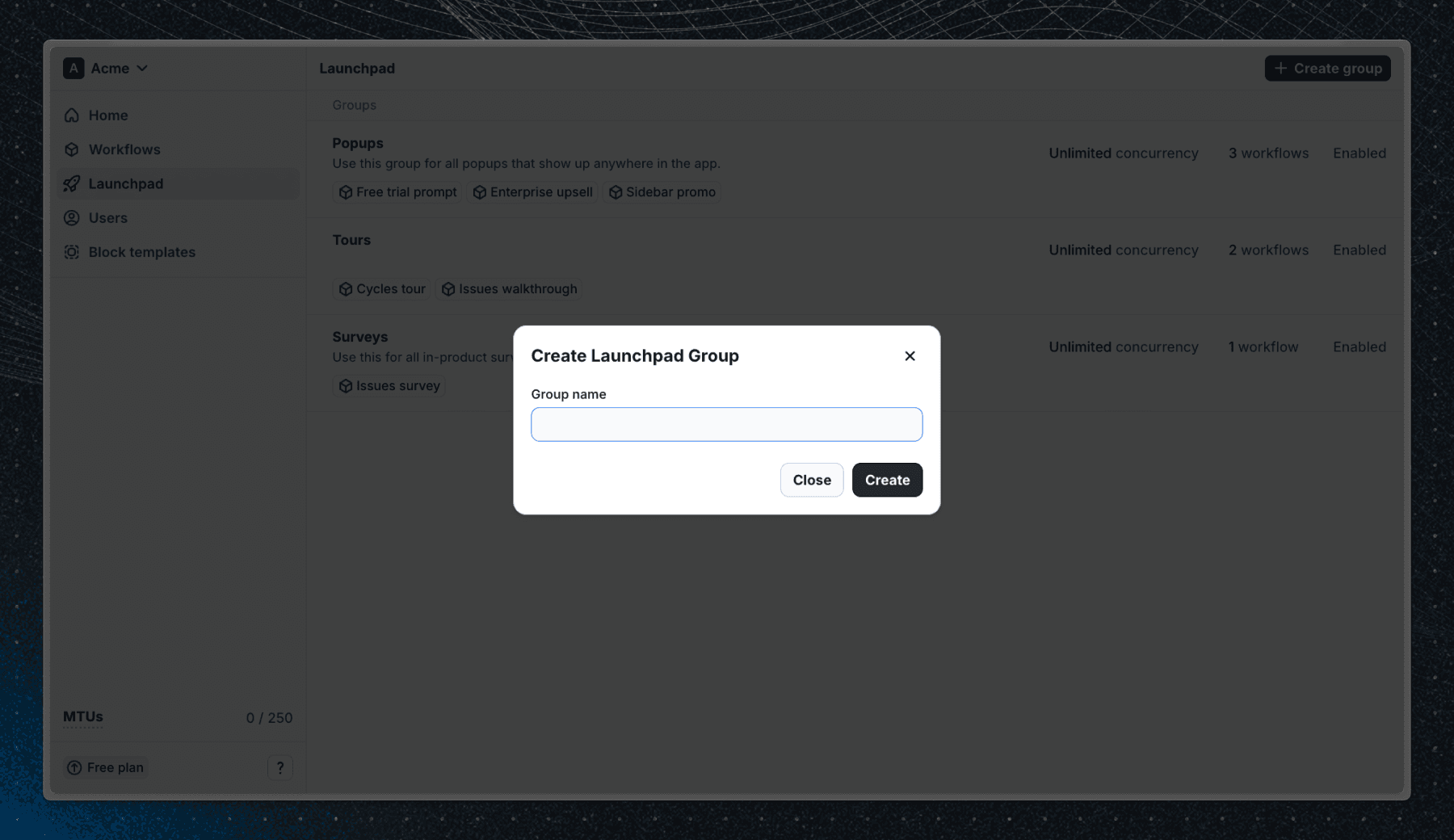
Group options
Workflow priority
Users enter workflows in a Launchpad group based on priority. Workflows higher in the list are started first. You can reorder workflows by dragging and dropping them in the Workflows section of the Launchpad group detail page. This is useful for prioritizing important workflows (e.g., onboarding > upsells > surveys).
Note that workflow priority doesn't guarantee that workflows will always start in that order. Launchpad groups are used to determine which workflows to start when criteria are met, but other factors like already running workflows and concurrency limits also play a role.
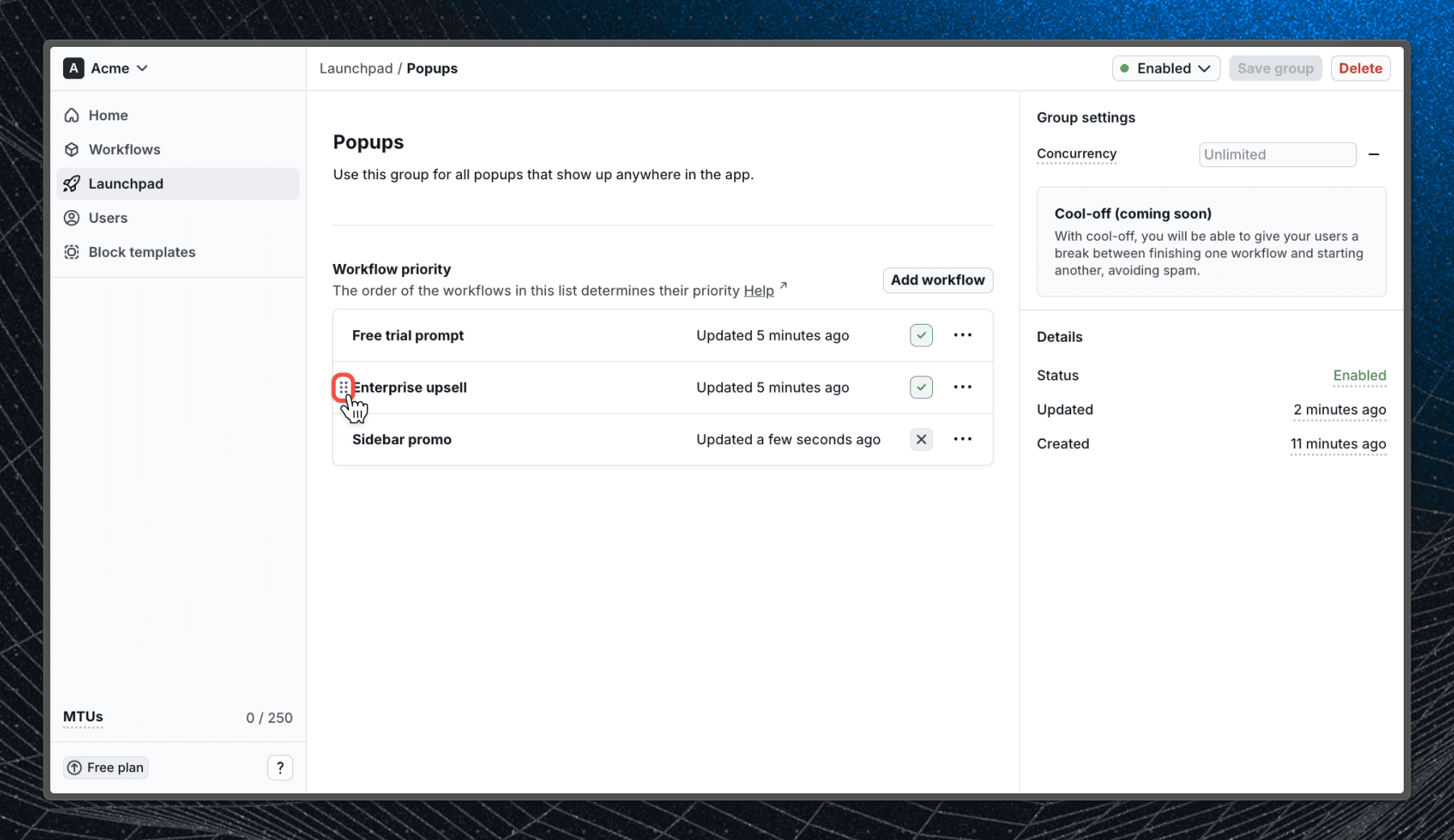
Concurrency
Concurrency limits how many workflows from the group can run at the same time. The concurrency can either be unlimited or limited to a specific number. If the limit is reached, the group will wait until a running workflow finishes before starting a new one. This is useful for avoiding overwhelming users with too many workflows at once.
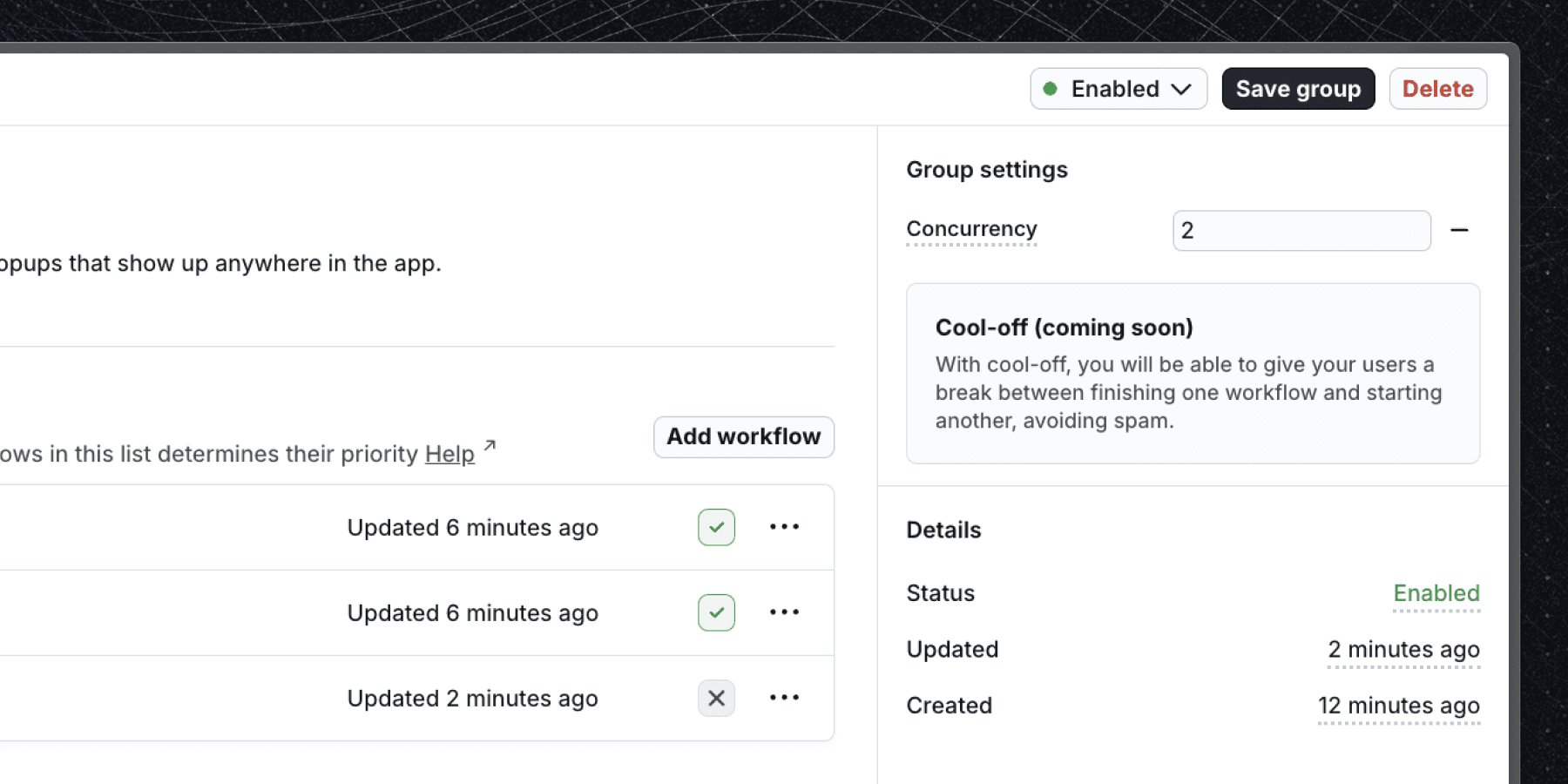
Pausing a group
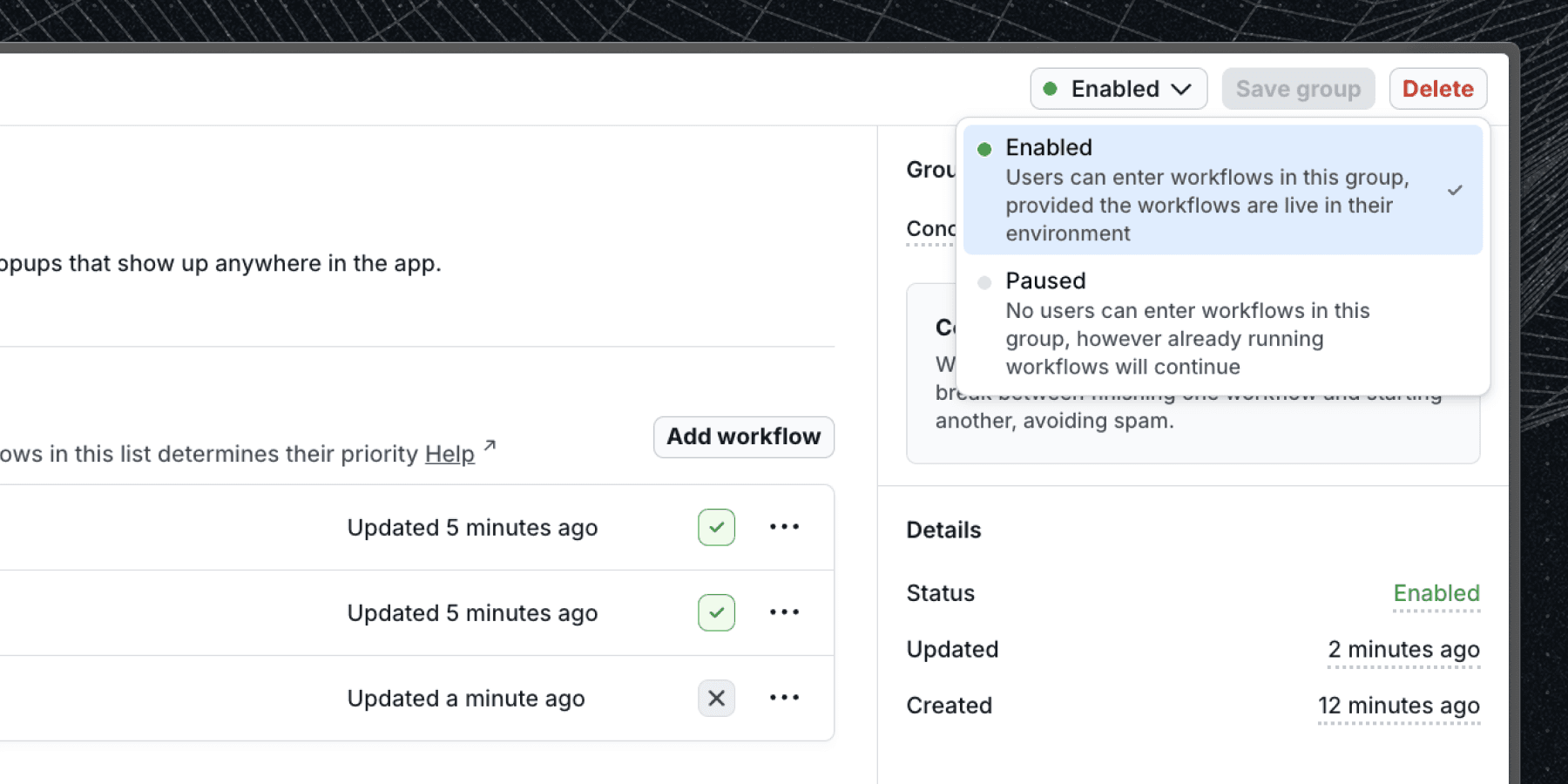
Launchpad groups can be paused to prevent workflows from starting while allowing already running workflows to finish. To pause a group switch its state in the top right corner from enabled to paused and save the group.
Note: Pausing a group does not affect already running workflows. They will continue to run until they finish. To stop already running workflows, you have to disable the workflow itself.
Group order
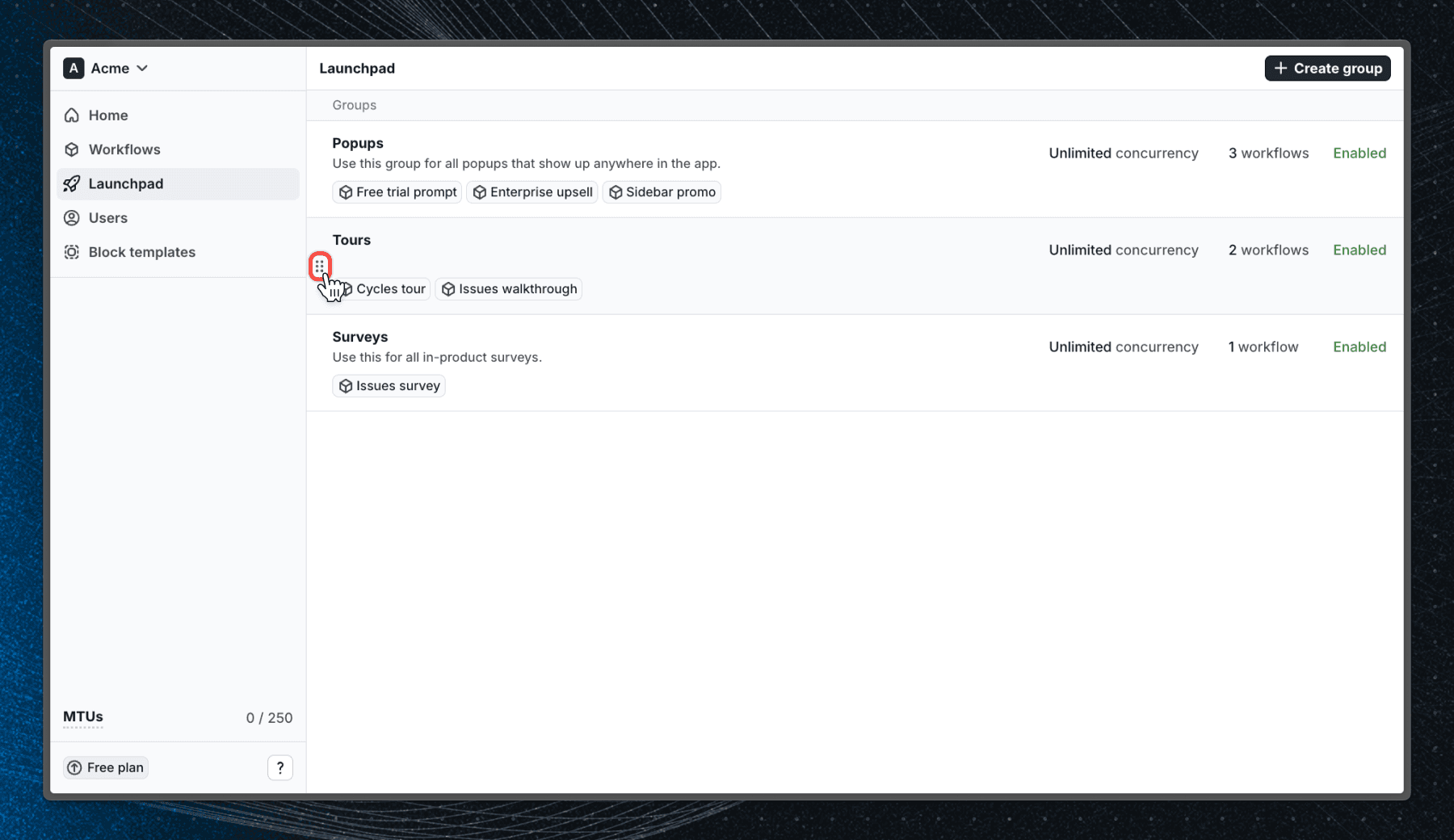
When multiple Launchpad groups are enabled, they are evaluated in order from top to bottom. You can reorder groups by dragging and dropping them in the Launchpad page. This is useful when you have one workflow in multiple groups and want to control which group should have the potential to start the workflow first.
Workflows outside Launchpad
Workflows that are not part of any Launchpad group are started immediately when their Start block criteria are met. They are not subject to Launchpad group priorities or concurrency limits. This is useful for workflows that need to run instantly, such as critical alerts or notifications, or when you don't have many workflows and don't need the extra control provided by Launchpad groups.
Last updated on