Managing components
Manage UI components that can be used within Flows workflows.
Overview
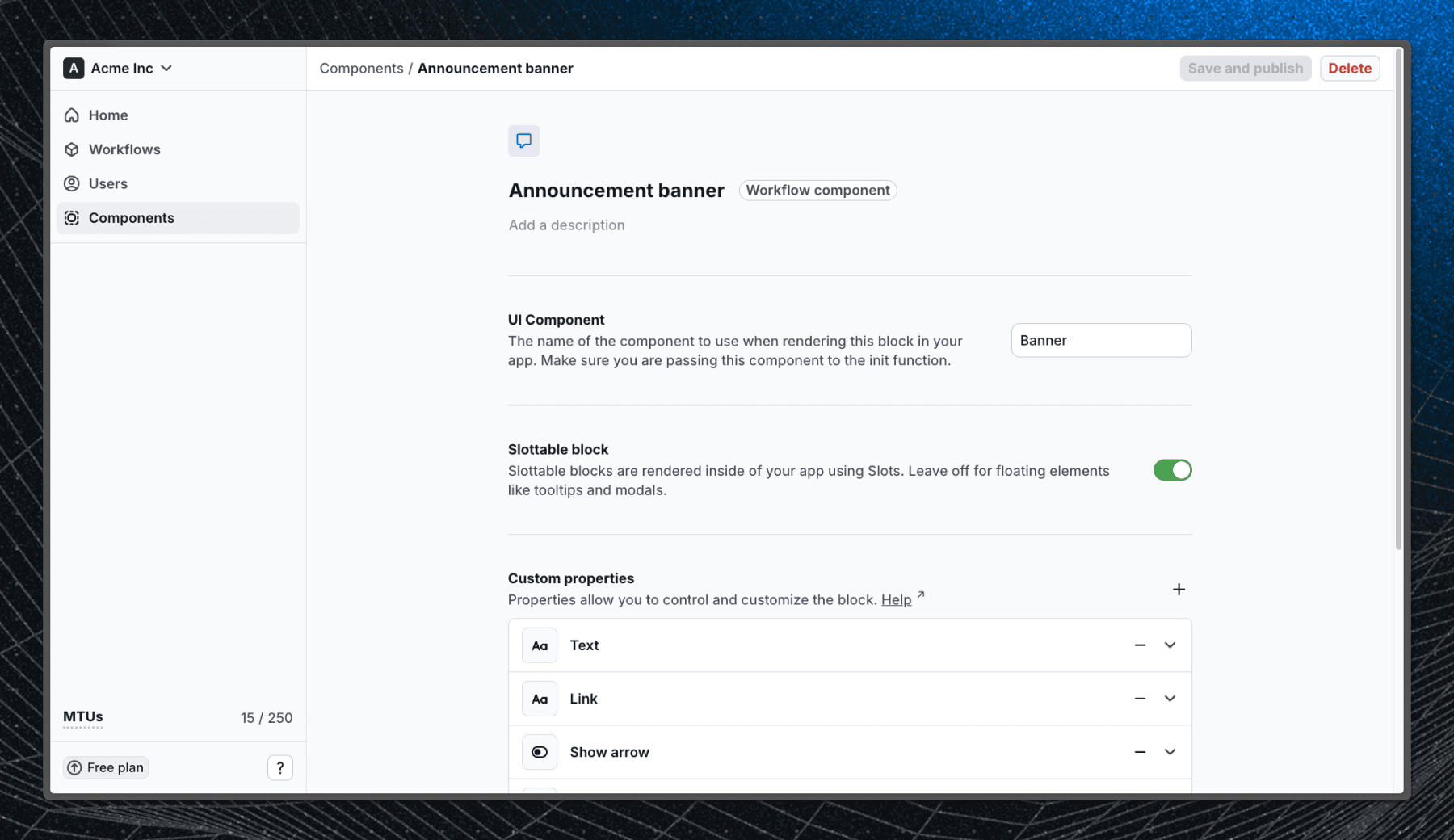
Components are reusable UI elements that can be integrated into workflows within Flows to display information or interact with users. They contain properties and instructions, giving editors the power to create custom workflows. Each component must correspond to a matching component in your application.
Creating a component
To create a new component:
- Navigate to Components.
- Click Create component.
- Define the component’s properties and configure its exit nodes.
For more detailed guidance, refer to our guide on creating custom components.
Using components
Once a component is created, you can use it in your workflows:
- Click Add block in the workflow editor.
- Select the desired component.
- Configure its properties and connect it to other blocks within the workflow.
Updating component instances
Component updates are not automatically applied to their instances in workflows. To apply updates:
- Navigate to the component instance in a specific workflow.
- Click Update to synchronize the changes.
This approach prevents unintended disruptions in live workflows.
Libraries
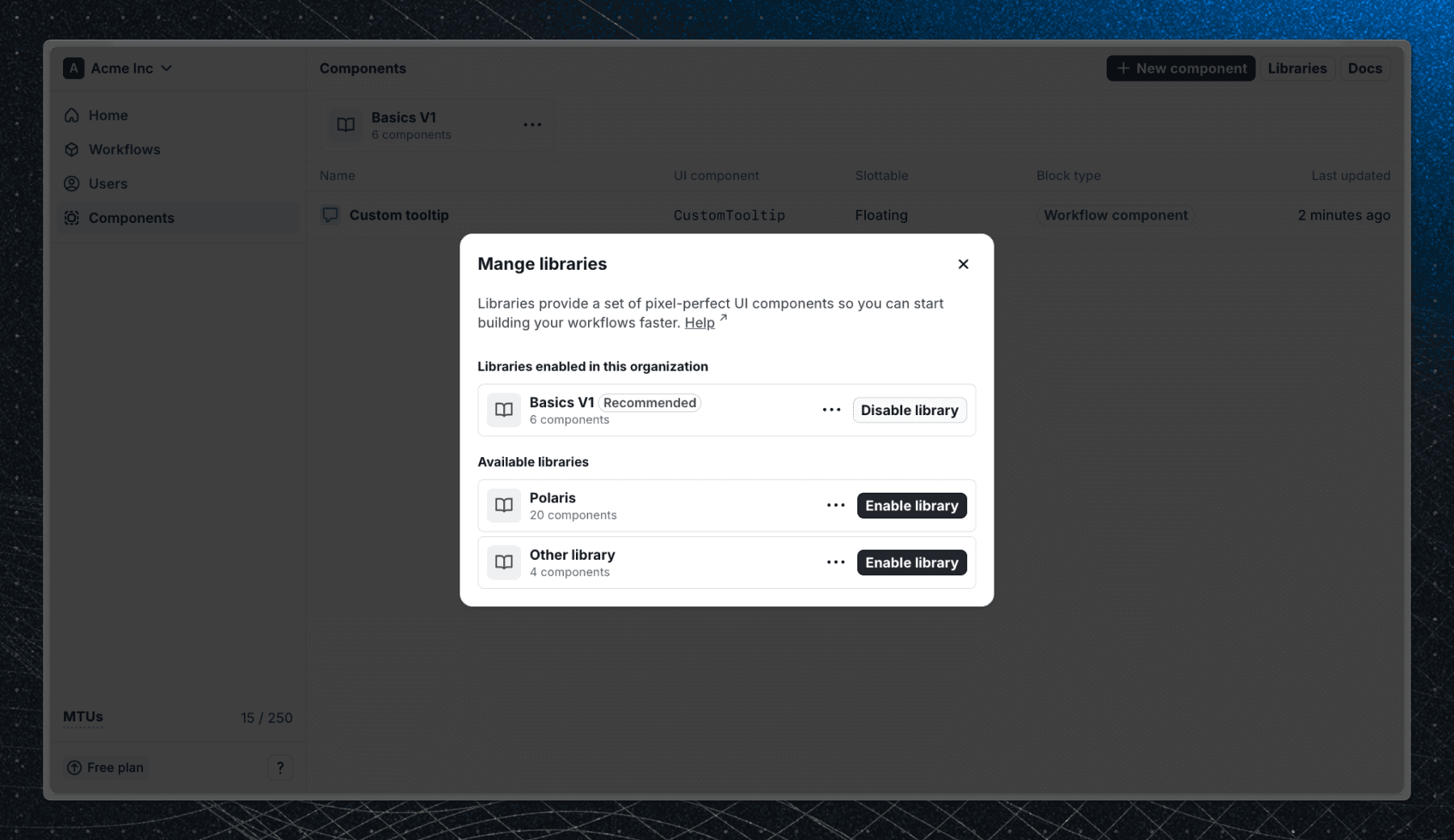
Flows comes with a set of pixel-perfect UI components so you can start building your workflows faster. By default the newest library is enabled when you create a new organization.
Enable a library
To enable a component library:
- Navigate to Components.
- Click Libraries
- Select the desired library and click Enable library.
This will make the library's components available for use in your workflows.
Make sure that you install the corresponding package in your application, otherwise the components will not render correctly. Each library has a link to its documentation where you can find installation instructions.
Disable a library
To disable a component library:
- Navigate to Components.
- Click Libraries
- Select the desired library and click Disable library.
This will hide the library's components from being used in new workflows, but existing instances will remain unaffected. To remove existing instances, you will need to manually delete them from each workflow.
Last updated on