Overview
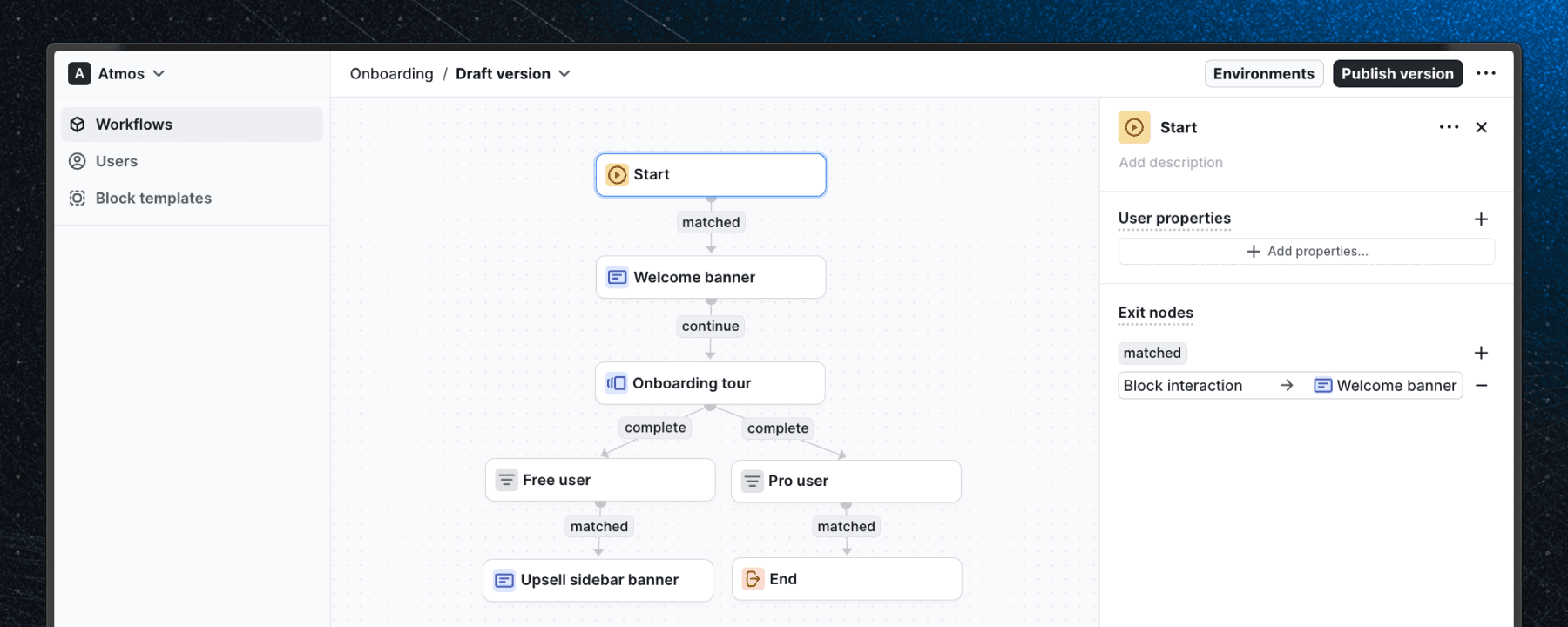
Workflows are a series of steps executed in a specific sequence, defined by the connections between blocks and their conditions.
Overview
Workflows allow you to create complex multi-step experiences that can span multiple sessions or even the entire user lifecycle. They are more versatile than tours and can operate independently of user interaction. Workflows can include logic, actions, and conditions that tours do not.
Create a workflow
To create a workflow click the New workflow button at the Workflows page. You can then add blocks, connect them, and configure their properties.
Workflow settings
Apart from the blocks and their properties, workflows have additional settings.
Workflow frequency
The Frequency setting allows you to define how often the workflow should be triggered. The workflow frequency can be configured in two places:
- When publishing a workflow version, you can choose the frequency that will be applied to the environments where the version is published.
- In the workflow settings, you can change the frequency setting for each environment.
Frequency options:
- Once: The workflow is triggered only once for each user.
- Every time: The workflow is triggered every time the conditions are met and the user is not already in the workflow.
Workflow environments
A workflow can have different versions active in different environments. You can publish a workflow to individual environments, allowing you to test changes before making them available to all users. When you are publishing a workflow version, you can select the environments where the version should be active. To see which versions are active in specific environments, click the environments button in the workflow detail.
Workflow analytics
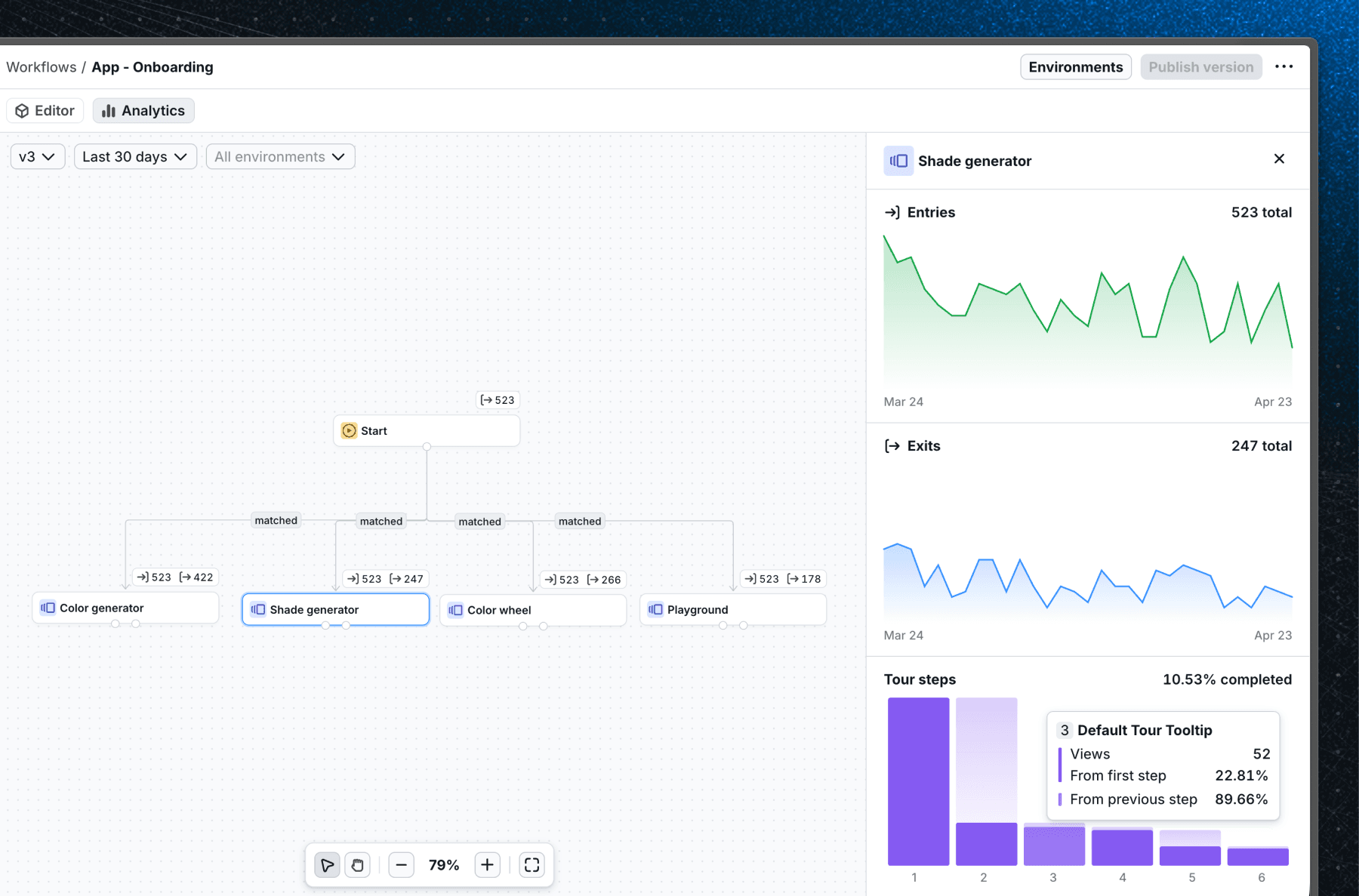
You can track how your workflows perform in the Analytics tab. Here you’ll find metrics such as how many users entered, completed, or stopped a workflow, along with both total and unique counts for each.
By default, analytics are shown across all versions and environments for the last 30 days. You can adjust this view using the filters at the top to change the date range, focus on a specific version, or filter by environment.
To view analytics for individual blocks, first select a specific version. Once selected, each block in the workflow editor will display its own metrics. Clicking on a block opens a more detailed view of its analytics.
Workflow versions
Workflows are version-controlled. When you make changes to a workflow, they are saved in a working draft version. You can then publish this version to individual environments. This allows you to test changes before making them available to all users. To see a list of versions, click the three dots in the top right corner of the workflow detail and select Version history. From the page that opens, you can:
- See all past versions of the current workflow
- Click on any past version to see how the workflow looked at that time
You can view published versions and their block configurations in a read-only mode. To edit a workflow switch back to the draft version and make changes.
Each version has its own user migration settings. The user migration settings are applied to the users of the environment every time the specific version is activated in the environment.
Looking to revert to a previous version? Contact us and we'll be happy to help!
Last updated on