How to embed components in your app
Learn how to add slots to your app so you can embed components inside your UI.
Some Flows components (like Card) are designed to be embedded directly in your app's UI rather than floating on top of it. These are called slottable components. Instead of appearing as overlays, they render inside named slots you place in your layout, giving you precise control over where each component shows up.
This guide walks you through adding a slot to your app and using the built-in Card component to display content inside it.
Add a slot to your app
A slot is a placeholder in your app's markup that tells Flows where to render a component. Give it a unique ID, you'll use this same ID later in the Flows editor.
import { FlowsSlot } from "@flows/react";

const Sidebar = () => {
  return (
    <div>
      <h1>My app</h1>
      <FlowsSlot id="my-slot" />
    </div>
  );
};
You can add as many slots as you like, each with its own ID. Place them anywhere in your layout - sidebars, dashboards, empty states, or between sections.
If you're using JavaScript, flows-slot is a custom element that only works after you call
setupJsComponents() during initialization. Without it, the slot will be present in the DOM but
nothing will render. See the JavaScript SDK reference for
setup instructions.
Create a workflow
Workflows are where you define user experiences. Each workflow contains the logic and content for your embedded component.
To create a new workflow:
- Go to the Flows dashboard and click Workflows in the sidebar.
- Create a new workflow.
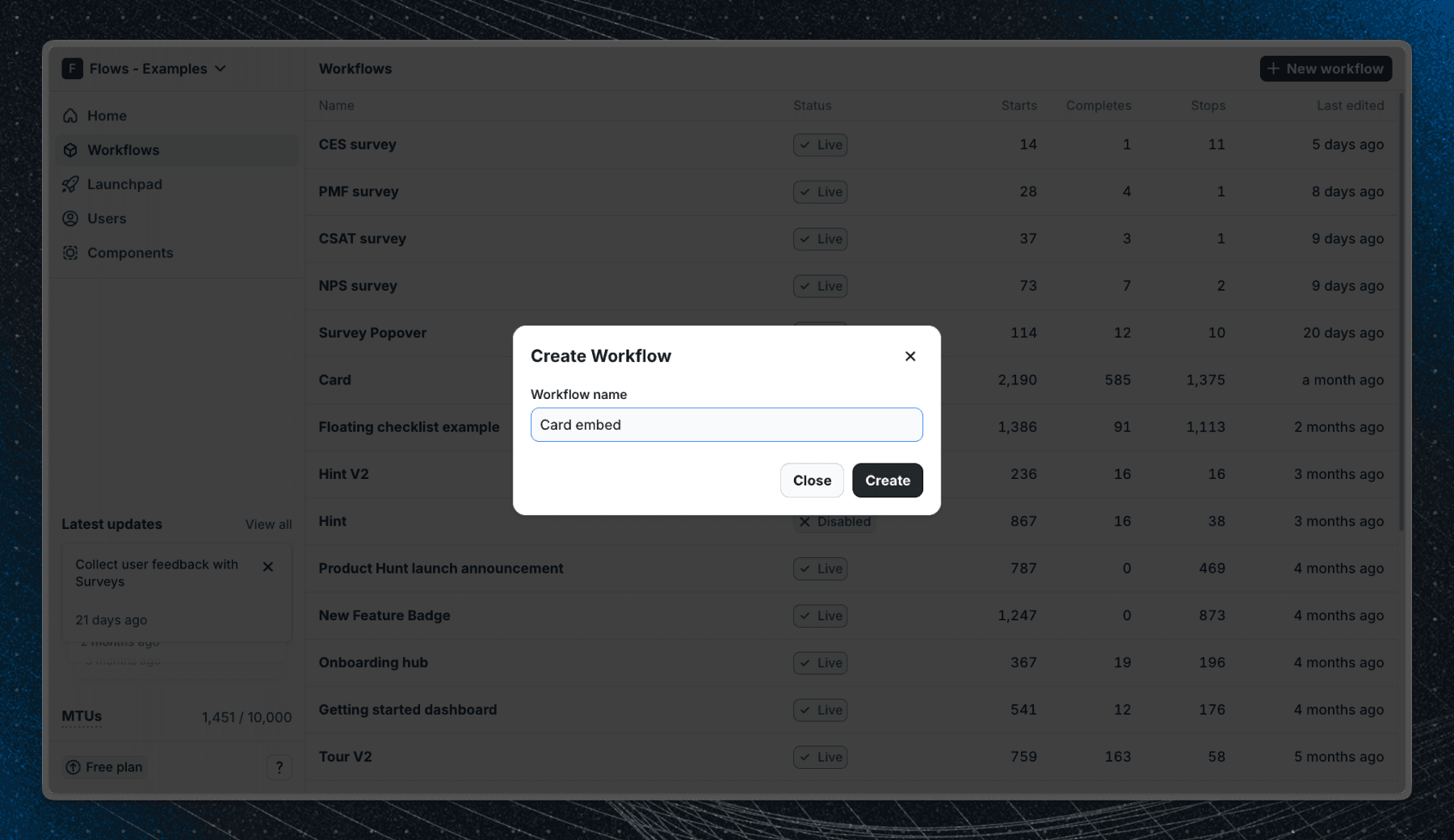
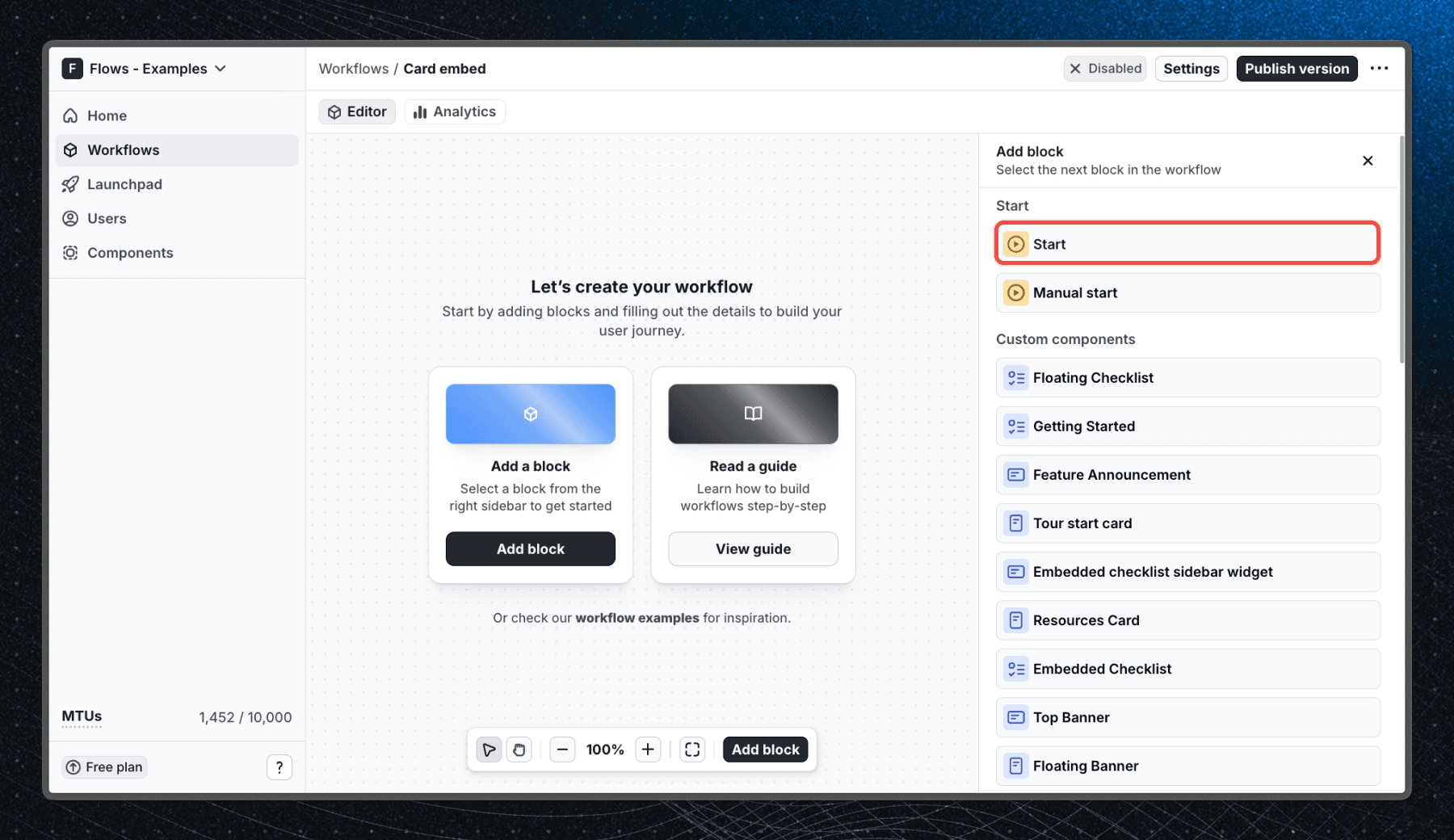
You'll start with an empty canvas. Add a Start block to define when users enter the workflow. For now, leave the Start block without any user property filters so that any user can enter the workflow.
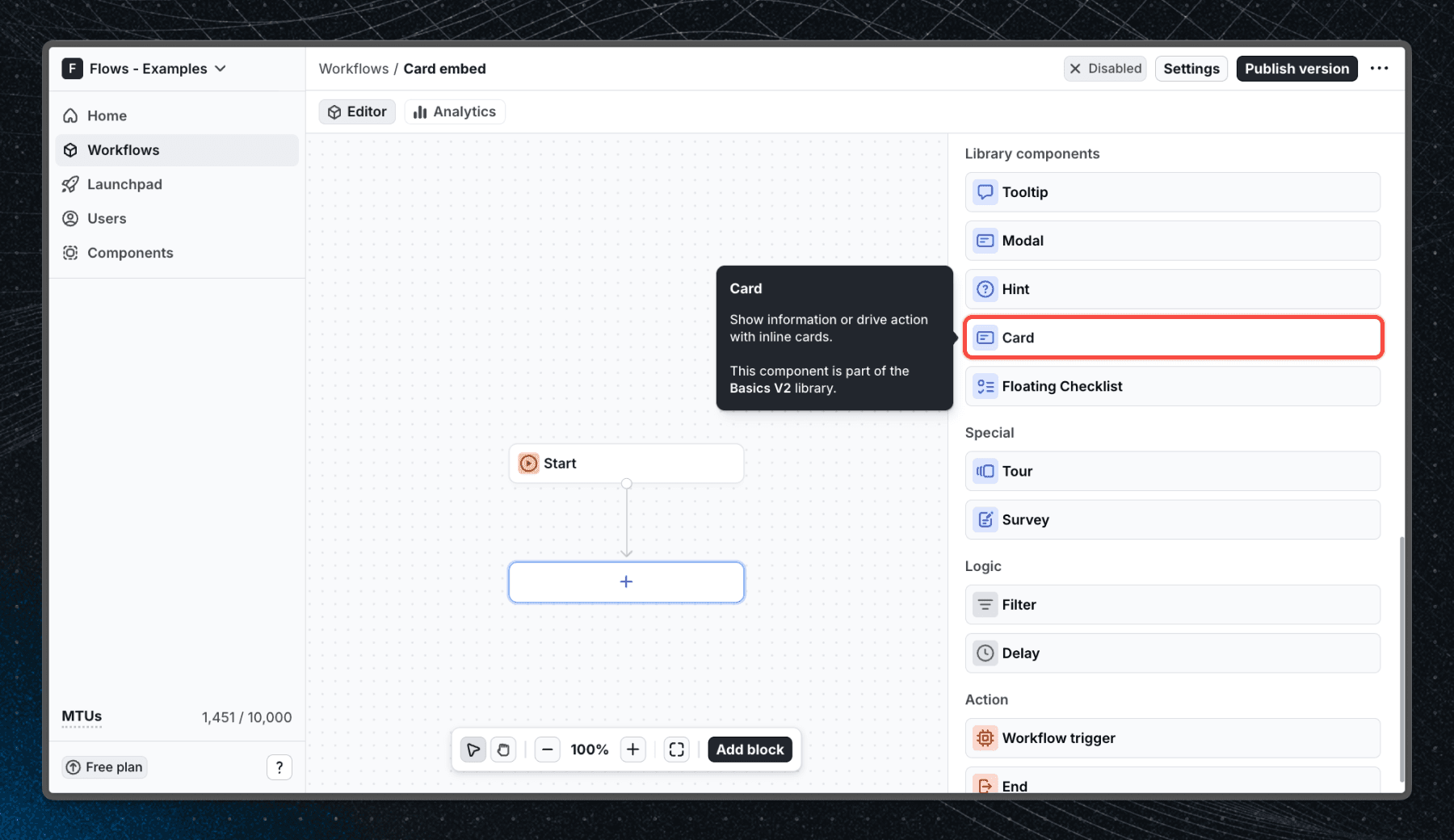
Add a Card block
Click the blue + under the Start block and select Card from the list of available blocks. The Card block will automatically connect to Start.
Configure the Card
With the Card block selected, you can customize its content in the properties panel:
- Title - the heading shown on the card
- Body - supporting text, accepts HTML
- Primary button - label and action when clicked (e.g. continue, link to a page)
- Secondary button - optional second action
- Dismissible - shows a close button if enabled
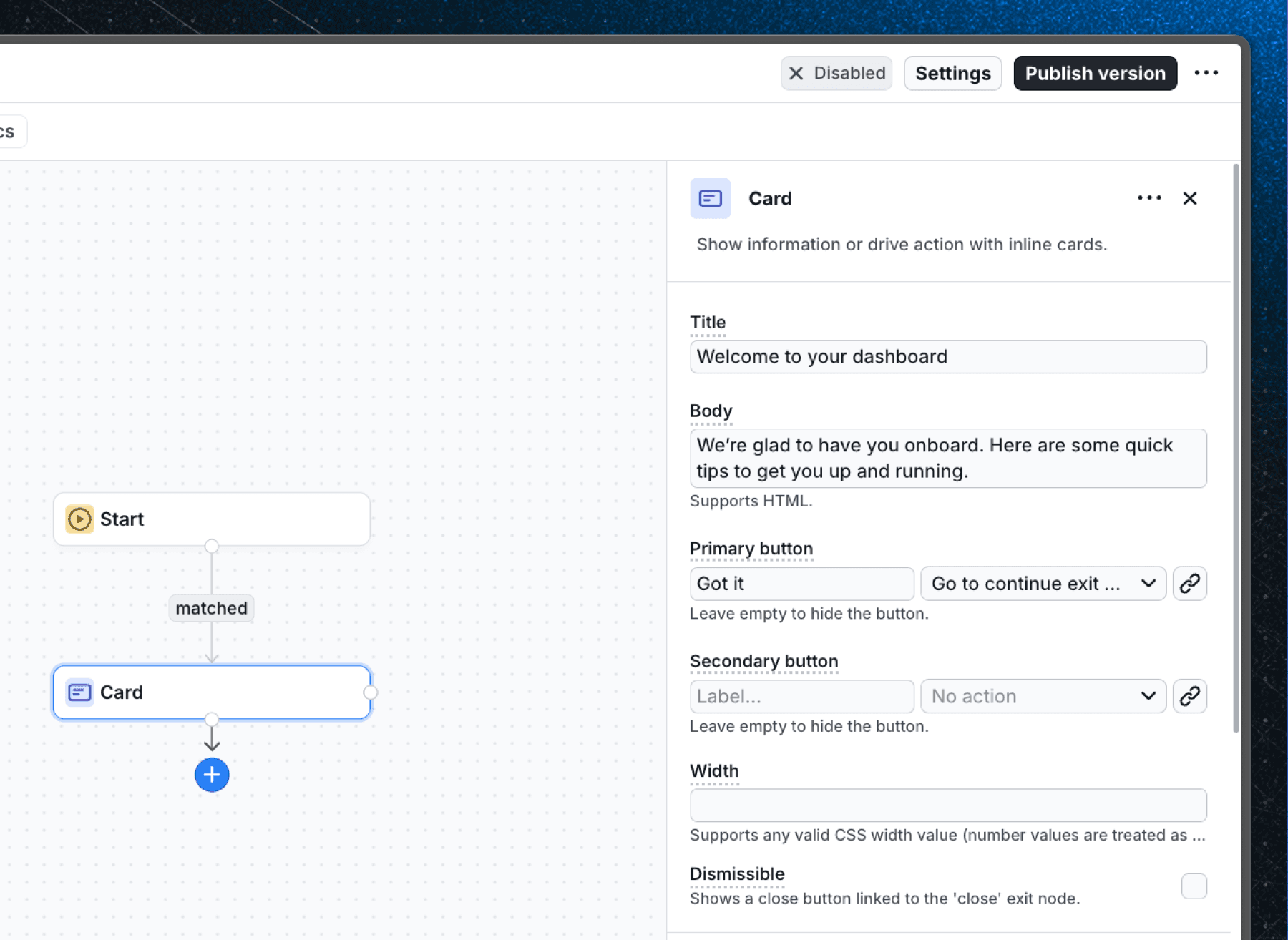
See the Card component docs for a full list of properties.
Set the slot
Still in the Card block's properties panel, find the Slot section. Set the Slot ID to match the ID you used in your code - in this example, my-slot.
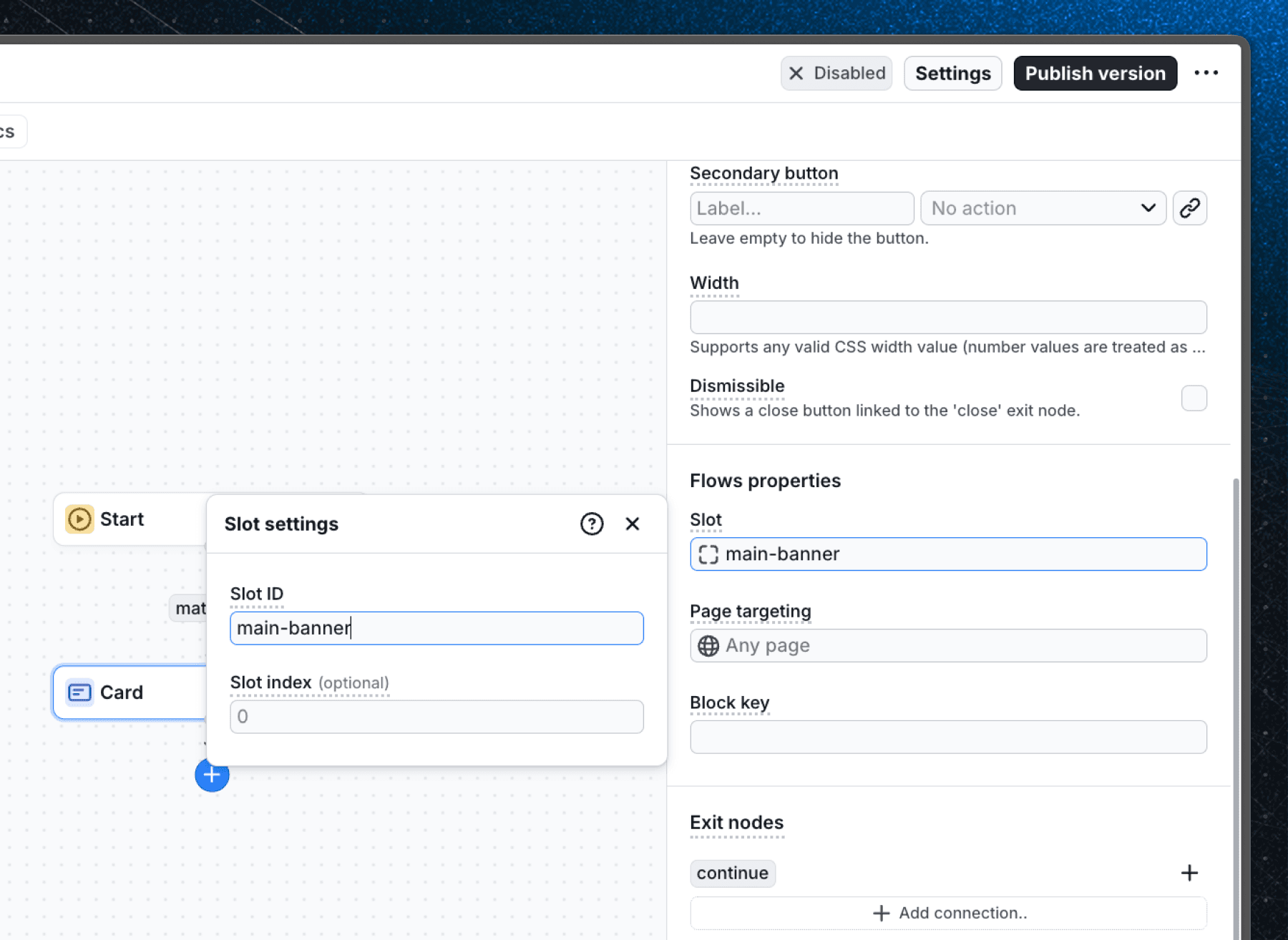
Without a Slot ID set, the Card will not be rendered. The slot must also exist in your app's code before it can be targeted.
If you're placing multiple blocks in the same slot, use the Slot index to control the order. Blocks with a lower index render first.
Learn more about the Slot property.
Test your workflow
Before publishing to real users, verify that the card appears in the correct location.
- Click Publish in the top-right corner.
- In the publish dialog, select a staging environment to limit exposure during testing.
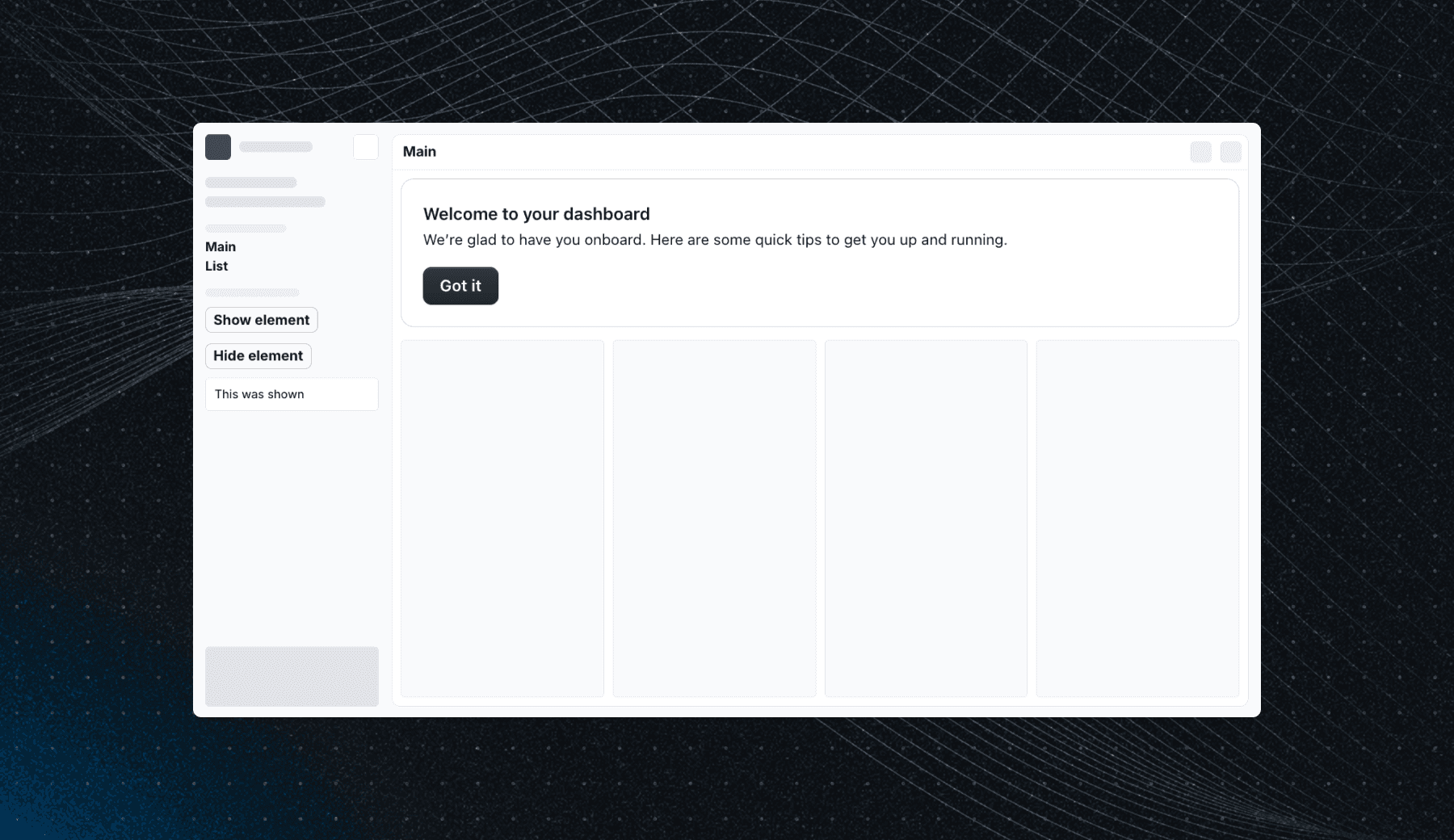
- Visit your app and check that the card appears where you placed the slot.
To reset the workflow and run through it again:
- Open the Users page in Flows.
- Find your user profile and open the Workflows tab.
- Locate the workflow and click Reset progress.
- Refresh your app.
Learn more about testing workflows.
Publish to users
Once you're happy with the result, publish to production.
- Optionally configure user property filters in the Start block to target a specific segment. See the guide on targeting only new users for an example.
- Click Publish and select the production environment.
Using custom components in slots
The Card component is a quick way to get started, but you can also build your own slottable components with custom UI and logic. See Create custom components to learn how.
Live examples
To see slots in action with source code:
Last updated on