Publish workflows
Learn how to publish workflows in Flows
Overview
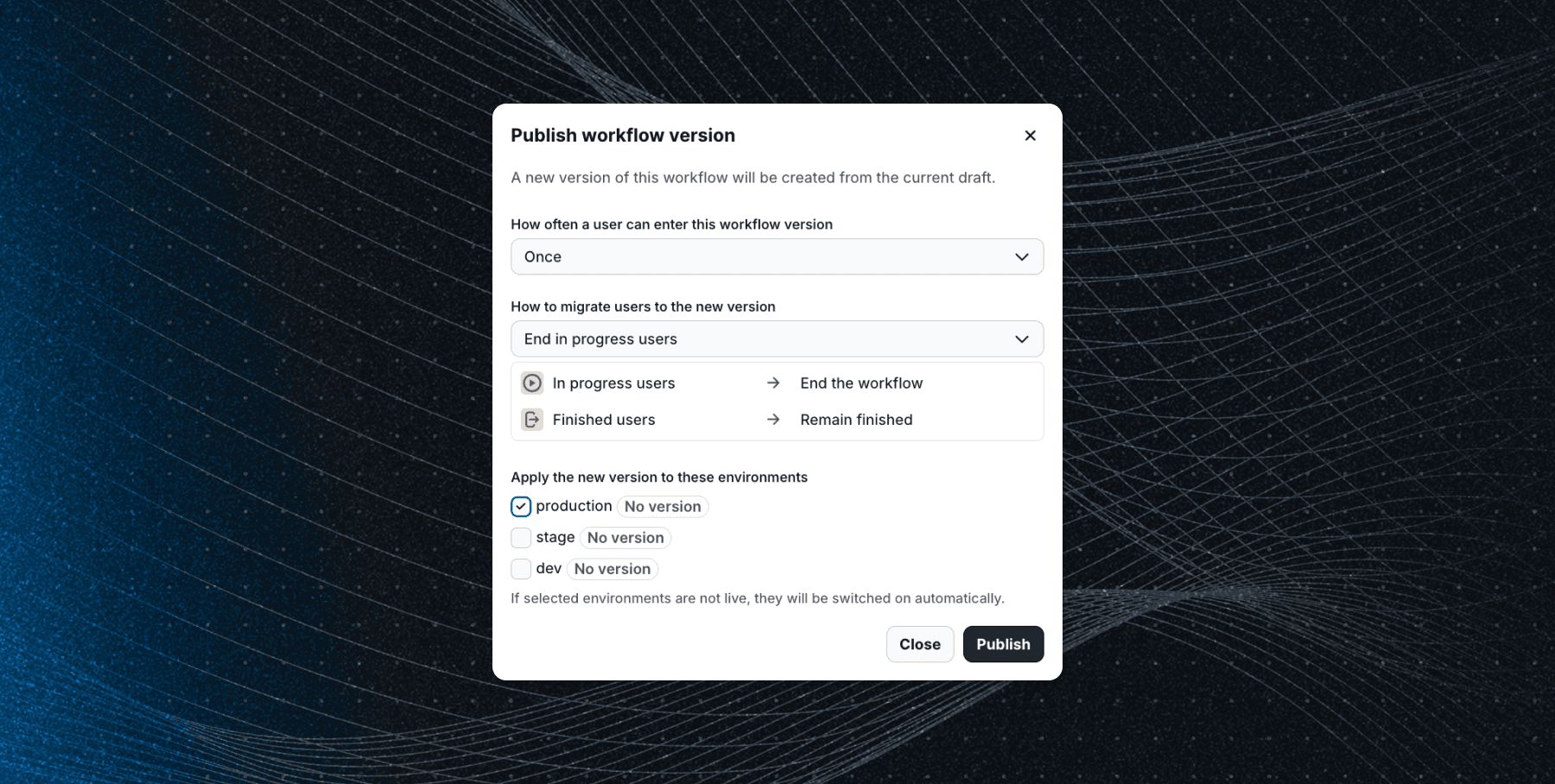
Workflows are version-controlled, allowing each environment to maintain a different active version. Publishing a workflow creates a new version, which can then be activated in specific environments.
Publishing a workflow
To publish a workflow:
- Click the Publish button in the top-right corner of the workflow editor.
- Configure the following settings in the dialog that appears:
Frequency
Define how often users can enter the workflow:
- Once: Users enter the workflow only once.
- Every time: Users enter the workflow every time they meet the start conditions, provided they are not currently in the workflow.
How to migrate active users
Determine what happens to users currently active in the workflow when a new version is activated:
- End in-progress users: Stops users who are currently active.
- Restart in-progress users: Restarts active users from the beginning.
- Restart all users: Restarts all users, including those who have completed the workflow.
These settings apply whenever the version is activated in an environment.
Apply to environments
Choose which environments the new version should be applied to. If you're not ready to activate it in any environment, this can be done later from Workflow detail > Environments.
Add workflow to a Launchpad group
Optionally you can add the workflow to a Launchpad group directly from the publish dialog by selecting the group under Add the workflow to these Launchpad groups (visible only if there are existing Launchpad groups in the organization). Launchpad is like an air traffic control for your workflows, allowing you to manage workflow priorities, set concurrency limits, and get better control over all your workflows.
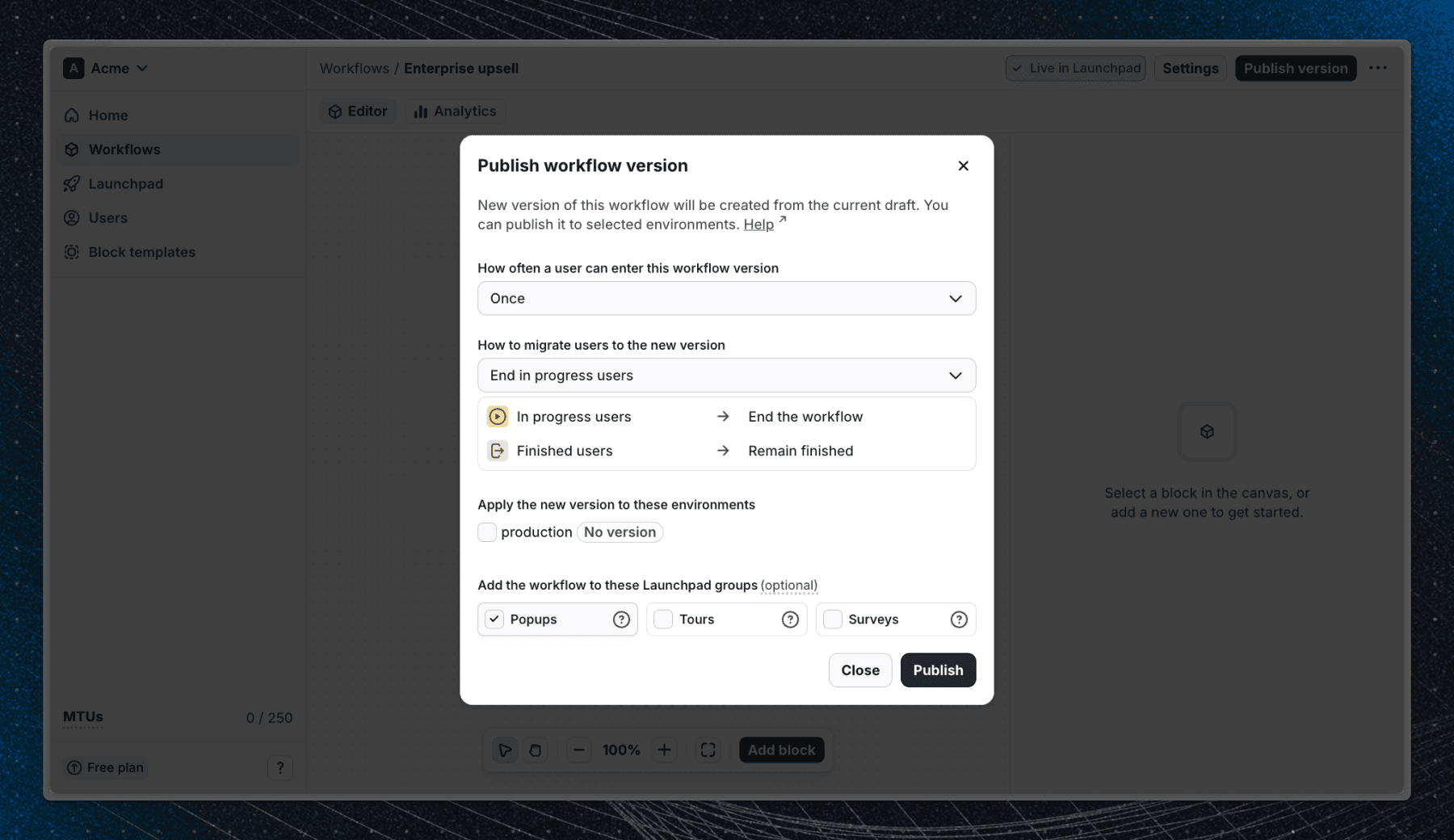
Workflows outside of Launchpad groups are started immediately when their Start block criteria are met. They are not subject to Launchpad group priorities or concurrency limits. This is useful for workflows that need to run instantly, such as critical alerts or notifications, or when you don't have many workflows and don't need the extra control provided by Launchpad groups.
Managing active versions
To manage active versions in environments:
- Navigate to Workflow detail > Settings.
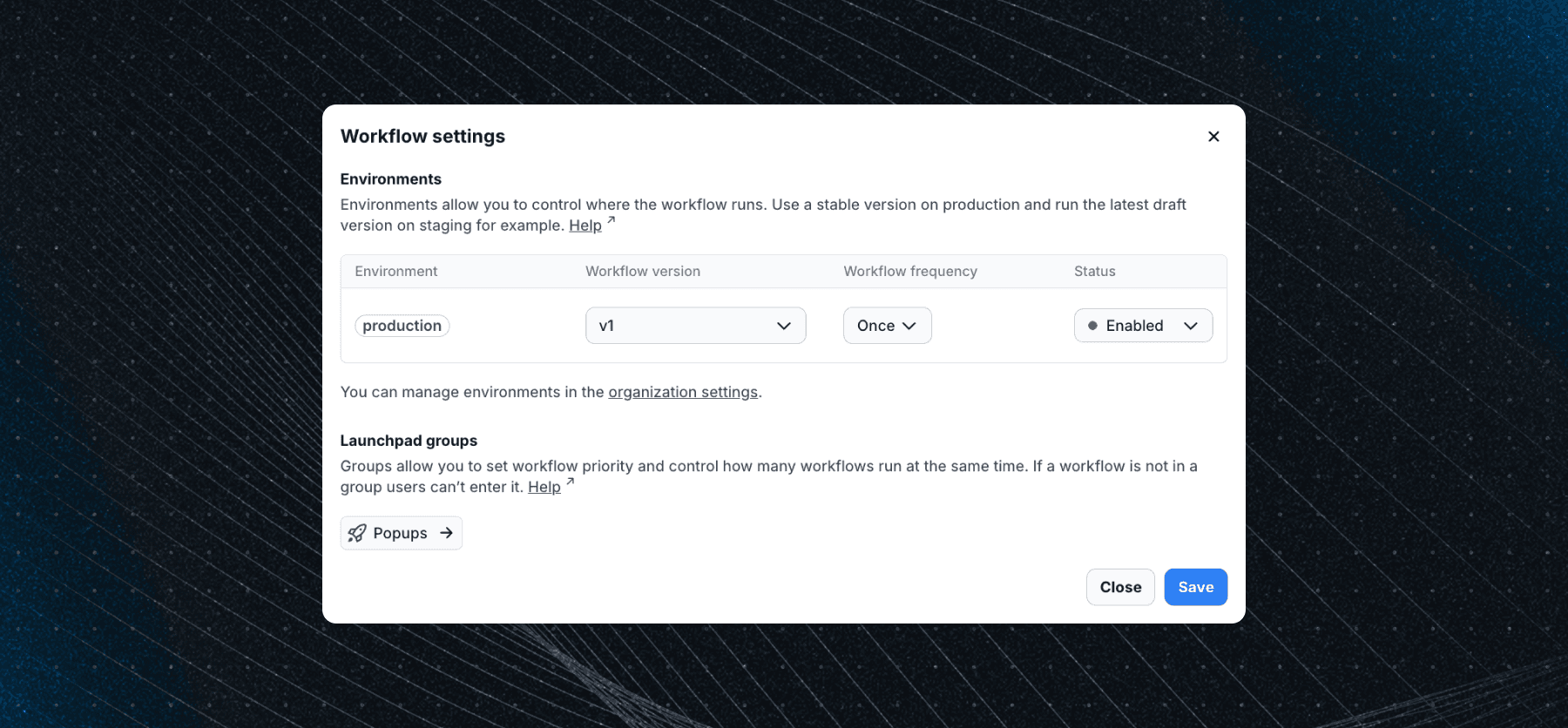
- View the versions active in each environment, and manage environments as needed.
Each environment includes:
- Workflow version: The active version in that environment.
- Workflow frequency: The frequency setting for that environment.
- Status: Indicates if the workflow is active.
To disable a workflow in an environment, choose Disable from the environment's status menu. This stops new users from entering the workflow and hides it from any users currently active in it. When you re-enable the workflow, users can enter it again and already active users resume where they left off.
Last updated on