Block key
Unique identifier for a block.
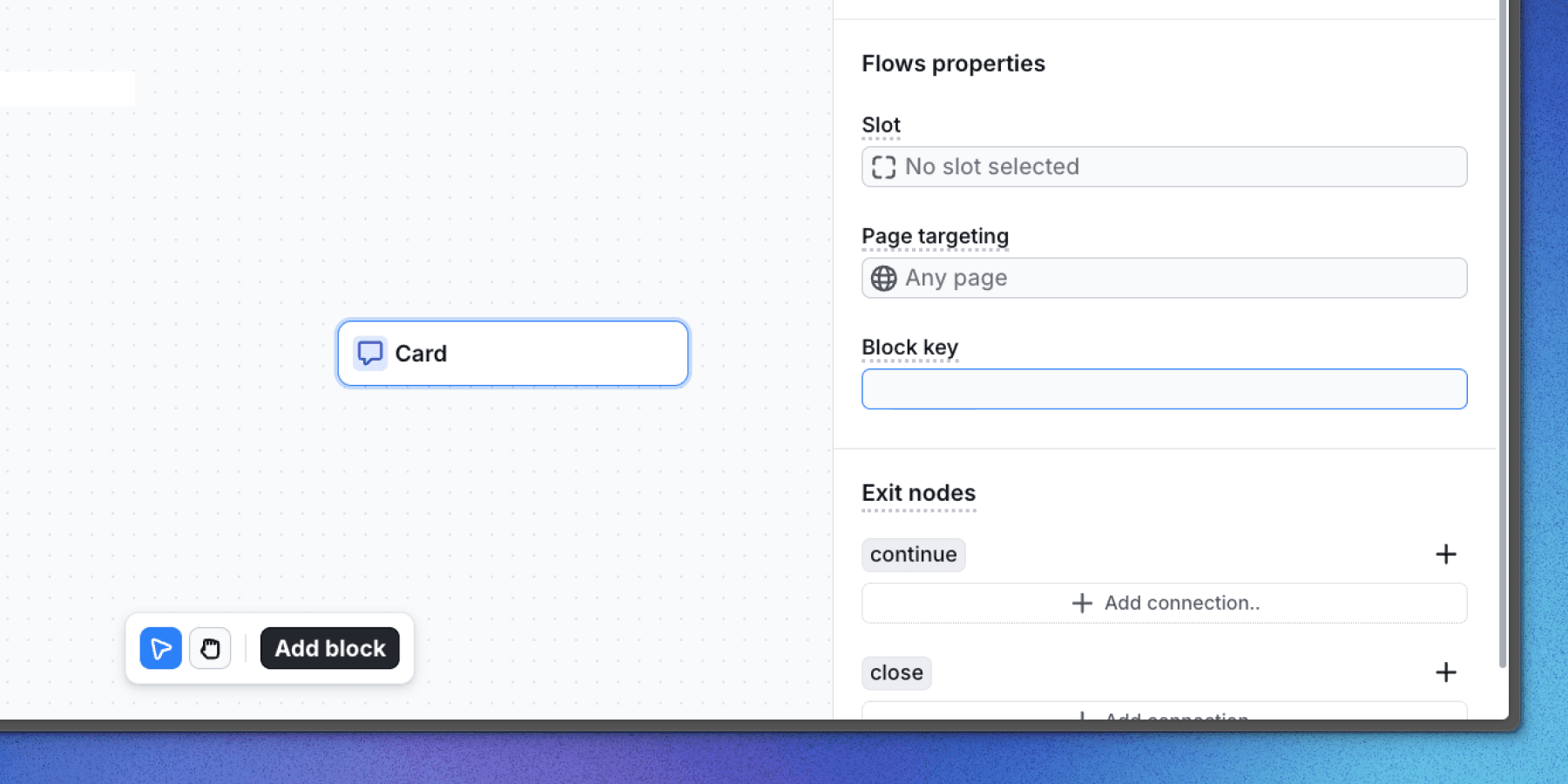
Overview
A block key is a unique identifier for a block, allowing you to identify blocks in SDK method responses.
Usage in a workflow
You can set the block key in the settings of any component block within a workflow. This field is optional and is left empty by default.
Usage in a component
The block key is automatically included in every component, so no manual configuration is needed. You can access it in your application through the following methods:
- React SDK
- useCurrentFloatingBlocks()
- useCurrentSlotBlocks()
- Accessible in any block component via the
__flows.keyprop.
- JavaScript SDK
- getCurrentFloatingBlocks()
- getCurrentSlotBlocks()
- addFloatingBlocksChangeListener()
- addSlotBlocksChangeListener()
- Accessible in any block component via the
__flows.keyprop.
Example implementation
In this example we will use the block key to open and close a panel when specific block is active.
Create a workflow and publish it
Set up a workflow with a tour block that includes the following steps:
- Step 1: Tooltip with a block key
close-menutargeting a button with theid=menu-button. - Step 2: Tooltip with a block key
inside-menupointing to a panel with theid=menu-content.
Configure other tooltip properties as needed.
Implement useCurrentFloatingBlocks() to control the menu
To open and close the menu, we will use the useCurrentFloatingBlocks() hook to track the active floating blocks for the user. We will look for the steps with the block keys close-menu and inside-menu to open and close the menu. When the steps are active we will set the state to open or close the menu.
import { useCurrentFloatingBlocks } from "@flows/react";
import { useEffect, useState } from "react";

export default function Home() {
  // State to manage the menu visibility
  const [open, setOpen] = useState(false);

  // Get the floating blocks for the current user
  const blocks = useCurrentFloatingBlocks();

  // Look for the steps that open and close the menu. They are identified by the block key
  const openMenuStep = blocks.find((block) => block.props.__flows.key === "inside-menu");
  const closeMenuStep = blocks.find((block) => block.props.__flows.key === "close-menu");

  // When the steps are found, set the state to open or close the menu
  useEffect(() => {
    if (openMenuStep) {
      setOpen(true);
    }
    if (closeMenuStep) {
      setOpen(false);
    }
  }, [openMenuStep, closeMenuStep]);

  return (
    <div className="mx-auto max-w-3xl px-6 py-16" id="hidden-card">
      {/* Button to open the menu */}
      <Button variant="outline" id="menu-button" size="icon" onClick={() => setOpen(!open)}>
        <Menu />
      </Button>

      {/* Menu content */}
      {open && (
        <div className="mt-2 rounded-sm border p-20" id="menu-content">
          <p className="text-center font-semibold text-muted-foreground" id="menu-text">
            Menu content here
          </p>
        </div>
      )}
    </div>
  );
}
Result
When users navigate through the tour:
- The menu opens when reaching the second step (
inside-menukey). - The menu closes upon returning to the first step (
close-menukey). - The menu remains open through additional steps unless explicitly closed.
To close the menu from another point, add a step with the block key close-menu.
This approach can be used outside of a tour block as well. For example, you can use the block key to open a popup when a specific block is active.
Last updated on