Overview
A set of essential UI components to kickstart your product adoption journey.
Overview
Basics V1 provides a set of ready-to-use components (Modal, Tooltip, and Hint) for building onboarding and education flows in your product. Each component integrates seamlessly with Flows, handling rendering, state, and lifecycle so you can focus on your app’s logic and UI.
Basics V1 is in maintenance mode. We recommend migrating over to Basics V2, as it includes improved components, features, and is actively maintained.
Components
Modal
Display a modal to guide users through a process.
Tooltip
Guide users with helpful tooltips.
Hint
Provide subtle hints to users.
Installation
You can install and integrate the Basics V1 library using either React or JavaScript, depending on your application stack.
React
Install the React package
npm install @flows/react-components@1.2.2Import and use components
Import the Basics V1 components and register them in the FlowsProvider.
import { FlowsProvider } from "@flows/react";
import * as components from "@flows/react-components";
import * as tourComponents from "@flows/react-components/tour";
import "@flows/react-components/index.css";

const App = () => {
  return (
    <FlowsProvider
      organizationId="your-organization-id" // Find this in Settings > General
      environment="production" // Default environment
      userId="your-user-id" // Identify the user
      tourComponents={{
        ...tourComponents,
      }}
      components={{
        ...components,
      }}
    >
      {/* Your app code here */}
    </FlowsProvider>
  );
};
Enable library in Flows
In the Flows dashboard, go to Components and click the Libraries button. In the dialog that appears, find the Basics V1 library and click Enable library.
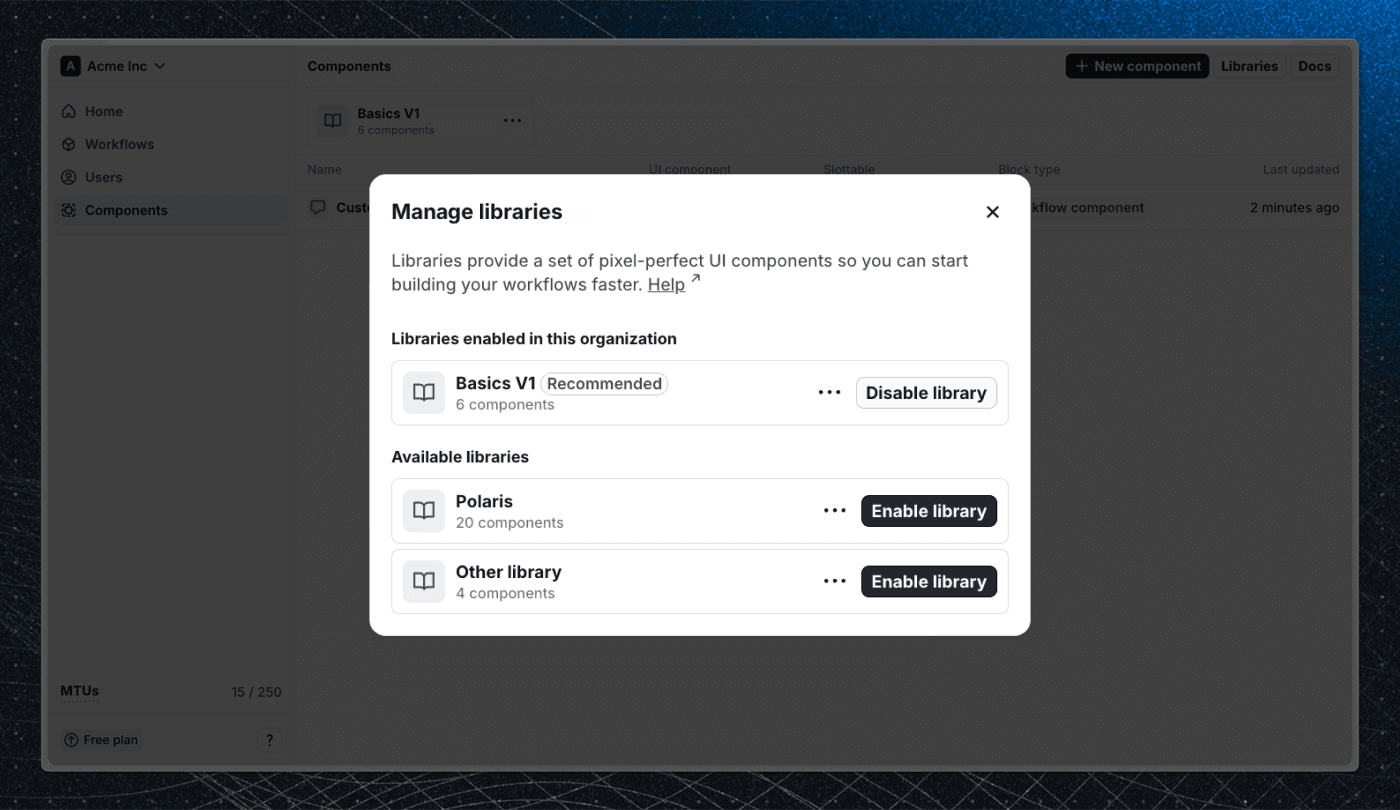
Once enabled, you’ll see the Basics V1 components available when adding new blocks to a workflow.
JavaScript
Install the JavaScript package
npm install @flows/js-components@1.2.1Setup components and rendering
For Flows to be able to render the components from the Basics V1 library, you need to setup the slot components and render function for the floating blocks. Rendering of slot blocks will be handled by the flows-slot element.
import { init, addFloatingBlocksChangeListener } from "@flows/js";
import { render, updateSlotComponents } from "@flows/js-components";
import * as components from "@flows/js-components/components";
import * as tourComponents from "@flows/js-components/tour-components";

// Import the styles or copy them to your project and <link> them in your HTML
import "@flows/js-components/index.css";

init({ ... })

updateSlotComponents({ components, tourComponents })

const dispose = addFloatingBlocksChangeListener((blocks) => {
  render({ blocks, components,tourComponents });
});

// Call `dispose` when you want to stop listening to the changes to avoid memory leaks
dispose()
Enable the library in Flows
In the Flows dashboard, go to Components and click the Libraries button. In the dialog that appears, find the Basics V1 library and click Enable library.
Once enabled, you’ll see the Basics V1 components available when adding new blocks to a workflow.
Last updated on