Tour sessions
Control what happens to a tour when a user leaves your app, and how many tours can run at the same time.
Overview
A tour session represents a single sitting in which a user works through a tour. Session settings let you decide what should happen to a half-finished tour when the user leaves and comes back later, and they are used when a tour gets interrupted by another one.
A session starts when the user moves past the first step of a tour. A user who sees the first step and then leaves has not started a session, so nothing happens to their progress.
While the user stays in your app, the session stays open. It ends once the user leaves your app and does not return within a few minutes.
When user session ends
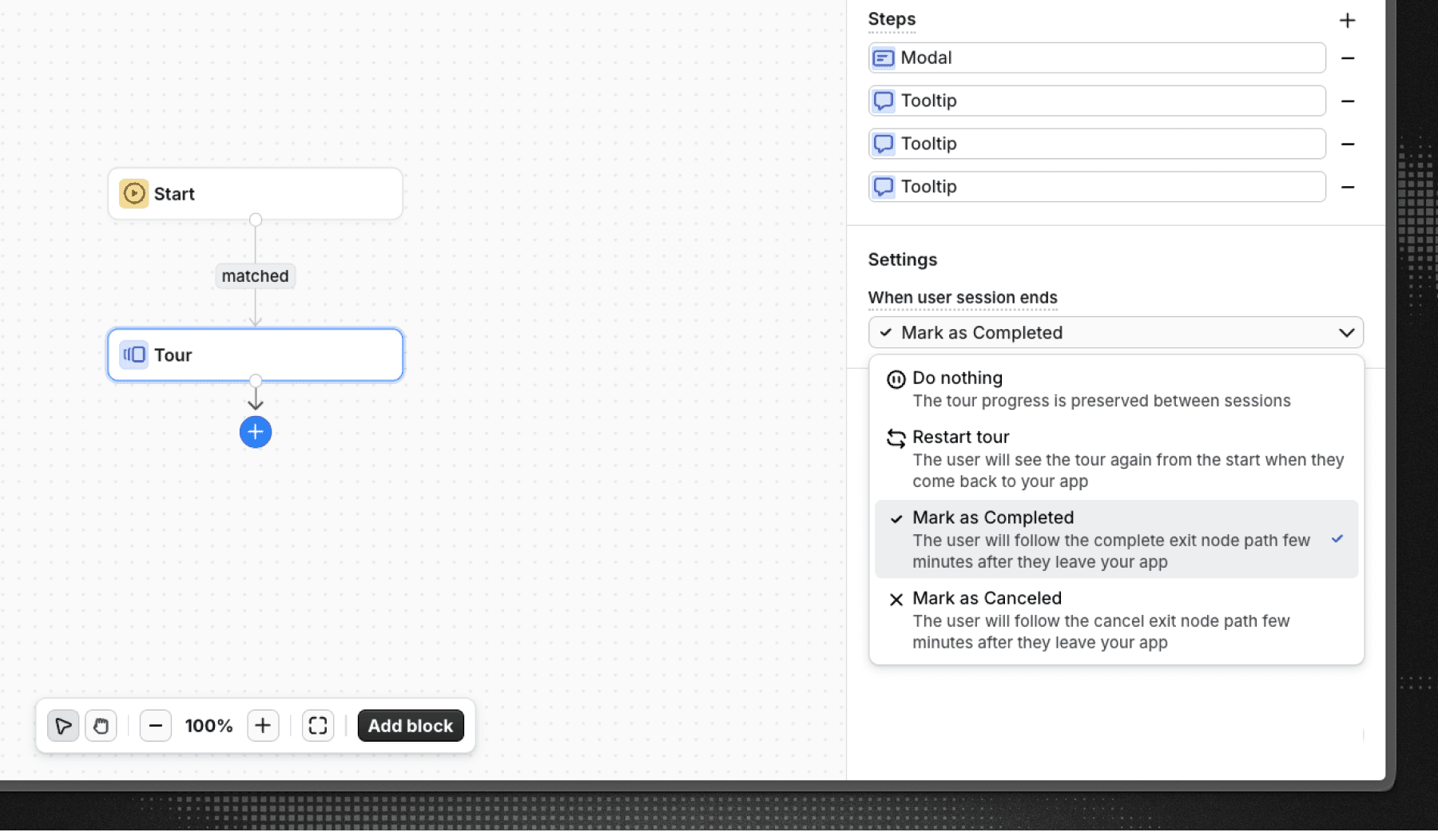
The When user session ends setting on a tour block decides what happens to the tour once the session ends. Open the tour block and find the setting under Settings.
- Do nothing – The tour progress is preserved. When the user comes back, they resume on the step they left on.
- Restart tour – The tour progress is reset. When the user comes back, they see the tour again from the first step.
- Mark as Completed – The tour follows its
completeexit node, the same path it would take if the user had finished every step. - Mark as Canceled – The tour follows its
cancelexit node, the same path it would take if the user had dismissed the tour. This is the default.
Mark as Completed and Mark as Canceled end the tour and move the user on through the rest of the workflow, so whatever you connect to those exit nodes runs a few minutes after the user leaves. Use them when an abandoned tour should not be waiting for the user next time they visit, for example when you want to follow up with a different message instead.
Because these actions run after the user has already left your app, they take effect a few minutes later rather than instantly.
Choosing an action
- Use Do nothing for long tours that a user is expected to pick up across several visits.
- Use Restart tour for short tours that only make sense from the beginning.
- Use Mark as Completed or Mark as Canceled when abandoning the tour should move the user forward in the workflow rather than leave the tour pending.
Running multiple tours
By default, only one tour shows at a time. If several tours would start at the same moment, Flows picks one and leaves the others alone.
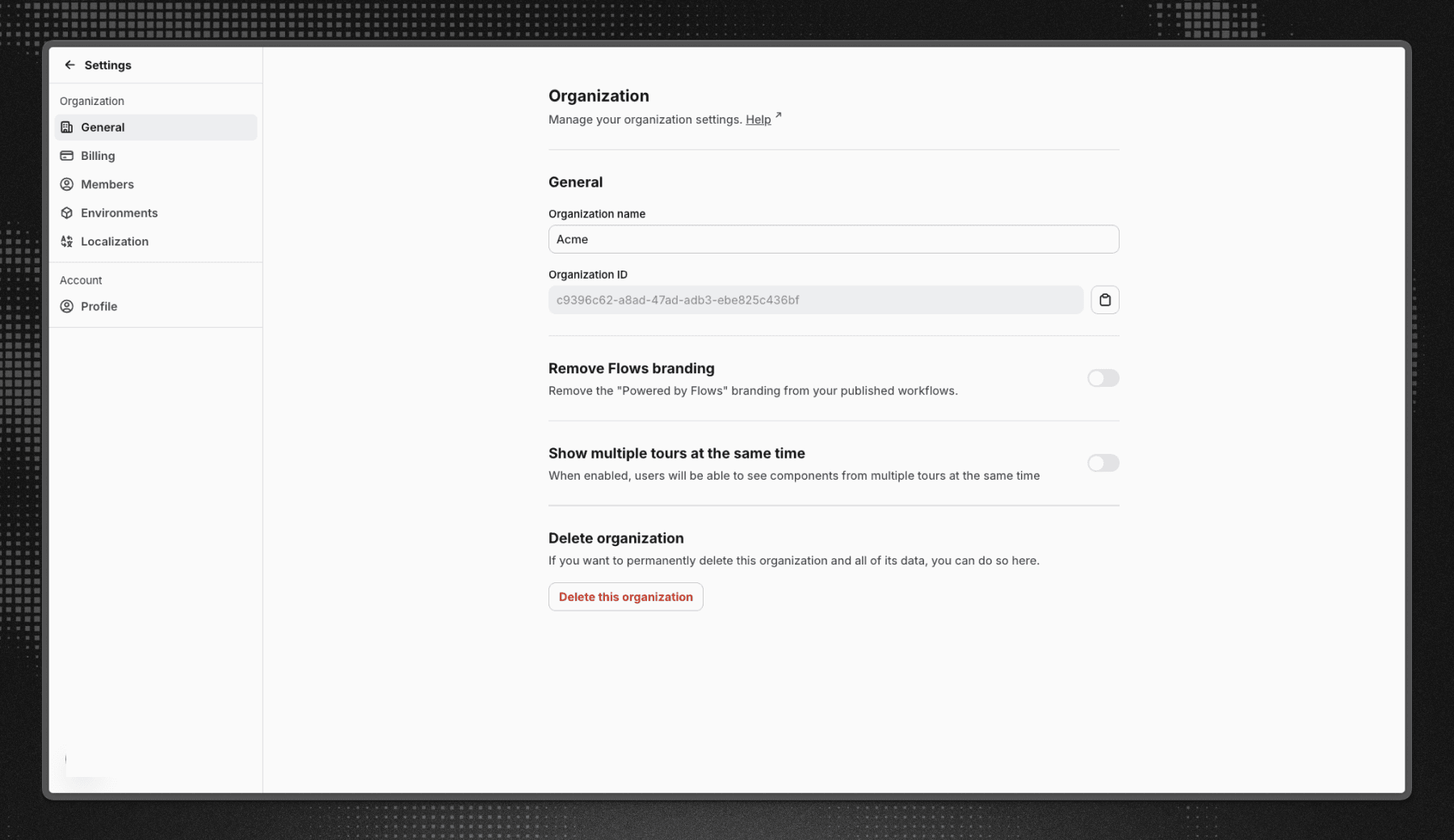
You can change this under Settings > Organization > General with the Show multiple tours at the same time setting. When it is enabled, components from multiple tours can appear on screen together.
Showing several tours at once gives you more advanced scenarios, but it also means two tours can compete for the same part of the screen. Leave it off unless you need it.
Organizations created before this setting existed have it enabled, so their tours keep behaving as they did. New organizations start with it disabled.
Tour priority
When several tours match at the same time and only one may run, Flows starts the one whose trigger is the most specific:
- A tour triggered by a user clicking an element outranks tours started by any other condition, because a click is a direct request from the user.
- Beyond that, a tour with more trigger conditions outranks a tour with fewer, since matching more conditions makes it the more deliberate match.
- A tour with no trigger at all has the lowest priority, because it starts wherever the user happens to be.
If you need one tour to reliably win over another, give it a more specific trigger.
What happens to the tours that do not start
A tour that loses is simply not started. Its progress is untouched and it starts later, whenever its own trigger matches again. Once the running tour finishes, a tour with a trigger that still matches starts as usual.
Interrupting a running tour
A tour triggered by a user clicking an element takes over from a tour that is already running. The user asked for that tour, so it takes precedence over one that started on its own.
The interrupted tour is not left hanging. It is resolved through its own When user session ends action, exactly as if the user's session had ended:
- Do nothing – Its progress is kept, and the user resumes where they left off next time it starts.
- Restart tour – Its progress is reset, so it starts from the first step next time.
- Mark as Completed – It follows its
completeexit node. - Mark as Canceled – It follows its
cancelexit node.
An interrupted tour does not resume by itself once the interrupting tour finishes. It starts again only when its own trigger matches.
This makes the When user session ends setting worth configuring on any tour that can be interrupted, not only on tours users are likely to abandon.
Next steps
- Configure triggers and steps on the tour block.
- Review your organization settings.
Last updated on