Overview
Collect structured feedback from users directly within your application.
Overview
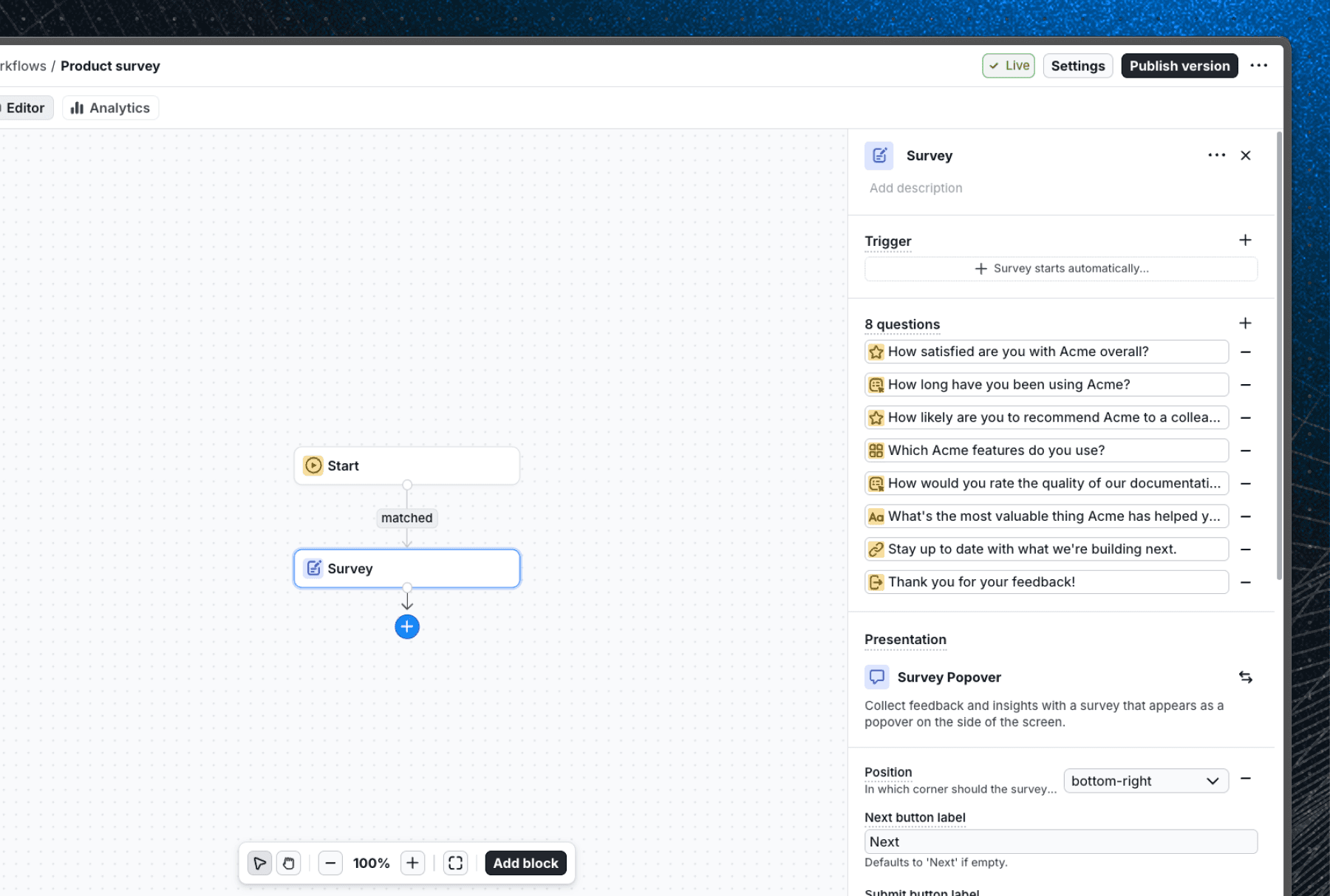
Surveys let you collect structured feedback from users at any point in a workflow. You can ask users to rate their experience, choose from options, or leave freeform comments - all without leaving your application.
Create a survey
Surveys can only be created as part of a workflow. To create a survey:
- Add a survey block to an existing workflow using the Add block menu.
- Add questions and configure each one.
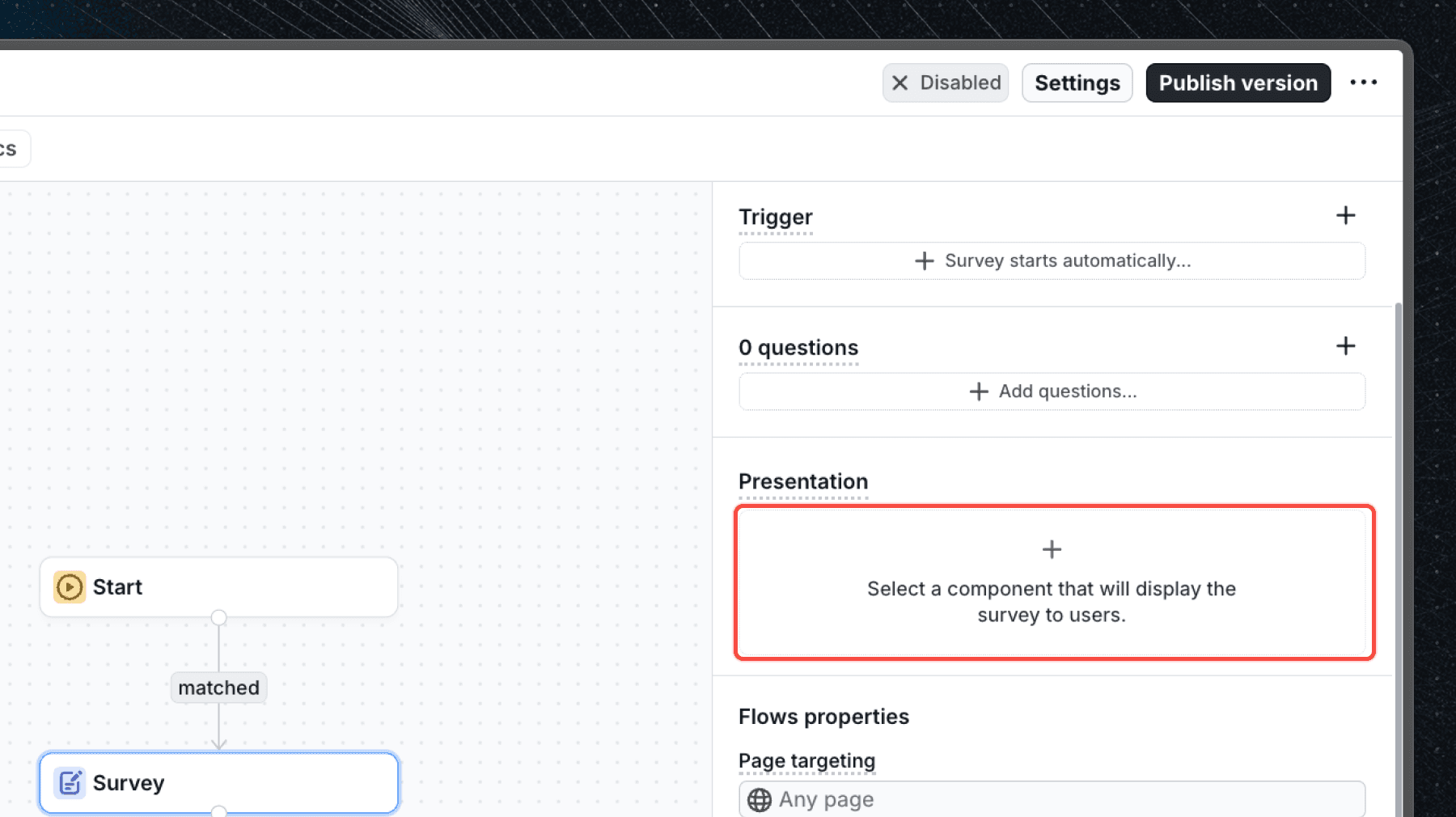
- Select a component under Presentation to define how the survey is displayed to users.
- Configure any additional settings such as targeting, triggers, or component properties.
- Save and publish your workflow to make the survey available to users.
For a detailed walkthrough, see the Create a Survey guide.
Trigger
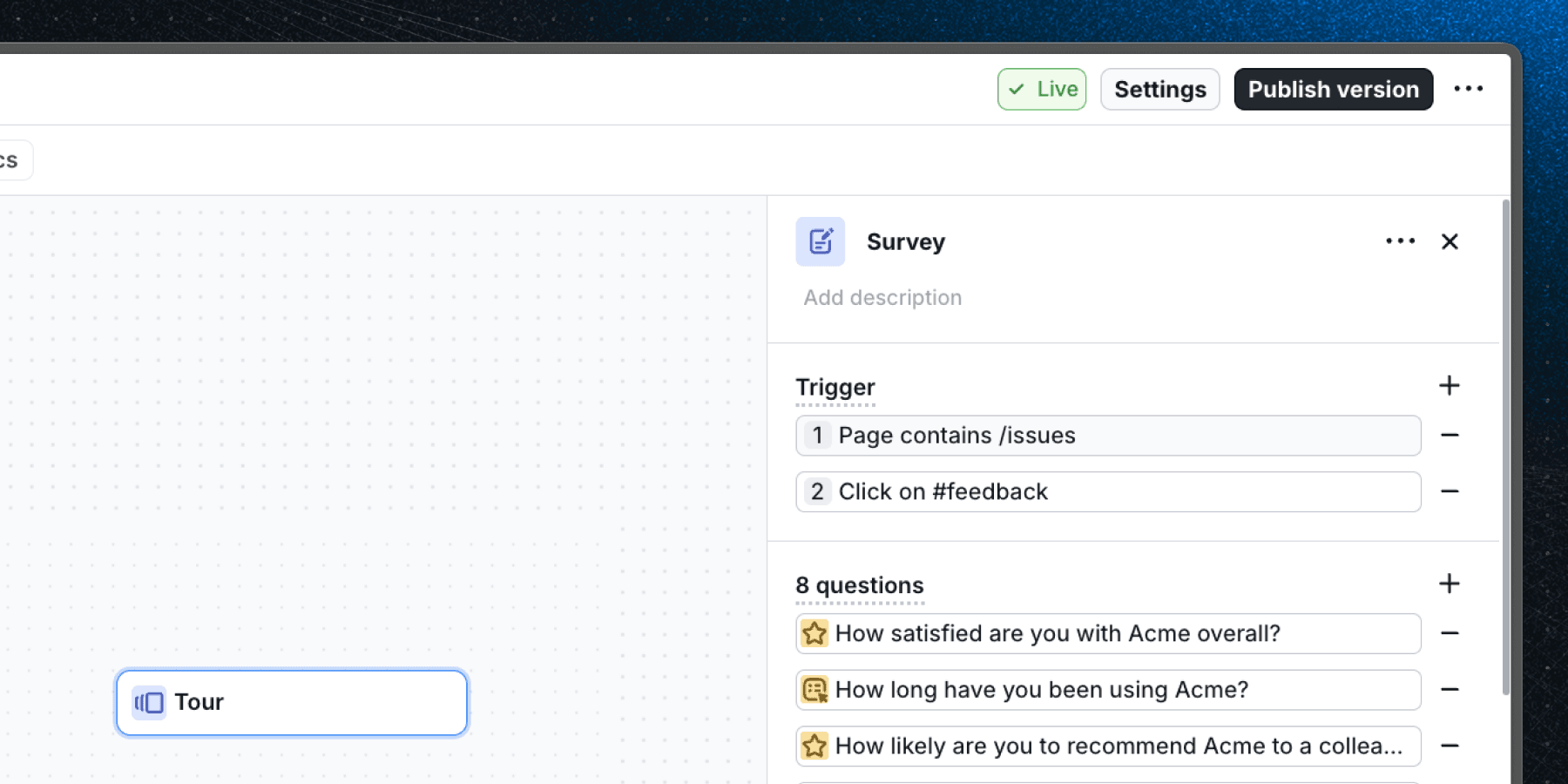
The trigger property defines when the survey should appear. By default, the survey starts automatically when the user reaches the survey block in a workflow. However, you can configure custom triggers to show the survey based on specific conditions.
Trigger conditions are defined as an array, and all conditions must be met for the survey to start. The following trigger types are supported:
- User navigates to a page - the survey starts when the user navigates to a specified URL.
- User clicks on an element - the survey starts when the user clicks a specific element (use CSS selector).
- Element is on the page - the survey starts when a specific element is present in the DOM (use CSS selector).
- Element is not on the page - the survey starts when a specific element is not present in the DOM (use CSS selector).
Presentation
The Presentation setting controls which component renders the survey UI to your users. You must select a component before the survey can be displayed.
You can choose from custom components you have built in your component library, or from built-in library components. The selected component is shared across all languages - it cannot be configured per language.
Changing the component after initial setup will overwrite any existing component properties and require you to reconfigure them from scratch.
Question types
Each survey is made up of one or more questions. You can mix and match question types within a single survey. Use the Add question menu inside the survey block to add a new question.
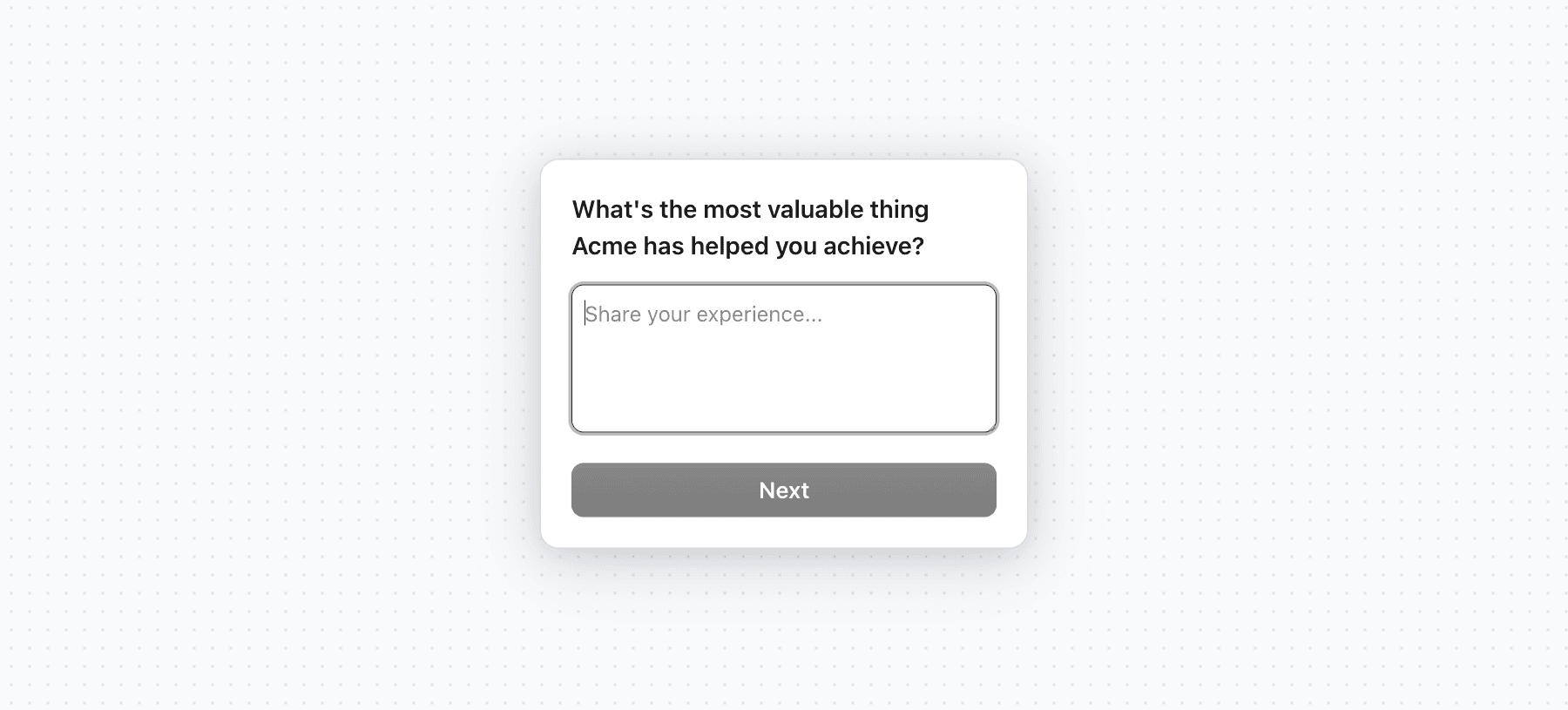
Freeform
Freeform questions accept open-ended text input from the user.
Options:
- Placeholder - hint text displayed inside the text field before the user starts typing.
Rating
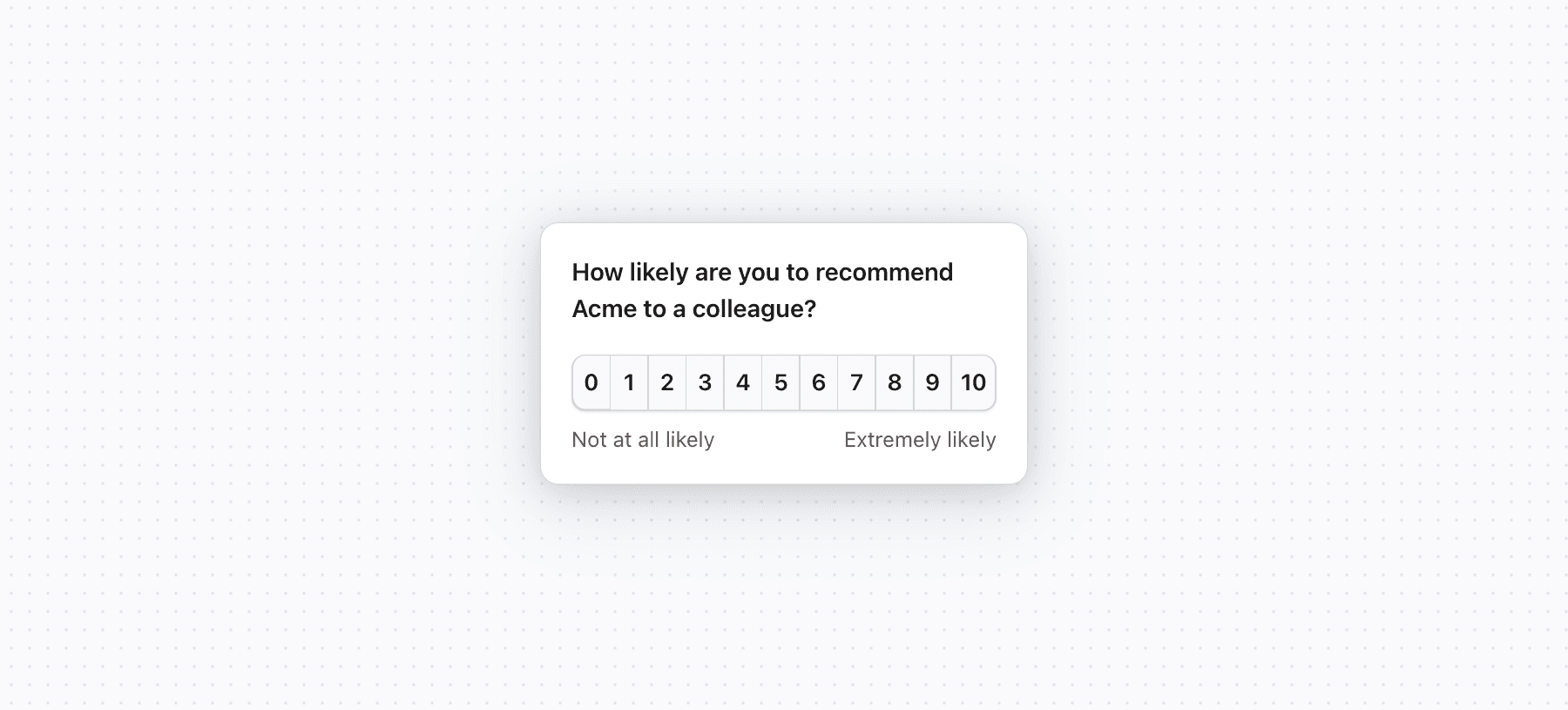
Rating questions ask users to select a value on a numerical scale.
Options:
- Display - the visual style of the rating input:
- Numbers - a row of numbered buttons.
- Stars - star icons.
- Emojis - emoji icons.
- Scale - the range of values. Available options depend on the display type:
- Numbers: 1-3, 1-5, 1-7, 1-10, 0-10 (NPS)
- Stars and Emojis: 1-3, 1-5
- Lower label - label shown at the low end of the scale (e.g. "Poor").
- Upper label - label shown at the high end of the scale (e.g. "Excellent").
Single choice
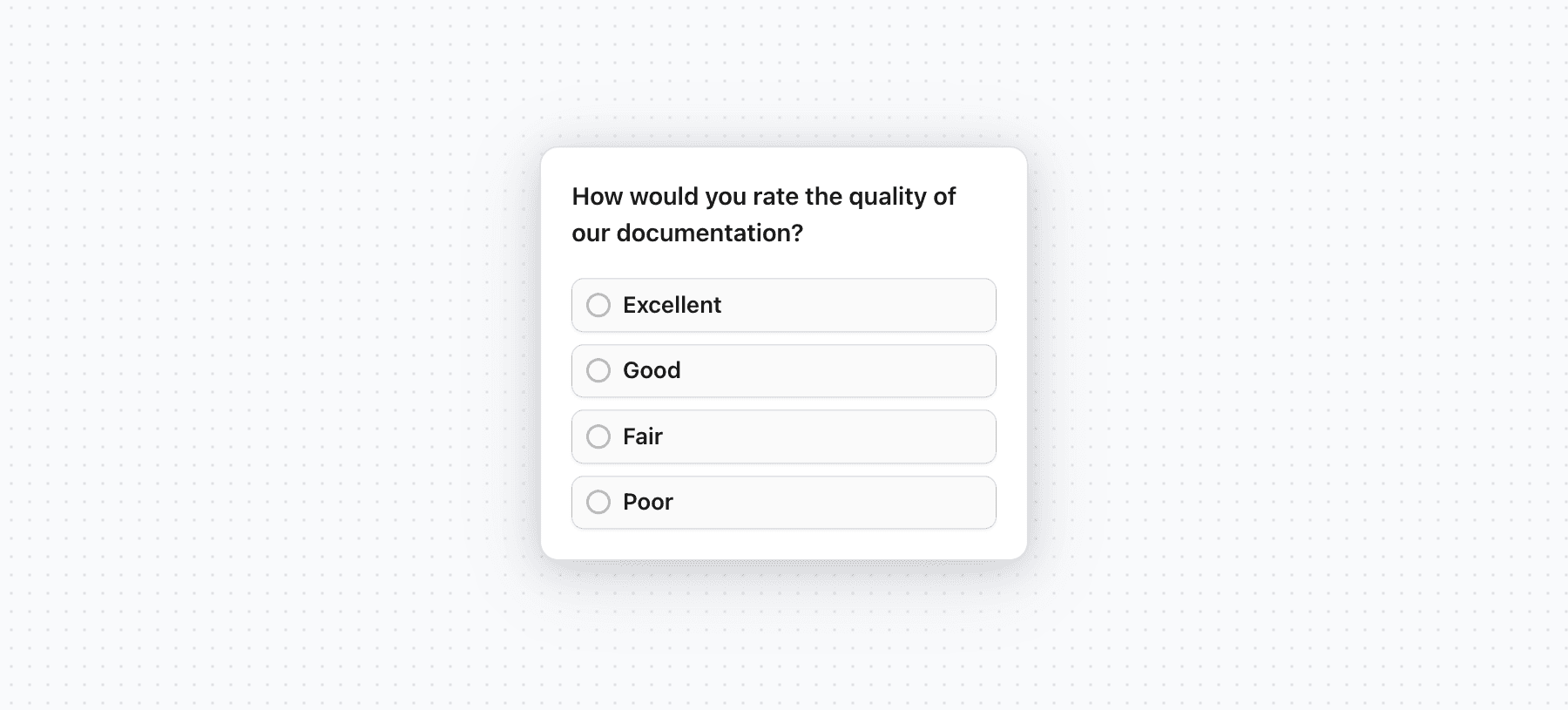
Single choice questions present a list of options and allow the user to select one.
Options:
- Options - the list of choices. You can add, edit, remove, and reorder options.
- Shuffle options - randomize the order in which options are shown to users.
- Other option - adds a free-text "Other" field below the options list. You can customize the label for this field.
Multiple choice
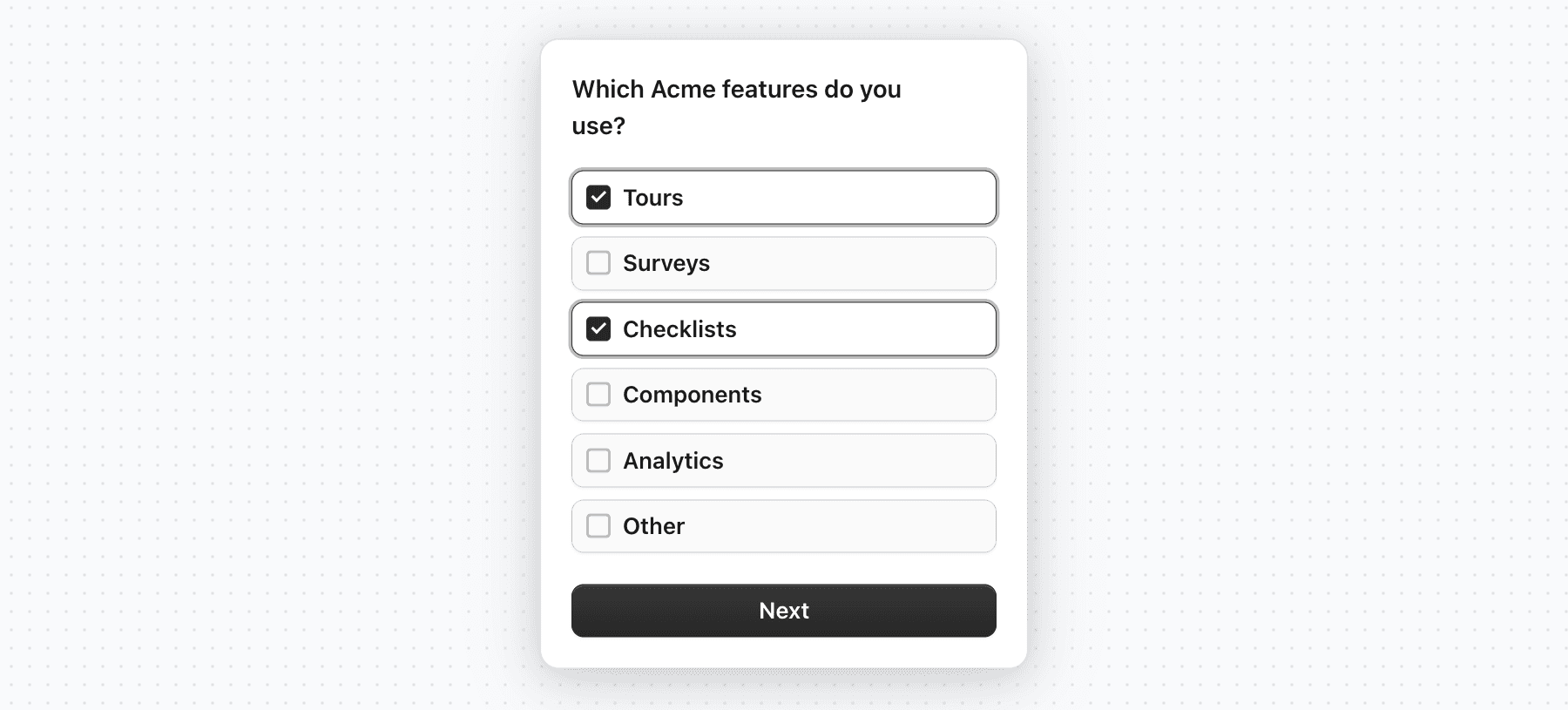
Multiple choice questions work the same as single choice, but allow the user to select more than one option.
Options:
- Options - the list of choices. You can add, edit, remove, and reorder options.
- Shuffle options - randomize the order in which options are shown to users.
- Other option - adds a free-text "Other" field below the options list. You can customize the label for this field.
Link
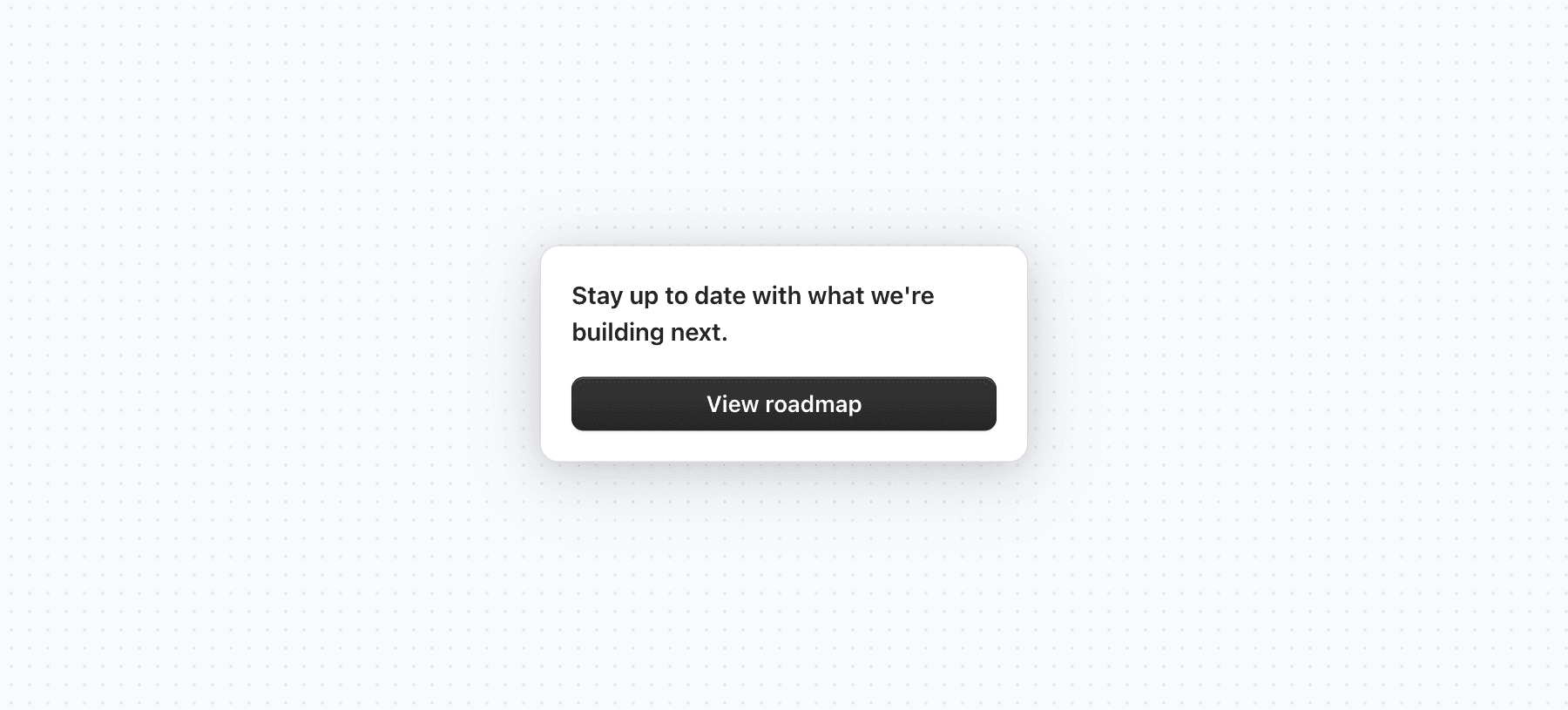
Link questions display a call-to-action button. Use them to send users to a relevant resource or to confirm they have acknowledged something.
Options:
- Button label - the text shown on the button.
- URL - the destination URL. If left empty, the button acts as an acknowledgement with no navigation.
- Open in new tab - whether to open the URL in a new browser tab.
End screen
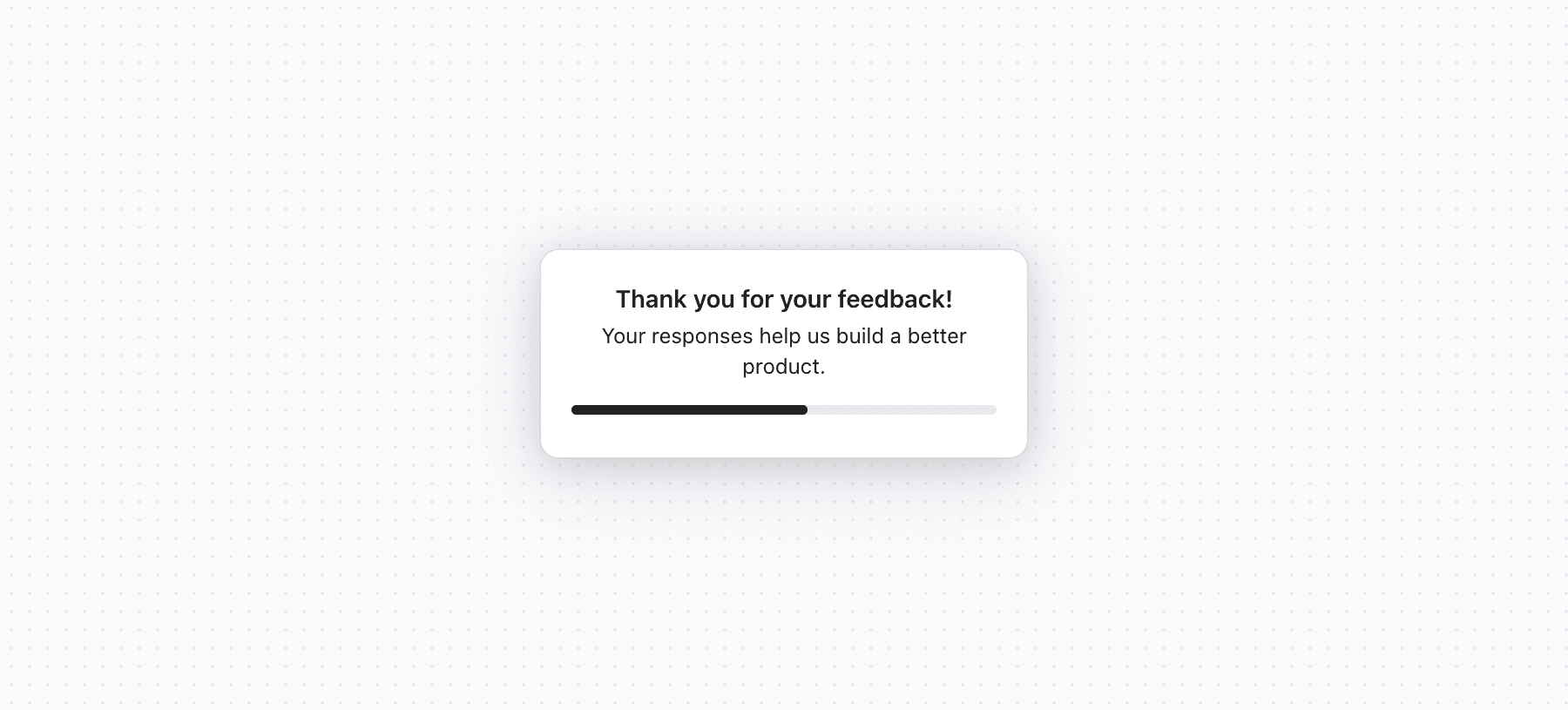
The end screen is the final step of a survey. It confirms to the user that their response has been submitted. There can only be one end screen per survey and it is always displayed last.
Options:
- Button label - the text shown on the button (e.g. "Done").
- URL - an optional link to open when the button is clicked.
Question properties
All question types share the following properties:
- Title - the question text shown to the user. Required.
- Description - optional supporting text shown below the title.
- Optional - when enabled, users can skip the question without providing an answer.
Reordering questions
To reorder questions, hover over a question and drag it by the handle that appears on the left side. The end screen question is always pinned to the last position.
Analytics
Survey results are available in the analytics tab of the survey block. See the analytics page for details.
Next steps
- Follow the Create a Survey guide for a step-by-step walkthrough of building and publishing your first survey using the Survey Popover component.
- Explore the Survey Popover example to see a fully built survey in action and access the source code.
Last updated on