Examples library
Floating checklist
Interactive list of suggested setup actions the user can take. Floating in the corner of the screen.
A floating onboarding checklist is one of the most effective ways to guide new users through key setup steps in your SaaS app. This example showcases a built-in in-app checklist widget that sits in the bottom-right corner of the screen, giving users a clear list of suggested setup actions to help them reach value faster.
What is a floating onboarding checklist?
A floating onboarding checklist is a persistent in-app widget that guides new users through a series of setup actions. Unlike a static onboarding flow, the checklist lets users work at their own pace - they can complete tasks in any order, skip steps, and return at any time.
Common use cases for a SaaS onboarding checklist:
- New user activation - guide users to the features that drive their aha moment.
- Setup completion - help users configure key settings before they start working.
- Feature discovery - surface capabilities users haven't tried yet.
Onboarding checklist best practices
A solid user onboarding checklist includes:
- Achievable tasks - users should be able to complete the tasks in a reasonable amount of time.
- A progress bar - visible progress keeps users motivated.
- Action-oriented language - use Create a project instead of Project.
- Steps that lead to value - the checklist should guide users to the most valuable features.
- Not too many steps - avoid overwhelming users. Break long checklists into smaller stages if needed.
- Initial momentum - mark some easy tasks as completed to give users a sense of accomplishment from the start.
How this example works
When a user signs up, the floating onboarding checklist appears in the bottom-right corner. Tasks are marked as completed once the user fulfills the required conditions.
Progress tracking
Progress tracking is handled by the state memory property. The state memory property is used to store the state of the checklist and update it when a task is completed. It can be triggered when user completes a selected block or when they click a button.
For example:
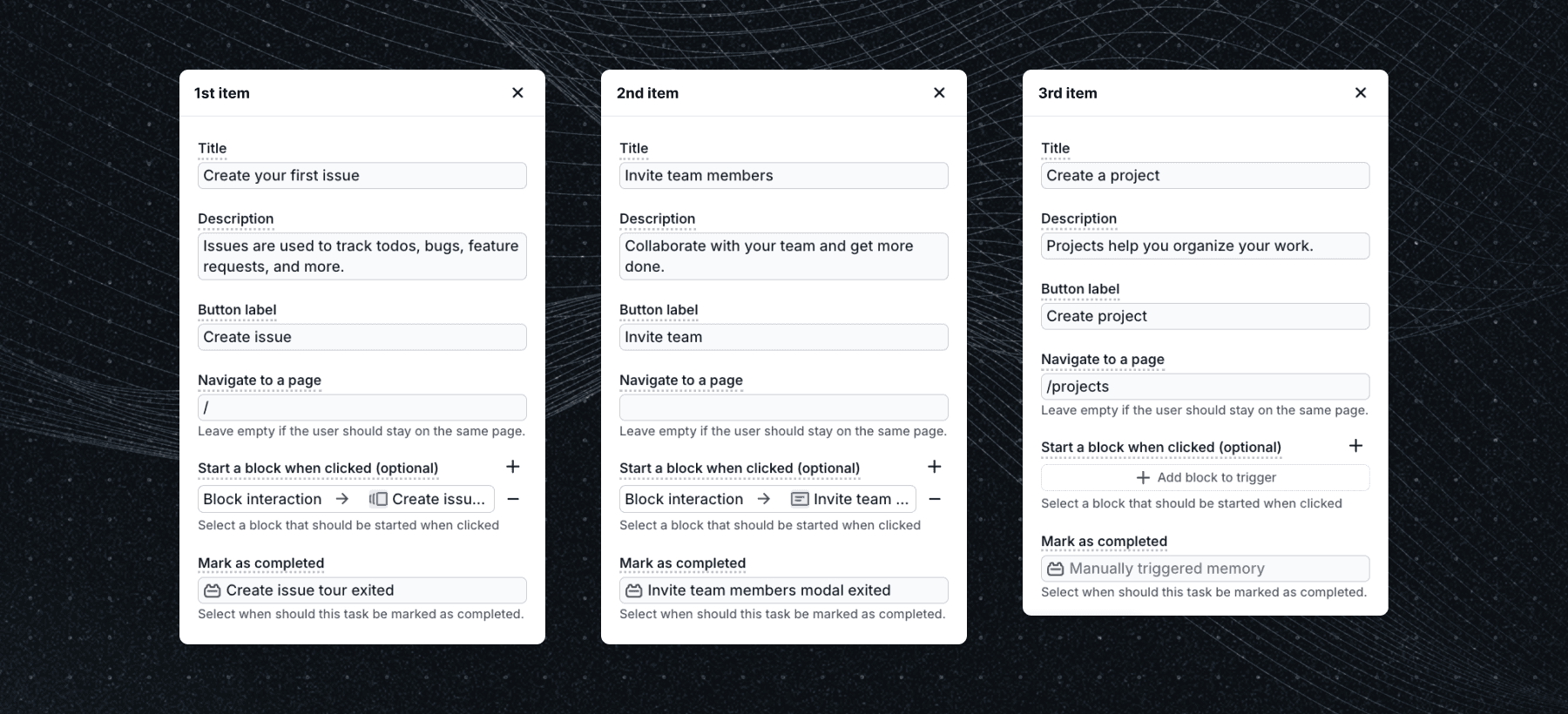
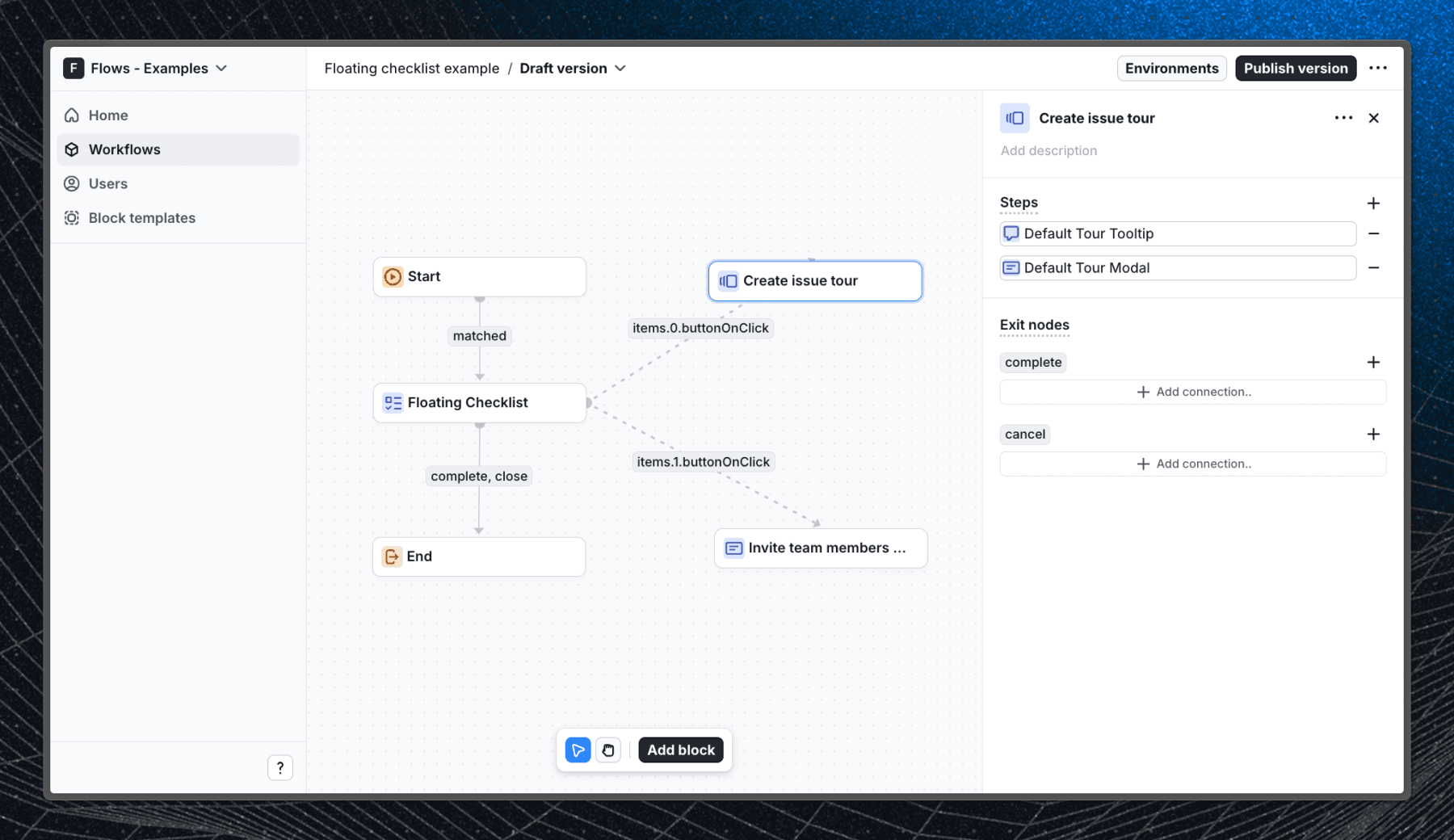
- The first checklist item is completed when the user finishes the Create issue tour.
- The last item is marked complete when the user clicks Create project in the checklist.
- Users can skip any step by clicking Skip step.
Workflow setup
Below is a screenshot of how the workflow is set up in Flows:
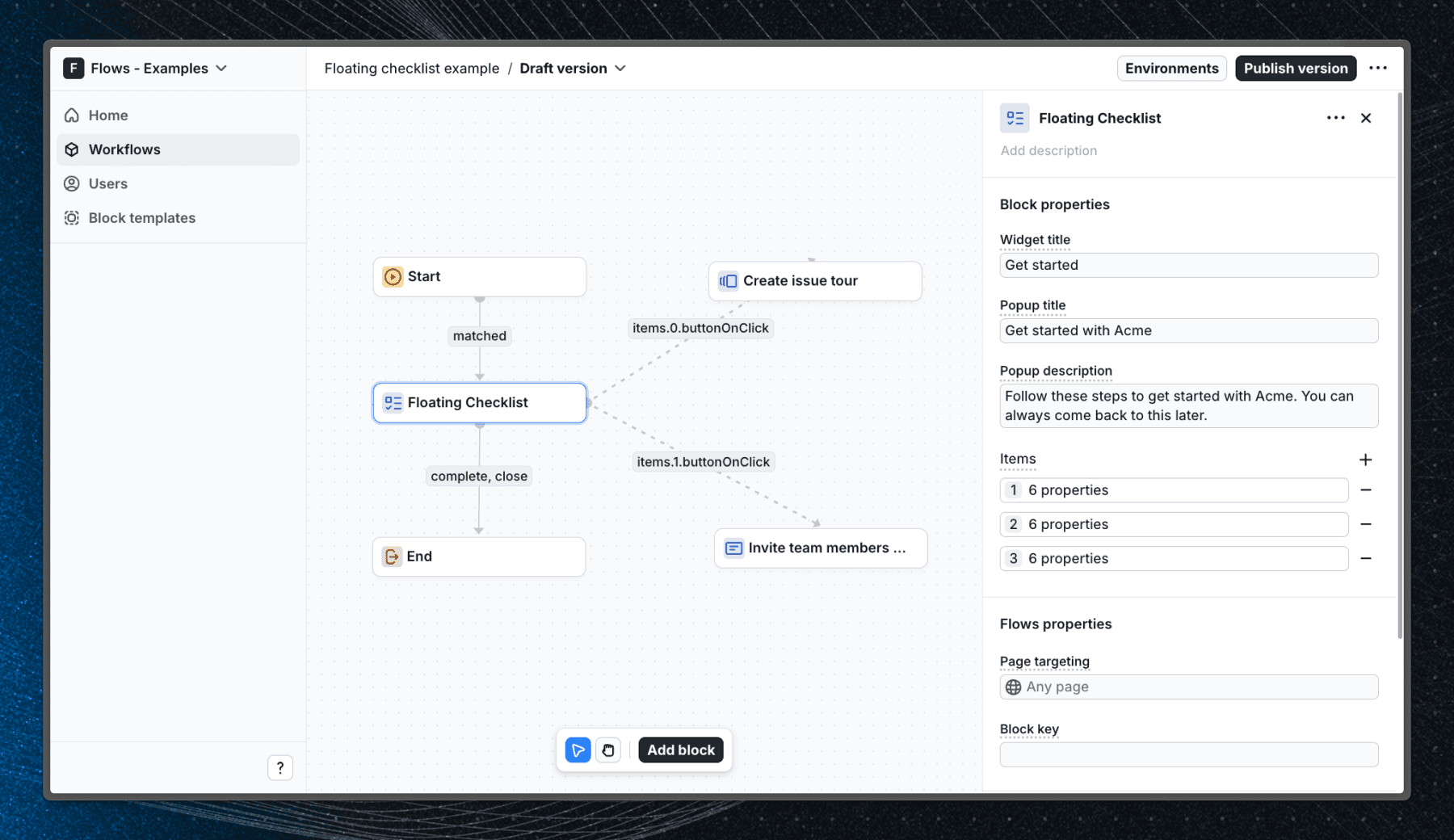
Checklist items setup
Each checklist item includes the following properties:
- Title
- Description
- Primary button
- Secondary button
- State memory - condition to mark the item as completed
Create issue tour setup
This example tour is triggered when the user clicks Create issue. The related checklist item is completed once the tour finishes.
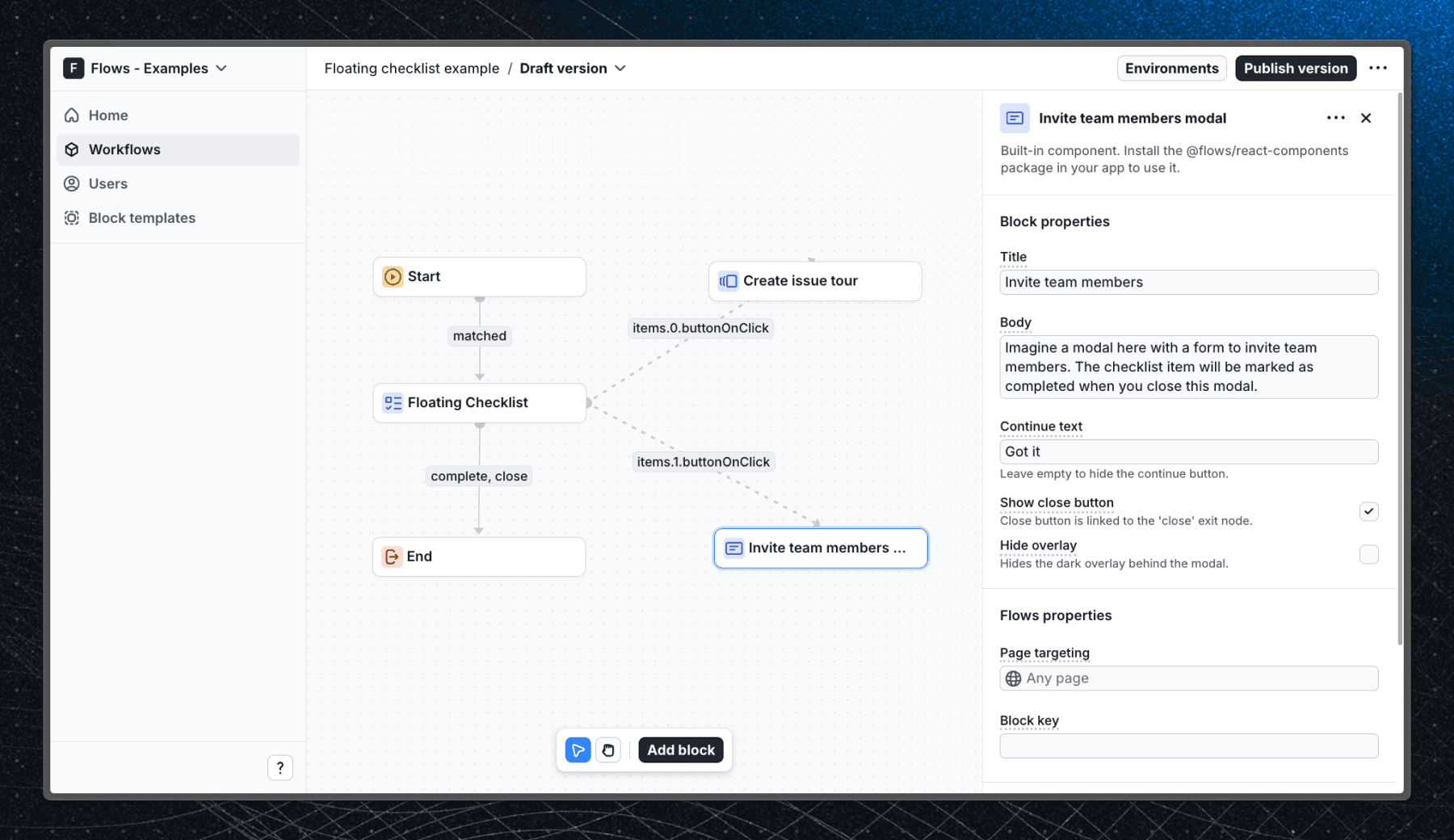
Modal setup
This example block is triggered when the user clicks Invite team. The checklist item is marked complete once the modal is closed.
Getting started
- Sign up for Flows if you haven’t already. You can create a free account here.
- Clone the repository from GitHub and install the required dependencies in the project directory.
- Add your organization ID in the providers.tsx file.
- Recreate the workflow using the Floating Checklist in your organization and publish it.
- Run the development server with pnpm dev.
Learn more
To learn more about Flows take a look at the following resources:
Framework
Next.js
Tags
Explore more examples
Build anything with Flows
Build the product adoption experiences you've always wanted.