Floating Checklist
Drive setup and activation with a list of instructions and tasks.
Overview
The Floating Checklist component provides users with a persistent, floating widget that contains a structured list of tasks or instructions to complete within your application. It is designed for multi-step, non-linear activation flows where users can complete tasks in any order and return to them over time.
Unlike other components, the Floating Checklist renders as a widget button anchored to a corner of the screen and persists across pages based on page targeting rules. Unlike Tours, it does not enforce a sequence. Instead, it acts as an activation hub that can launch other blocks such as Tours, Tooltips, or Modals.
Installation
To integrate the Checklist component into your application, follow the steps described in the library installation guide.
Usage
Start a Tour with Checklist
Checklist items can trigger actions that open other blocks or navigate users to specific pages in your application. To start a tour from a checklist item, assign a Tour block to the primary or secondary button action of the item. When user clicks the button, the Tour will start.
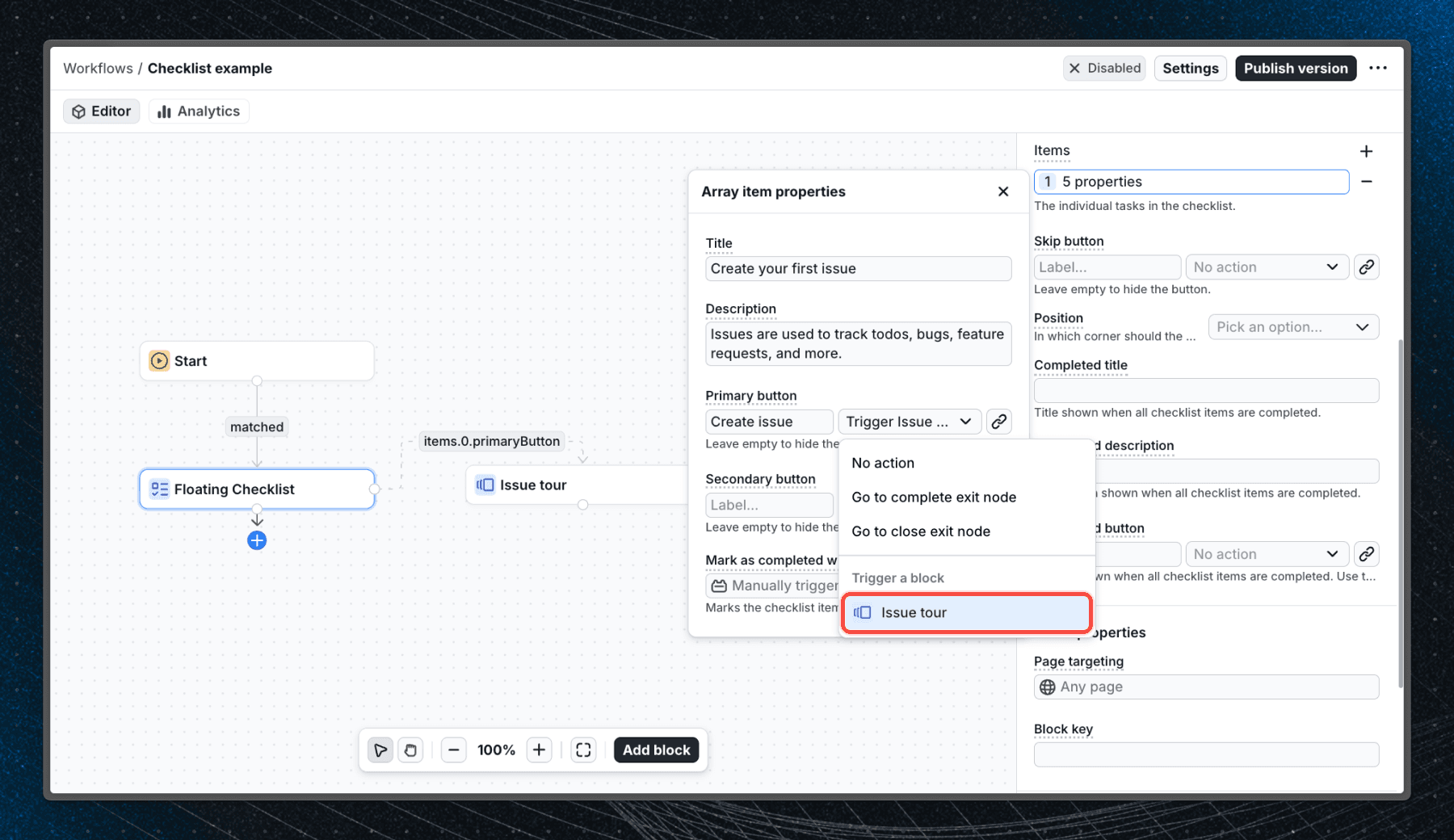
If you want the checklist item to be marked as completed only after the Tour finishes, configure the Completed state memory to be triggered when exiting the Tour block.
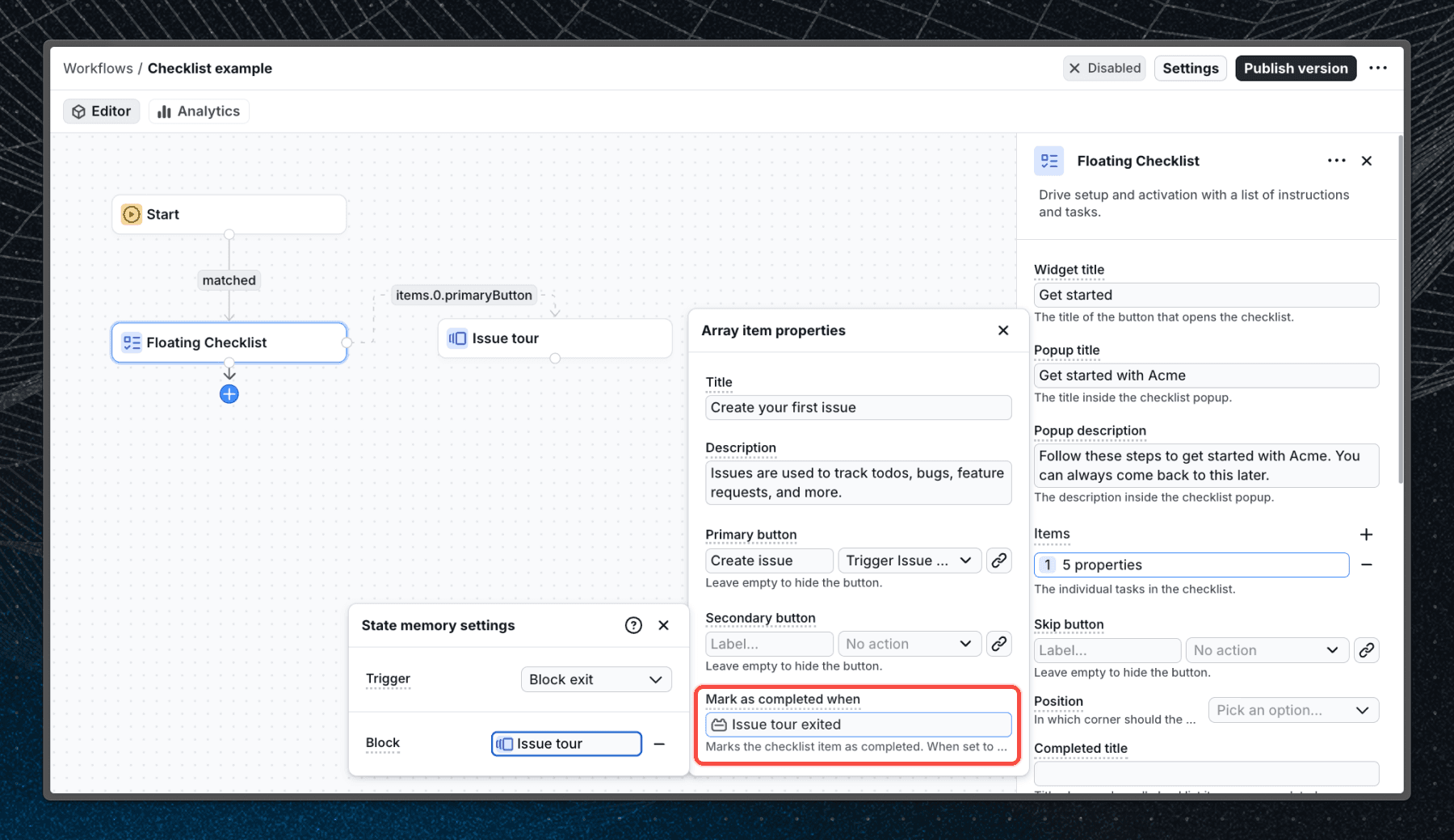
Marking Items as completed
By default, checklist items are marked as completed when the user clicks the primary button. For more advanced use cases, you can configure the Mark as completed property of each checklist item to be marked as completed when user exits a specific block in your workflow. This property uses the State memory feature to determine when an item should be marked as completed.
Example Workflow
A typical Checklist-driven workflow looks like this:
- Floating Checklist appears on the dashboard
- User clicks the item "Invite teammate"
- Workflow transitions into a Tour block
- User finishes the Tour
- Tour exit updates the Completed state memory
- Checklist item gets marked as completed
To see a full working example, check out the Checklist example workflow in the Flows examples.
Workflow properties
When using the Checklist component in a workflow, you can define the following properties:
| Name | Type | Notes |
|---|---|---|
| Widget title | string | The title of the button that opens the checklist. |
| Popup title | string | The title inside the checklist popup. |
| Popup description | string | The description inside the checklist popup. |
| Items | array | The individual tasks in the checklist. |
| Position | string | In which corner should the widget button be placed. Default is bottom-right. |
| Skip button | action | The skip button, see Action for all options. When empty the button is not rendered. |
| Completed title | string | The title shown when all checklist items are completed. |
| Completed description | string | The description shown when all checklist items are completed. |
| Completed button | action | The button shown when all checklist items are completed, see Action for all options. Use this to give the user a way to close the finished checklist. When empty the button is not rendered. |
| Page targeting | --- | What page the card should be shown on. Learn more |
Checklist item properties
| Name | Type | Notes |
|---|---|---|
| Title | string | The title of the checklist item. |
| Description | string | The body of the checklist item. |
| Primary button | action | The primary button, see Action for all options. When empty the button is not rendered. |
| Secondary button | action | The secondary button, see Action for all options. When empty the button is not rendered. |
| Mark as completed when | state memory | Marks the checklist item as completed. When set to manual the item is marked as completed when the user clicks the primary button. See State memory for more details. |
Exit nodes:
- Complete
- Close